
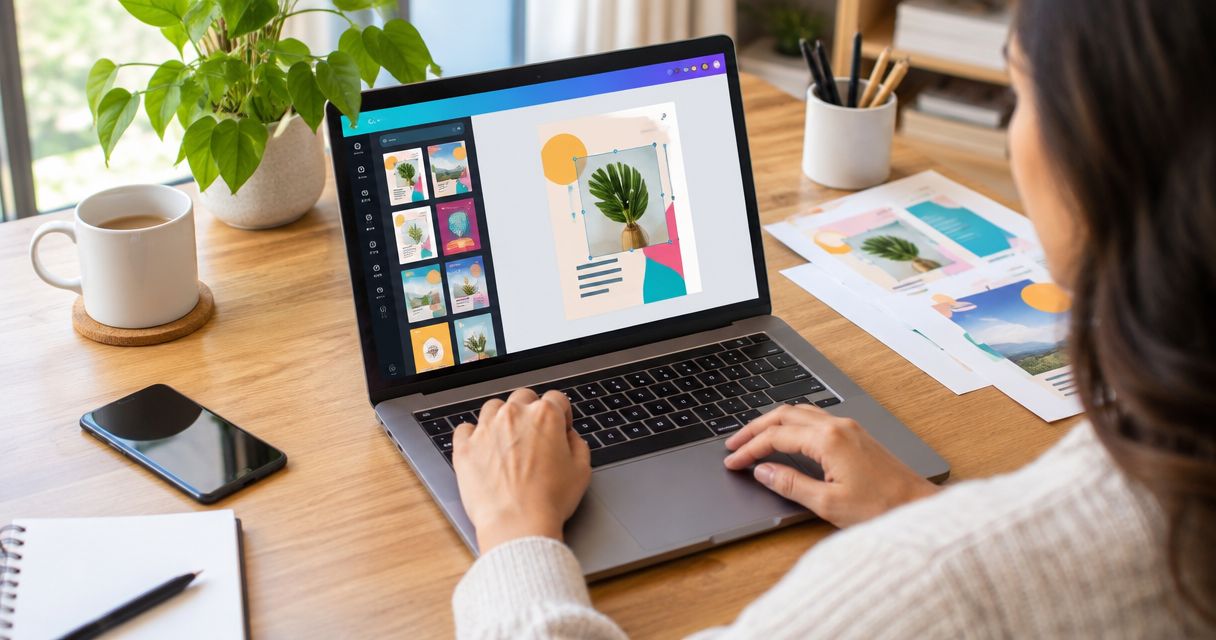
Instead of rebuilding every promotion from scratch, edit flyer templates in Canva by copying an editable design, replacing its content, and exporting a checked version for sharing or print. This 2026 workflow keeps your original template intact and gives you a repeatable process for the next event or business announcement.
- To edit flyer templates in Canva, copy the original before changing text, images, colours, or layout.
- Skillspad business templates suit Ghanaian owners who want a starting document rather than a blank page.
- Check edit access first: an uploaded image does not contain separately editable text and graphics.
- Use PNG for image sharing and PDF Print for printer-ready handoff, following your printer’s specifications.
Why this matters
A template saves layout work, not proofreading. Replacing a headline can push a venue off the page; changing a photograph can make the text disappear against its background.
The useful workflow is copy, edit, verify, then export—not edit and immediately publish. You need an editable master and a finished file that remains readable outside the Canva editor.
Skillspad provides digital business templates for businesses in Ghana. This guide covers Canva editing itself; check the supplied format before assuming that any downloaded template opens as an editable Canva design.
For your 2026 promotions, keep the design source separate from the version you send to customers. A shared image is an output, not a substitute for the editable original.
Before you start
- Access: Sign in to Canva and open the supplied design or template link. Confirm that you can create your own copy or edit the design; a view-only link is not editing permission.
- Materials: Prepare your final headline, event date, location, contact details, logo, and photographs. Confirm that you have permission to use the images and branding.
- The hidden gotcha: A JPG or PNG flyer uploads as an image, not as separate text boxes. Also check for restricted elements before editing extensively; access to a template does not automatically establish access to every element inside it.
Use Canva in a desktop browser for the steps below. Mobile controls are arranged differently, so a desktop walkthrough avoids making you search for menus in another layout.
Before editing a 2026 event flyer, verify the full date and day of the week against your event information. Do not preserve a date simply because it already appears in the template.
Template access and working copy
Open the editable source
- Open the supplied Canva link while signed into the account you intend to use. If the link offers a template-copy action, use it to create your own design.
- For an existing design that opens in the editor, select File, then Make a copy. Work in the copy instead of changing the master.
- Rename the working design using its title at the top of the editor. Include the campaign, intended channel, and revision in the name; add 2026 when it helps distinguish recurring events.
- Select a headline on the canvas. Confirm that it behaves as text rather than selecting the whole flyer as a single image.
Expected result: You have an independently named working design with editable text and an unchanged original.
If you received only an image, ask the supplier for the editable source. Rebuilding the design manually is a different task, not a hidden editing setting.
Confirm the intended page size
- Decide whether the flyer is primarily for a screen or a printed sheet. Do this before replacing photographs or adjusting the layout.
- For print, confirm the finished dimensions with your printer. Standard A5 measures 148 mm by 210 mm; A4 measures 210 mm by 297 mm, before any bleed allowance.
- If the template uses a different size, resolve that mismatch before detailed editing. Use Resize only if your account provides it; otherwise, create a correctly sized design and rebuild the layout there.
- Keep separate working designs when the printed and digital versions require different proportions.
Expected result: Your working page matches its intended destination instead of depending on cropping during export.
For a community programme or service announcement, the flyer templates for church and event programs guide provides a related starting point for planning the content.
Text, images, and layout
Replace the message before decorating
- Select each text box and replace the sample copy. Start with the headline, then the date, venue, supporting details, and contact instruction.
- Select the text and use Font, Font size, and Text colour in the toolbar to restore a clear hierarchy. Keep the main message visibly stronger than the supporting information.
- Shorten copy that no longer fits before shrinking everything. Move secondary details into a separate text box when that makes the reading order clearer.
- Read every text box again, including small footer text. Remove template instructions and unused sample contact information.
Expected result: The flyer communicates your actual message without leftover wording or crowded text.
For Ghanaian audiences, write the location clearly enough for someone outside your immediate neighbourhood to understand it. Include the town or area when a venue name alone leaves room for confusion.
Replace images and adjust the crop
- Select Uploads, then Upload files, and choose your approved photograph or logo.
- Drag a replacement photograph onto an existing image frame. Check that it replaces the frame content rather than sitting on top as another object.
- Double-click the image inside its frame to adjust the crop. Keep faces, products, and other essential details away from the edges.
- Place a logo as a separate element when it needs to remain fully visible. Resize from a corner to preserve its proportions.
Expected result: Your images fit the layout without distorted logos, awkward crops, or important details hidden behind text.
Do not enlarge a small photograph until it fills the page simply because Canva allows it. Inspect the exported result; stretching an image does not restore missing detail.
Restore alignment and reading order
- Select related elements together and use Position to align them. Align text boxes to a shared edge rather than adjusting each one by eye.
- Use Group for elements that should move together, such as a contact icon and its accompanying text.
- Use Lock on a background element after positioning it. Unlock it when you deliberately need to change it.
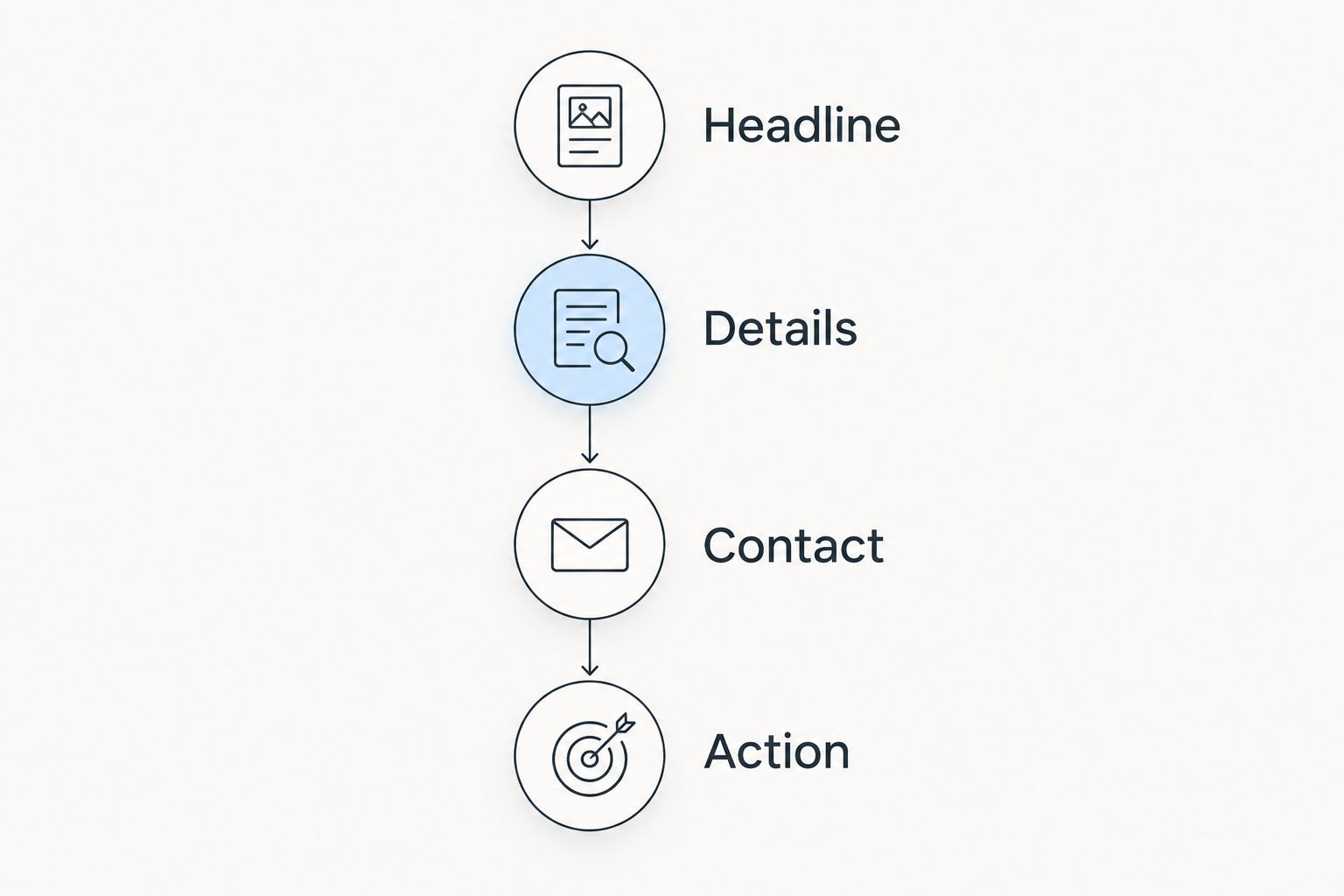
- Zoom out and read the flyer in this order: Headline, Details, Contact, Action. Adjust emphasis if decorative elements interrupt that sequence.
Expected result: The flyer has a clear reading order and remains stable while you make final changes.
Export settings and final checks
Choose the file for its destination
Canva export formats serve different purposes. Choose the format based on where the flyer goes, not whichever setting you used last time.
| Export option | Best for | Advantage | Limitation |
|---|---|---|---|
| PNG | Sharing a flyer as an image | Lossless compression preserves sharp graphic edges | Files can be larger than comparable JPG exports |
| JPG | Photographic flyers where file size matters | Lossy compression reduces file size | Compression can soften small text and fine edges |
| PDF Print | Sending artwork to a printer | Preserves a document format suited to print handoff | Printer requirements still need checking |
- Select Share, then Download.
- Open File type and choose the format that matches the destination. If the design contains multiple pages, check Select pages before downloading.
- For PDF Print, enable Crop marks and bleed only when your printer requests them. Extend background artwork into the bleed area while keeping essential content inside the finished page.
- Select Download, then open the downloaded file outside Canva. Inspect the actual output rather than relying on the editor preview.
Expected result: You have a file suitable for its intended channel, with the correct pages and no accidental omissions.
Check the file where people will read it
- Open the image on a phone if customers will receive it through messaging or social channels. Check the headline, date, venue, and contact details without zooming in.
- For print, inspect the PDF at its intended page size. Ask the printer to confirm dimensions, bleed, and any required colour settings before production.
- Compare the exported flyer against your approved event information. Read telephone numbers digit by digit rather than recognising their general shape.
- Send the final file to another person for a factual check. Ask specifically about dates, location, spelling, and the next action.
Expected result: The exported file passes both a layout check and a factual check.
A design that looks balanced in Canva can still be unreadable in a messaging preview. Approve the exported file, not just the editable design.
Update a recurring flyer without rebuilding it
For a recurring event or promotion, reuse the checked layout rather than editing the previously shared image. This variant saves layout work but introduces a clear risk: carrying old information into the next announcement.
- Open the approved editable design and use File, then Make a copy.
- Rename the copy before changing anything. Keep each event or campaign distinct.
- Replace the date, venue, headline, photographs, contact information, and action instruction as needed. Search visually for every place the old details appeared.
- Repeat the export and device checks. A familiar layout does not make new content automatically correct.
Expected result: You retain a reusable master and produce a separate, checked version for each announcement.
Keep permanent information separate from changing information. For example, do not combine an organisation name and a changing event date in the same text box if that makes updates harder.
Troubleshooting
The whole flyer selects instead of the text
The design is likely a flattened image rather than separately editable elements. Request the Canva source link, or rebuild the required content as new text and image elements; uploading the same image again will not separate its contents.
An element will not move
Check whether the element is locked or part of a group. Select Unlock or Ungroup as appropriate, and confirm that you have editing access before assuming the design is broken.
New text overlaps another element
The replacement copy needs more room than the original. Shorten the wording, widen the text box within the page boundaries, or move secondary information; reducing every font size usually makes the whole flyer harder to read.
The downloaded image looks soft
Open the original download rather than a screenshot or a repeatedly forwarded copy. Check the export dimensions and source photographs, then export again; a low-detail source image remains low-detail when enlarged.
Canva flags an element during download
Check the flagged element and your account’s access to it. Replace it with an element you are entitled to use, then repeat the download; receiving an editable link does not remove element-level restrictions.
Customize your workflow
Build a small handoff routine around the design: approved copy, editable master, exported file, and the person responsible for final approval. Store these together so a colleague can identify the correct version without opening every file.
Skillspad business templates are best for Ghanaian owners who want a starting document rather than a blank page. Check the supplied format and editing requirements before choosing a template for this Canva workflow.
When adapting a flyer for another channel, preserve the message but reconsider the layout. A printed handout and a phone-screen image do not need identical text density, even when they promote the same event.
FAQ
How do I edit flyer templates in Canva?
Open the editable design, make a copy, and replace its text and images. Check the layout, then use Share and Download to export a file for its intended destination.
Can I edit the words on a JPG flyer in Canva?
A JPG does not contain separately editable text boxes. Request the editable source or rebuild the wording with new text elements rather than expecting an upload to separate the image.
Why can’t I change a Canva flyer template?
Check your editing permission and whether the selected element is locked or grouped. A view-only design or a flattened image requires a different fix from an ordinary editable template.
Should I download a flyer as PNG or PDF Print?
Use PNG when you need an image for digital sharing, and PDF Print when handing artwork to a printer. Confirm the printer’s file and bleed requirements before exporting.
Can I reuse a Canva flyer for another event?
Yes, make a copy of the editable design and update all event-specific details. Check the new export independently so old dates, venues, and contact details do not carry over.
What size should a printed flyer be?
Use the finished size agreed with your printer. A5 measures 148 mm by 210 mm, while A4 measures 210 mm by 297 mm, before bleed.
Does a Skillspad template automatically open in Canva?
Check the supplied file format and instructions before choosing Canva. A Canva template link, a spreadsheet, and a flattened image require different editing workflows.
One last thing
For your 2026 template folder, save a copy with obvious sample text rather than leaving the last event’s details in the reusable master. A visible placeholder is easier to catch than an old date that still looks plausible.
Make the reusable master deliberately unfinished; make the published export fully checked. That distinction helps the next person understand which file is safe to update and which file is approved to share.