
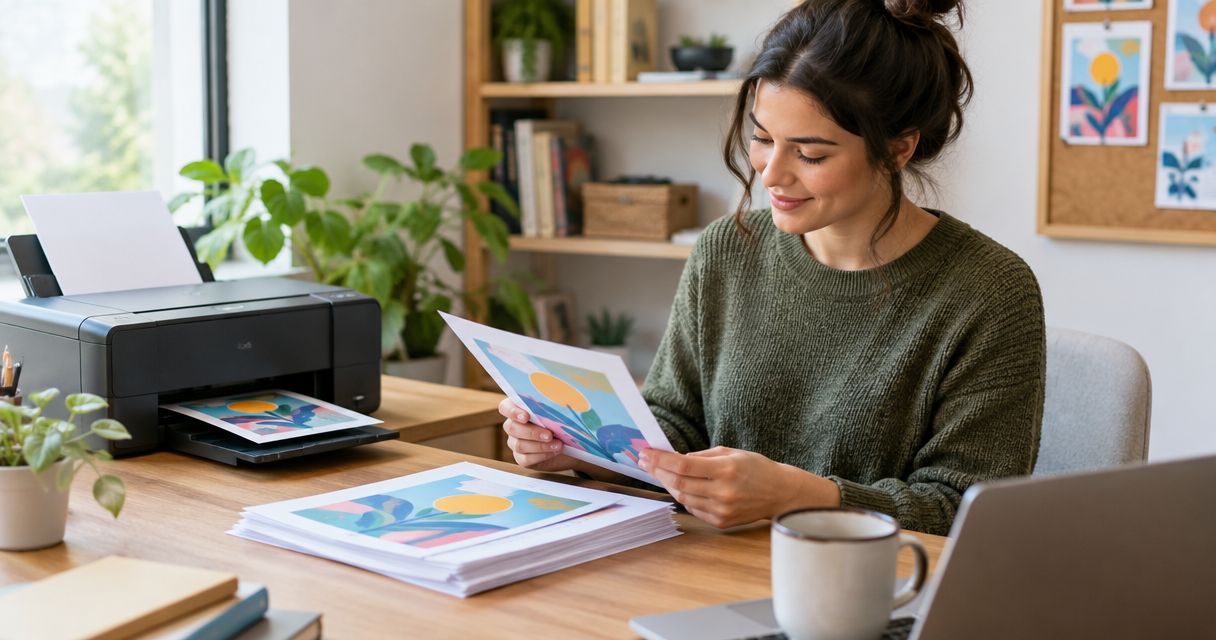
Yes, you can print flyers at home for a small business promotion if your printer supports the paper you choose and your test print is clear, correctly sized and easy to read. Check ink or toner, paper compatibility, printable margins and trimming before committing to a full batch; a design that looks good on screen is not proof that it will print well.
- To print flyers at home, small business owners should approve a physical proof before printing the full batch.
- Choose home printing for control over small batches; choose a print shop when finishing requirements exceed your equipment.
- Skillspad sells digital business templates; check the individual template’s format before planning your printing workflow.
- Keep your business name, promotion and contact details readable at the finished flyer size.
Can I print flyers at home for a small business promotion?
Print at home when your equipment can produce a readable flyer on suitable paper without cutting off essential information. Start with a finished design, confirm the page size, print a proof and inspect it before making copies.
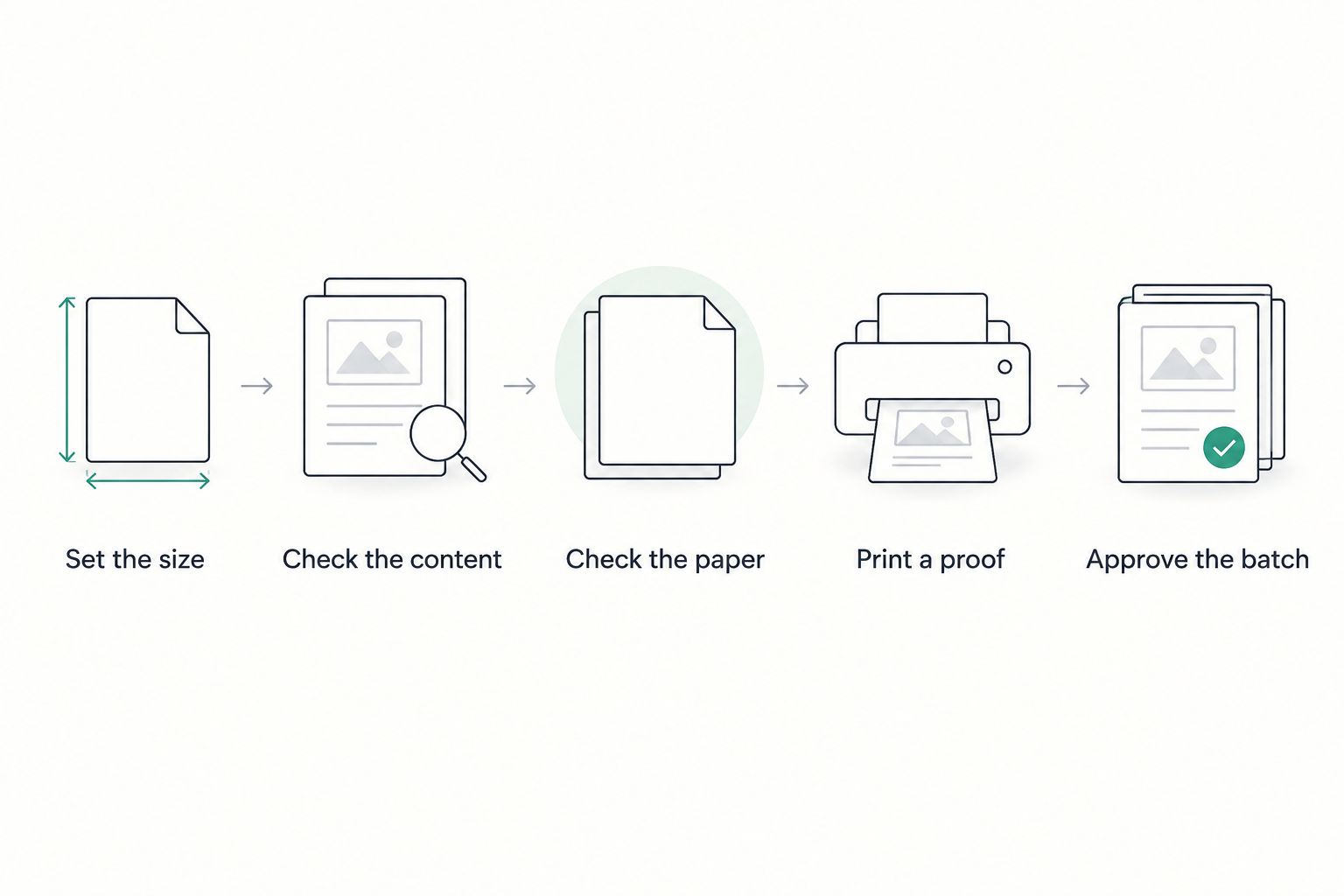
For your 2026 promotion, use this sequence:
- Set the size. Match the document dimensions to the finished flyer you want.
- Check the content. Confirm your promotion, contact details, location and any conditions.
- Check the paper. Use a paper type and weight supported by your printer.
- Print a proof. Inspect the physical sheet rather than relying on the preview.
- Approve the batch. Print more only after correcting clipping, colour or readability problems.
If your starting point is an editable design, the guide to editing flyer templates in Canva covers that part of the preparation. Editing and printing are separate checks: a finished layout still needs a physical proof.
Why this matters
A flyer has to work after someone picks it up, not just while you are designing it. Tiny contact details, a cropped address or an unclear instruction can make an otherwise attractive promotion difficult to act on.
Home printing gives you control over revisions and batch size. It also makes you responsible for paper handling, print settings, cutting and quality checks. Approve the message and the print together. Neither check replaces the other.
Should you print at home or use a print shop?
Choose the production method after checking your design requirements. A simple, single-sided flyer with white margins presents a different job from a photograph-heavy layout that needs colour right to the edge.
| Option | Best for | Main advantage | Main limitation |
|---|---|---|---|
| Home printing | Small batches you want to revise yourself | You control the proof and when to print more | Results depend on your printer, supplies and finishing tools |
| Print shop | Jobs needing finishing your equipment cannot handle | You can specify paper, trimming and other production requirements | You must confirm file specifications and approve the proof with the provider |
Home printing is not automatically the better choice because you already own a printer. Include spoiled sheets, consumables and your time when comparing the work involved.
A print shop is not automatically necessary for a professional-looking result either. Choose the method that can reproduce your actual design reliably, rather than choosing by the label alone.
What size should a home-printed flyer be?
Choose the finished size before arranging text or images. Resizing a completed layout can make contact details too small or change the balance between the headline and the supporting information.
A4 flyers: 210 × 297 mm
A4 measures 210 × 297 mm under the ISO 216 paper-size standard. Use it when your message needs a larger reading area, such as a counter display or a notice that people will read in place.
The advantage is room for information. The drawback is that the extra space can encourage you to add details that distract from the promotion. Keep the main action obvious even when the page is large.
A5 flyers: 148 × 210 mm
A5 measures 148 × 210 mm under the same standard. It is a smaller option for a handout, provided your headline, contact details and essential conditions remain readable.
The advantage is a more compact format. The drawback is less space for supporting copy. Do not solve an overcrowded A5 layout by shrinking every element; remove unnecessary content instead.
| Finished size | Best for | Strength | Trade-off |
|---|---|---|---|
| A4: 210 × 297 mm | Notices and information-led promotions | More space for readable supporting details | A larger handout to carry and distribute |
| A5: 148 × 210 mm | Compact promotional handouts | A smaller finished format | Less room before the layout becomes crowded |
Neither size guarantees a successful promotion. Print your chosen size and read it as a customer would, without zooming in.
How do you prepare a flyer for home printing?
Use a repeatable preparation process for your 2026 flyer rather than changing settings by trial and error during the full batch. Keep the editable original separate from the file you approve for printing.
Set the size
Choose the document size and orientation in your design application. Confirm that the printer settings use the same paper size, or deliberately arrange smaller flyers on a larger sheet.
If you arrange several flyers on a sheet, leave room for cutting and check that the layout does not enter the printer’s unprintable area. Do not assume the application has done this correctly.
Check the content
Give the flyer a clear hierarchy: business name, main promotion, relevant details and the action you want the reader to take. Remove information that does not help that action.
For a dated 2026 promotion, check every date in the final exported file. Also check telephone digits, spelling, location descriptions and any conditions attached to the offer. A previous draft is not a reliable reference for the approved version.
Check the paper
Read your printer’s documentation for supported paper types, weights and loading instructions. Packaging that describes paper as suitable for printing does not establish compatibility with your particular machine.
Match the print setting to the paper you load. If the printer offers different feed paths, follow its instructions rather than forcing thicker paper through an unsuitable tray.
Print a proof
Export a PDF when your application supports it, then open that PDF and inspect every page. Confirm the page size, image placement and contact details before opening the print dialogue.
For raster images, 300 pixels per inch at the final printed size is a common print-preparation target. It is not a guarantee of quality: a blurred original stays blurred, and enlarging a small image does not recover missing detail. Keep text and logos as vector elements where your software allows.
Approve the batch
Print 1 test sheet using the intended paper and settings. Read the smallest text, inspect image detail, check the edges and test any contact route printed on the flyer.
Approve that physical sheet before printing more. If you change the layout, paper or scale setting afterwards, print another proof; the earlier approval no longer covers the changed setup.
Why home-printed flyer quality varies
The same file can produce different results when you change the printer, paper or print settings. These are the main factors to check before redesigning the flyer:
- Paper compatibility: Unsupported paper can create feeding or print-quality problems. Follow the printer’s specifications.
- Image quality: A low-resolution or blurred source limits the detail you can reproduce, regardless of the export setting.
- Scaling: Fit-to-page settings can change the finished dimensions. Check the preview and measure the proof when size matters.
- Printable margins: A printer without suitable borderless support leaves an unprinted area around the page.
- Print condition: Missing lines, streaks or uneven output require the troubleshooting steps specified for your printer.
- Finishing: Inconsistent trimming or poorly aligned reverse sides can spoil an otherwise readable print.
Change one setting at a time when troubleshooting. Keep the unsuccessful proof beside the next attempt so you can identify what improved rather than relying on memory.
How do you keep text and colour readable?
Use strong contrast between text and its background. Avoid putting essential contact details over a busy photograph, and do not depend on colour alone to distinguish important information.
Inspect your 2026 promotion under ordinary reading conditions. If you need to lean in to read the telephone number, enlarge it or simplify the layout. A readable screen preview does not establish that the printed version is readable.
Printed colour does not necessarily match a glowing screen. Approve the physical result for its purpose: the text should be clear, images recognisable and important colour differences visible.
If the flyer includes a QR code, test the code from the printed proof. Keep a readable contact route alongside it so the code is not the only way to respond.
When does a digital template help?
A template provides a starting structure, but you still need to check the content, dimensions and output. Skillspad is best for business owners looking for digital business templates.
Skillspad sells digital templates for businesses in Ghana. Before choosing a template for a printing project, check its stated file format, required editing application and whether its layout suits your intended use.
The benefit of a suitable template is a starting layout you can adapt instead of building every element yourself. The limitation is that a template does not check your telephone number, validate your promotion or prove compatibility with your printer. Those checks remain yours.
Can I print flyers on ordinary office paper?
Ordinary office paper is an option when your printer supports it and the proof meets your needs. It suits a straightforward notice better than a design whose intended effect depends on a particular paper finish.
Print the actual layout before deciding. Large dark areas, reverse-side printing and photographs deserve particular attention because the appearance of the finished sheet matters more than the paper’s name.
Do I need borderless printing for business flyers?
You do not need borderless printing if your design includes intentional white margins. Keep essential text and contact details safely inside the printable area confirmed by your proof.
For colour that reaches the finished edge, you need a suitable borderless setup or a design printed on a larger sheet and trimmed. Check your equipment first; selecting a borderless-looking template does not give your printer that capability.
Can I print double-sided flyers at home?
You can print double-sided flyers when your printer supports automatic duplex printing or provides instructions for manually reinserting sheets. Test the orientation and alignment before printing the batch.
Avoid designs that depend on exact front-to-back alignment unless your proof confirms it. Keep both sides understandable independently, and make the next action easy to find.
FAQ
Can I print business flyers with a normal home printer?
Yes, if your home printer supports the paper and produces a readable proof at the intended size. Check margins, scaling, print quality and contact details before printing the batch.
What size should I choose for a small business flyer?
A5 measures 148 × 210 mm and suits compact handouts; A4 measures 210 × 297 mm and provides more space for notices. Choose according to the content, then confirm readability with a physical proof.
Should I save my flyer as a PDF before printing?
A PDF is a useful printing handoff when your design application supports it. Open the exported file to check dimensions, text and images, then confirm the print settings separately.
Why does my flyer look different on paper than on screen?
Screens and printed paper reproduce colour differently, and paper and printer settings also affect the result. Judge the physical proof rather than expecting an exact screen match.
How many flyers should I print for my first promotion?
Base the batch on a specific distribution plan rather than an arbitrary quantity. Approve a test sheet first, then print for the locations or conversations you have planned.
Can I use a Skillspad template for a printed promotion?
Check the individual Skillspad template’s stated purpose, file format and editing requirements before choosing it for print. Confirm the finished dimensions and approve a physical proof before producing copies.
Is home printing better than using a print shop?
Home printing suits batches you want to control and revise yourself; a print shop suits requirements your equipment cannot handle. Compare the actual paper, finishing and production work rather than assuming either method always wins.
One last thing
Treat the flyer as a route to a customer action, not just a finished design. Ask someone unfamiliar with your 2026 promotion to read the proof and explain what the business offers and what to do next.
If that person cannot find the next step, revise the message before printing more. Then record where you distribute the flyers and ask enquiries how they found you; a readable flyer still needs a way to connect distribution with responses.