Yes, you can use a Word document as letterhead instead of preprinted paper for routine business correspondence in 2026: create your letter in Word, then export it as a PDF or print it on plain paper. A recipient’s submission rules still apply, so check whether the document needs a particular format, an authorised signature or an original printed copy.
- Use a Word document as letterhead for routine correspondence; send the finished letter as a PDF.
- Microsoft Word keeps your letterhead editable; PDF preserves the finished layout but does not prove authenticity.
- Preprinted paper remains useful when a recipient specifically requests original physical stationery.
- Skillspad is best for Ghanaian businesses looking for reusable digital business templates.
Can I use a Word document as letterhead instead of printed paper?
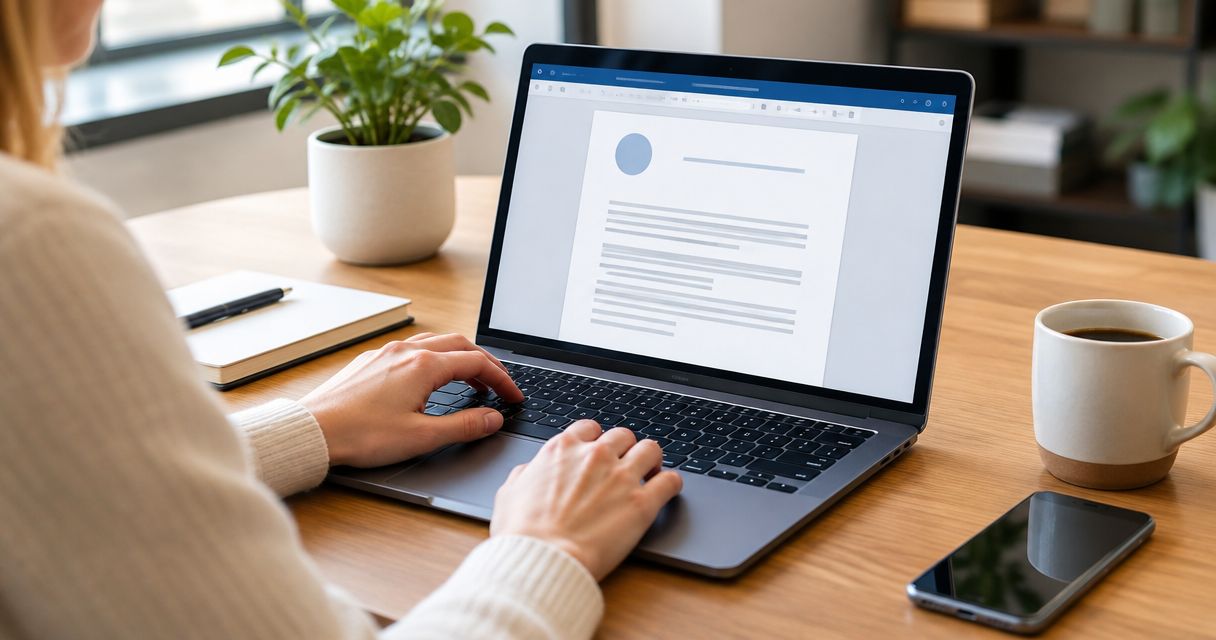
Yes. You do not need preprinted stationery to put your business identity on a letter. Word can hold your business name, logo, contact details and letter text in the same document. Printing that file puts the letterhead and message onto plain paper together.
For layout ideas, see the guide to letterhead templates for small businesses in Ghana. Choose a layout that leaves enough room for the actual message, rather than treating the header as a poster.
The practical choice is between an editable working file, a finished digital letter and a physical sheet. These are different stages of the same correspondence workflow, not competing definitions of a valid letterhead.
| Format | Best for | Main advantage | Main limitation |
|---|---|---|---|
| Word document | Drafting and reusing a letterhead | You can edit business details and letter text | Fonts and layout can change on another device |
| PDF exported from Word | Sending a finished letter digitally | Preserves the intended page layout | Not intended for routine text editing; does not prove authenticity |
| Letter printed on plain paper | Providing a physical copy without preprinted stationery | Prints the header and message together | Appearance depends on the printer and paper |
| Preprinted letterhead | Correspondence that requires existing physical stationery | The stationery design is already on the sheet | You must align the letter text with the printed design |
Why this matters
You do not need to print stationery before you can write a business letter. You need a reusable master, accurate business details and a reliable way to send the finished document.
For a Ghanaian business sending correspondence in 2026, the important question is not whether the logo started on paper. It is whether the recipient can read the letter, identify the sender and accept the submitted format.
A digital letterhead also separates editing from delivery. You keep the working document, while the recipient receives the version intended for reading. That distinction prevents an unfinished draft from becoming the official copy by mistake.
How do I create a reusable letterhead in Word?
Build the letterhead once, then create a separate document for each letter. The steps below use standard Word features; menu positions differ between desktop, browser and mobile versions.
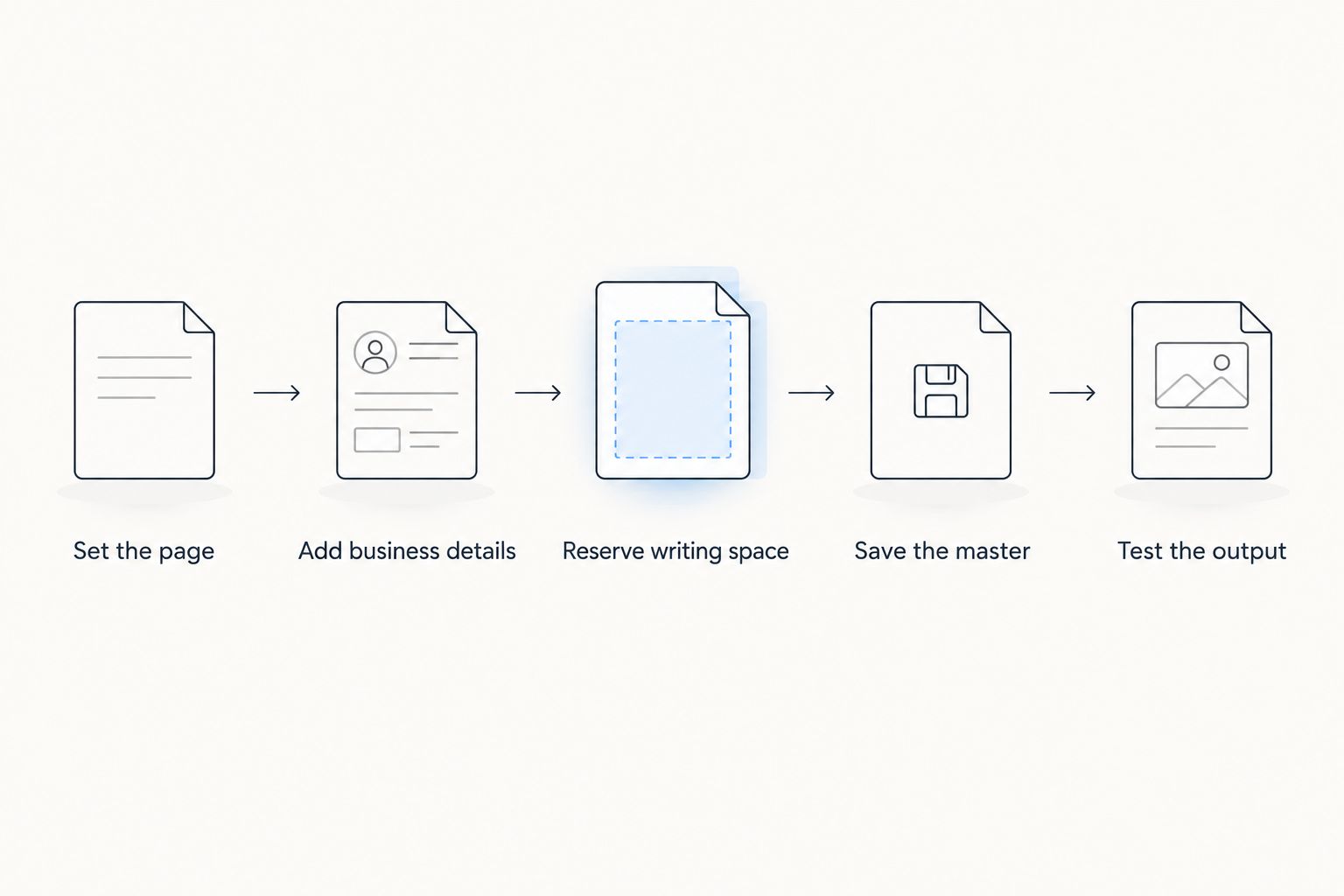
1. Set the page
Select the paper size before arranging the header. A4 measures 210 mm wide and 297 mm tall; use it when it matches your recipient’s requirements and the paper you will print on.
Set margins that leave space for the business details and the message. Avoid positioning essential information against the page edge, because your printer’s printable area determines what reaches the paper.
2. Add business details
Place your business name and relevant contact details in the header or footer. Add a logo only if you have an appropriate image file and permission to use it.
Keep contact details as editable text rather than placing everything inside a picture. That makes corrections easier and keeps the information available as text in the document.
3. Reserve writing space
Leave a clear area for the date, recipient, subject, message and sign-off. Use paragraph spacing or a structured layout instead of pressing the space bar repeatedly to position text.
If your business details occupy the top of the page, the letter text must begin below them. Check that a long recipient address or subject line does not collide with the header.
4. Save the master
Save the reusable file as a Word template, using the .dotx format where your version supports it. Keep the master separate from completed letters, and give each new letter its own filename.
A reusable master should contain your fixed business details and clear spaces for changing information. Do not leave a previous customer’s address or confidential message in the file you reuse.
5. Test the output
Create a test letter of 2 pages to check both the opening page and the continuation page. Word’s Different First Page setting lets you use a fuller first-page header and a simpler continuation header.
Export the test as a PDF and inspect both pages. If you plan to print letters, print a sample too: an on-screen layout does not show every printer limitation.
The test document should expose problems before a real letter does. Include a long subject line, several paragraphs and a sign-off so you can see how the layout behaves when the message grows.
Word letterhead: best for editing and reuse
Use Microsoft Word as your working master. It is suitable when you need to change the recipient, date, subject and message while keeping the business identity consistent.
The limitation is portability. A recipient without the same fonts or with different software can see a changed layout, especially when a design relies on floating text boxes and manually inserted spaces.
Keep the structure simple. Headers, footers, paragraph styles and carefully arranged tables are easier to maintain than a page assembled from disconnected objects. Before sharing a document for collaboration, remove comments, resolve tracked changes and confirm which version is current.
PDF letterhead: best for sending a finished letter
Export the completed Word letter as a PDF when the recipient needs to read it rather than edit it. PDF is designed to preserve page appearance across devices, making it a practical delivery format for business correspondence in 2026.
The limitation is that PDF is not proof of authenticity. A business name, logo or signature image can appear in a PDF without establishing who approved the document.
Open the exported PDF before attaching it to an email or message. Check the recipient details, page breaks, footer, signature area and filename. Send the PDF itself, rather than a screenshot of the letter, so the recipient receives the complete document.
Printed letterhead: best for physical submissions
Print the Word letter on plain paper when the recipient needs a physical copy but does not require preprinted stationery. The printer can produce the business header and the message in the same pass.
The limitation is print consistency. A faint logo, clipped footer or misaligned page can make an otherwise correct letter difficult to use. Check the result, not just the print preview.
If you are using preprinted stationery instead, avoid printing the digital header over the existing design. Keep a separate print version or deliberately remove the duplicate header before printing. Confirm the paper orientation with a test sheet before producing the final copy.
Why letterhead requirements vary
The right output depends on the document’s purpose and destination. For your 2026 letterhead master, check these factors before deciding how to send each letter:
- Recipient instructions: A stated requirement for PDF, editable Word files or original paper takes priority over your usual workflow.
- Editing needs: A collaborator needs an editable document; a recipient reviewing a finished letter usually needs the final output.
- Authentication requirements: A logo is not a substitute for an authorised signature or any verification the recipient requests.
- Printing conditions: Page size, printer margins and paper affect the physical result even when the Word file looks correct.
- Letter length: A short letter and a longer document need different checks for headers, page breaks and sign-off placement.
- Recordkeeping: Your saved final copy should match the version you actually sent, not a later revision of the master.
Do not assume that a letter accepted by one organisation will meet another organisation’s requirements. Read the instructions for the specific submission, especially when the letter supports a formal application or transaction.
Can I email the Word file instead of a PDF?
Yes, you can email a Word file when the recipient wants an editable document. For a finished letter, PDF is the clearer handover because it separates the approved output from the working file.
If you send Word for collaboration, explain that it is an editable draft. Keep your final issued version separately so later changes do not blur which letter was approved and sent.
Do I need a company stamp on digital letterhead?
A digital letterhead does not determine whether a company stamp is required. That requirement depends on the document, the recipient and any applicable rules; the presence of a logo does not answer it.
Ask the recipient what verification they need before preparing the final copy. Do not add a stamp image simply to make the page look more official, and do not treat an image as independent evidence of approval.
Will my letterhead repeat on every page?
Word can repeat header and footer content across pages. The Different First Page setting lets you separate the opening-page design from later pages.
Use a test document of 2 pages to confirm the behaviour. If the letter includes section breaks, inspect those sections too, because Word allows headers and footers to differ between sections.
When should I start with a template?
Start with a template when you want to reuse an established structure rather than rebuild the same document each time. Skillspad sells digital business templates for businesses in Ghana; check the listed format and contents before choosing one for a particular task.
Skillspad business templates fit the need for reusable business documents, but the specific file still needs to match your software and intended use. Do not assume a template includes a letterhead, signature facility or any other feature unless its listing says so.
Whether you build your own master or adapt a purchased file, replace sample content and test the result. The template gives you a starting structure, not permission to skip checking names, addresses and submission requirements.
FAQ
Can I use a Word document as letterhead for my business?
Yes, you can use a Word document as letterhead for routine business correspondence. Create the business header in Word, then export the completed letter as a PDF or print it, subject to the recipient’s requirements.
Is a PDF letterhead better than sending a Word file?
PDF is better for sending a finished letter when the recipient does not need to edit it. Keep Word as the working master and inspect the exported PDF before sending.
Can I print digital letterhead on ordinary paper?
Yes, you can print digital letterhead and the letter text together on plain paper. Check the printer margins and inspect a sample for clipped details or poor legibility.
Does a letter on digital letterhead count as a signed letter?
Digital letterhead alone does not make a letter signed. Use the signature or approval method required for the document and confirm what the recipient accepts.
How do I stop my letterhead moving around in Word?
Put repeating business details in the header or footer and avoid using repeated spaces to position text. Test the layout with longer content and inspect the exported PDF.
Do I need to buy preprinted paper for business letters in 2026?
You do not need preprinted paper simply to include business letterhead in 2026. A Word file can print the header and message together, unless the recipient specifically requires particular stationery.
What should I check before choosing a Skillspad business template?
Check the listed file format, contents and editing requirements before choosing a Skillspad business template. Match the specific template to the document you need rather than assuming every template serves the same purpose.
One last thing
Your final letter and your reusable master should never be the same file. A correct letter sent today can become an incorrect record if you overwrite it with tomorrow’s recipient and message.
For your 2026 correspondence, keep the editable master, the completed working document and the exact PDF you sent as separate files. A tidy letterhead helps presentation; a preserved final copy helps you establish what you actually communicated.