
Instead of sending editable invoices and fixing layout changes after clients open them, convert your Word invoice to PDF using Microsoft Word’s built-in export. Keep the Word document as your working copy, check the exported PDF, and send only the finished client version.
- To convert Word invoice to PDF, use Microsoft Word’s PDF export and inspect the saved file before sending.
- Keep the DOCX for edits; send the PDF to preserve the invoice’s page layout.
- Skillspad business templates suit Ghanaian business owners who want template-based documents rather than starting from blank pages.
- PDF export does not verify totals, payment details, or tax treatment. Check those before sending.
Why this matters
An invoice needs to communicate what the client owes and how to pay. Sending the editable source adds an unnecessary risk: the recipient can change its contents, and another application can display its layout differently.
PDF is the better delivery format for a finished invoice, but it is not an accuracy check or an editing lock. Keep your Word file for revisions and use the PDF as the client-facing copy.
Skillspad business templates are best for Ghanaian business owners who want a starting document instead of building from a blank page. You can explore Skillspad for business templates; the workflow below explains how to prepare a Word invoice for delivery without assuming any particular template features.
For your 2026 invoicing routine, separate document preparation from document delivery. Finish the invoice first, then export and inspect it.
Before you start
- Have Microsoft Word desktop for Windows and an editable invoice ready. These instructions use the Windows desktop interface, not Word in a browser or on a phone. You also need permission to save files in your chosen folder.
- Gather the final invoice information. Confirm the client’s billing details, invoice reference, issue date, payment terms, line items, totals, and payment instructions. Apply tax treatment appropriate to your business rather than copying another invoice unquestioningly.
- Check comments and tracked changes before export. An invoice can look finished while still containing revision markup. Resolve edits and comments deliberately; hiding markup on screen is not the same as removing it from the document.
Choose a folder you can find again before starting. Saving into an unfamiliar download or temporary location makes it harder to identify the attachment later.
The workflow produces 2 files per issued invoice: an editable DOCX and a client-facing PDF. That is a filing recommendation, not a requirement of PDF conversion.
Source invoice preparation
Complete the editable invoice
- Open your invoice in Microsoft Word. If you are starting from a reusable master, select File, then Save As, then Browse to create a separate working copy.
- Enter the client’s billing name and contact information. Replace example text in the invoice body, header, and footer.
- Enter the invoice reference, issue date, payment terms, descriptions, quantities, and amounts. Verify the calculations rather than assuming a Word table calculates them automatically.
- Check your payment instructions against the account or payment destination you actually use. Read them character by character.
- Save the working document with a distinct filename, such as
Invoice_ClientName_Reference_2026.docx, replacing the descriptive parts with your own details.
Expected result: You have a saved, client-specific Word invoice, and the reusable master remains unchanged.
Do not turn the master into a running record of different clients. Reusing a previous client’s invoice without a full review risks carrying over their billing address, project description, or payment terms.
Check the page layout
- Select File, then Print to inspect the print preview. You do not need to print anything.
- Review every page, especially the bottom of the final page. Check for an isolated total, a cut-off payment instruction, or an unexpected blank page.
- Return to the document and correct the layout. Adjust table widths, paragraph spacing, or page breaks instead of shrinking everything until it becomes difficult to read.
- Save the corrected Word document before exporting.
Expected result: The source document has readable pages with complete descriptions, visible totals, and no leftover template instructions.
Aim for 1 page when the invoice fits comfortably. A longer invoice is better than a cramped one; do not delete useful detail solely to meet a page target.
PDF export configuration
Save the invoice as a PDF
- In the completed Word invoice, select File > Save As > Browse.
- Choose the folder where you want to keep the issued invoice.
- Enter a clear value in File name. Keep the same base filename as the Word copy so the pair is easy to identify.
- Open Save as type and select PDF (*.pdf).
- Select Standard (publishing online and printing) for an invoice intended for ordinary screen reading and printing.
- Select Options. Under Publish what, choose Document rather than Document showing markup, then select OK.
- Select Save.
Expected result: Your chosen folder contains a PDF alongside the editable Word document. The PDF is a separate output, not a renamed DOCX file.
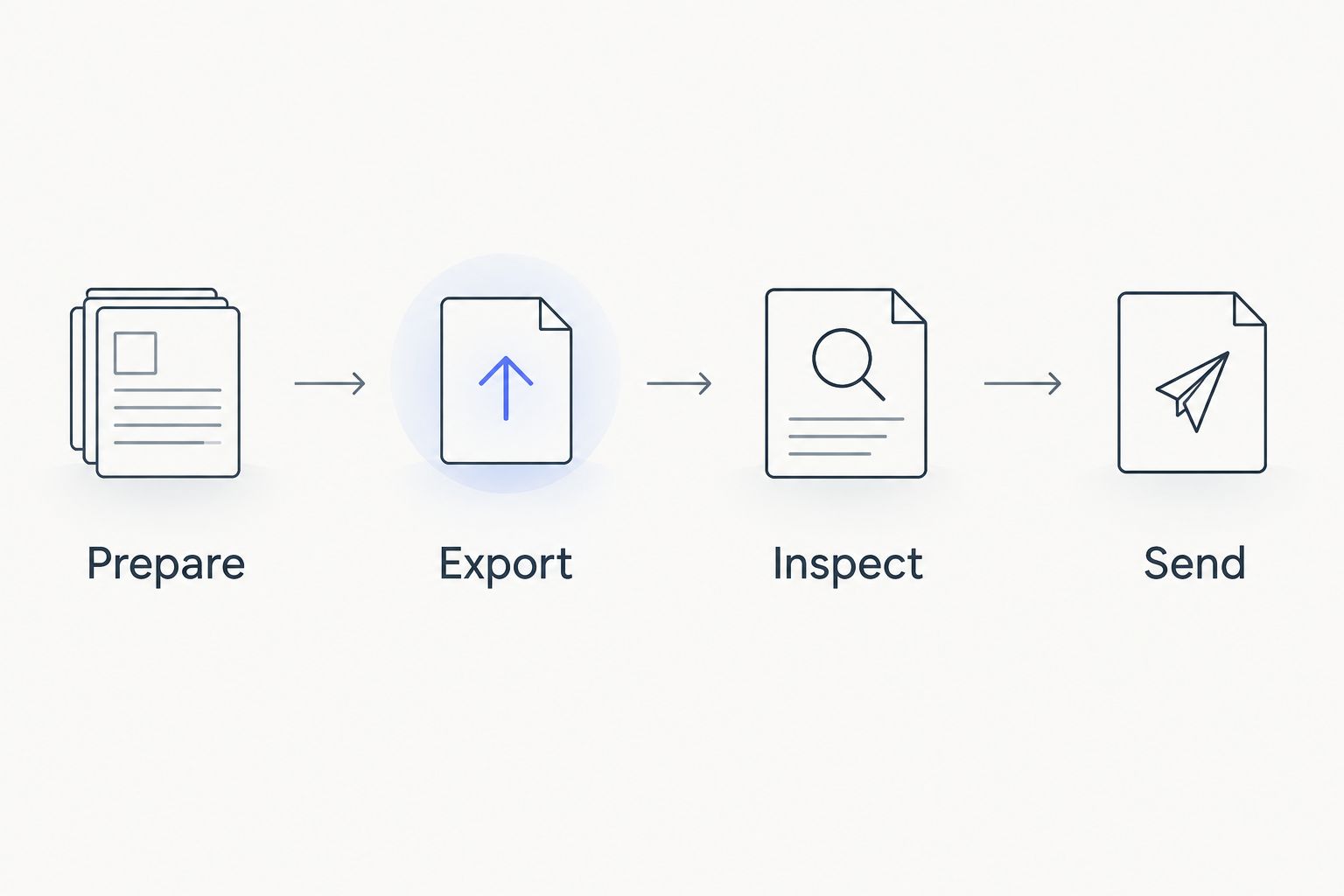
For a repeatable 2026 process, keep the same sequence each time: prepare, export, inspect, send. Renaming a file extension from .docx to .pdf does not convert its contents.
Choose the right file for the job
Word and PDF serve different purposes. Neither replaces the other in a well-organised invoicing workflow.
| Format | Best for | Advantage | Limitation |
|---|---|---|---|
| Word document, DOCX | Preparing invoices and making revisions | You can edit descriptions, layout, and invoice details | Recipients can edit it, and layout can differ between applications |
| PDF document | Sending the completed invoice | Preserves the exported page layout for viewing and printing | Corrections belong in the source document, and PDF is not inherently tamper-proof |
Use DOCX for preparation and PDF for delivery. Sending both without a specific reason gives the client competing versions of the same invoice.
Delivery checks
Inspect the exported file
- Open the PDF you just saved, rather than relying on the Word preview.
- Review every page at 100% zoom, then zoom in on small text, account details, and any logo or image.
- Compare the PDF with the Word source. Confirm the invoice reference, client name, descriptions, totals, and payment instructions match.
- Look for missing characters, broken table borders, clipped text, or images that obscure information.
- Select some ordinary invoice text and copy it into a plain-text editor. This checks that the selected text remains readable as text rather than only appearing as an image.
Expected result: The exported invoice is readable, complete, and consistent with the approved source document.
The text-selection check is useful, but it does not prove the entire document is accessible. Likewise, a PDF that looks correct still needs a financial accuracy check.
Send the checked attachment
- Start the client message and verify the recipient address.
- Attach the PDF from the folder you checked. Read the full filename before selecting it.
- Open the attachment from the draft message when your mail application supports it. Confirm that it is the intended invoice, not a previous version.
- Write a short message identifying the invoice and the work or order it covers. Keep payment instructions consistent with the attached document.
- Send the message and retain the issued PDF with its matching source file.
Expected result: The client receives the checked PDF, while you retain an editable source and a record of what you issued.
For 2026 records, organise files by a consistent invoice reference rather than filenames such as final-final-revised. A useful filename identifies the document without exposing unnecessary personal information.
Second workflow: replace a PDF after an invoice correction
The adjacent workflow is not converting an existing PDF back into Word. It is correcting the original Word invoice and exporting a replacement.
- Open the saved DOCX that matches the issued PDF.
- Make the correction and verify any affected totals, dates, or payment instructions.
- Save a clearly identified revised working copy. Follow your business’s invoice-numbering and correction rules rather than silently changing an issued record.
- Export the corrected document using the same PDF settings.
- Open the replacement PDF and repeat the visual and content checks.
- Tell the client that the replacement supersedes the earlier copy, identifying the affected invoice clearly.
Expected result: You have a checked replacement and a clear record of the correction, rather than different files presented as equally current.
Keep the previously issued version in your records instead of deleting the history. If the correction affects tax reporting or an already-recorded transaction, confirm the appropriate correction process with your accountant before issuing it.
A sound 2026 filing routine distinguishes a draft, an issued invoice, and a replacement. The filename alone should not carry the entire record of what changed.
Troubleshooting
The PDF contains comments or revision marks
Return to the Word source and review Review > Track Changes and the document’s comments. Accept or reject changes deliberately and delete comments that do not belong in the issued document.
Then export again with Options > Publish what set to Document. Reopen the new PDF; do not assume the previous attachment has updated automatically.
The total or payment instructions appear on another page
Check the source layout in File > Print. Look for empty paragraphs, manual page breaks, wide tables, or spacing that pushes the closing section onto another page.
Correct the Word document and export again. Do not fix the PDF while leaving the source wrong, because the next export will recreate the problem.
The saved file still opens as a Word document
Check the file type, not just its name. In Save As, choose PDF (*.pdf) from Save as type and save a new output.
Changing the filename suffix is not conversion. Open the newly exported file in a PDF viewer to verify it.
A symbol or font looks different after export
Check the affected text in Word and confirm the font is installed on the computer doing the export. Replace problematic decorative fonts with a readable font, then export and inspect the same area again.
Pay particular attention to currency symbols and payment identifiers. A visually similar character is not an acceptable substitute for the correct account detail.
The PDF opens for you but not for the client
Confirm that you attached the actual PDF rather than a shortcut or a link to a local file. Reopen the sent attachment and check that the file is complete.
Ask the client for the exact error message and whether the attachment downloads. That separates a document problem from an email or viewing problem without guessing.
Customize your workflow
Once the export process works, improve the source rather than adding more conversion steps. Keep a reusable master with clear spaces for billing information, line items, payment terms, and invoice references.
Use the guide to Word invoice templates for small businesses to think through the source document. Skillspad sells business templates; choosing a template does not remove your responsibility to verify the invoice before issuing it.
Keep sensitive client details out of reusable masters. For your 2026 workflow, add a short internal sending checklist: correct recipient, correct invoice, correct attachment. Apply it even when the invoice looks familiar.
FAQ
How do I convert a Word invoice to PDF before emailing it?
In Microsoft Word desktop for Windows, select File > Save As > Browse, choose PDF (*.pdf) under Save as type, and save. Open the exported PDF, verify its contents, and attach that file to your client message.
Should I send a client a Word invoice or a PDF?
Send the completed invoice as a PDF and keep the Word document for editing. PDF preserves the exported page layout, but it does not guarantee accuracy or prevent every form of editing.
Can I convert a Word invoice to PDF without an online converter?
Yes. Microsoft Word desktop for Windows includes PDF export through Save As, so this workflow does not require uploading the invoice to a separate conversion website.
Does converting an invoice to PDF stop someone changing it?
No. PDF is a delivery format, not an automatic tamper-proof guarantee. Keep your issued copy and the matching Word source so you can verify what you sent.
Why did my invoice become two pages after conversion?
Check the Word print preview for page breaks, table sizing, and paragraph spacing, then compare it with the exported PDF. Correct the source layout and export again rather than editing only the PDF.
Can I correct an invoice after I have sent the PDF?
Yes, but make the correction in the saved Word source and issue a clearly identified replacement using the appropriate accounting process. Tell the client which earlier invoice it replaces and retain the document history.
Will PDF conversion check my invoice totals or Ghana tax requirements?
No. PDF conversion exports the document; it does not validate calculations, payment information, or Ghana tax compliance. Check those separately before sending the invoice.
One last thing
The most useful final check happens inside the email draft, not inside Word. Open the attached PDF and verify the client name and invoice reference once more; a correct document in your folder does not help if you attach the wrong one.