

To track orders from multiple platforms in one spreadsheet, keep one master Orders tab, give every order a unique reference, and record its source, payment status and delivery status. Import or enter each platform’s orders into that structure, then reconcile payments and deliveries separately; the spreadsheet does not automatically receive platform updates unless you configure a connection.
- To track orders from multiple platforms in one spreadsheet, use one master register with a source field and unique references.
- Keep payment status separate from delivery status: a paid order is not necessarily a delivered order.
- Excel and Google Sheets support this workflow; neither turns manual entries into live platform updates.
- Skillspad sells digital business templates for businesses in Ghana; check template fields against your order-tracking needs.
How do you track orders from multiple platforms in one spreadsheet?
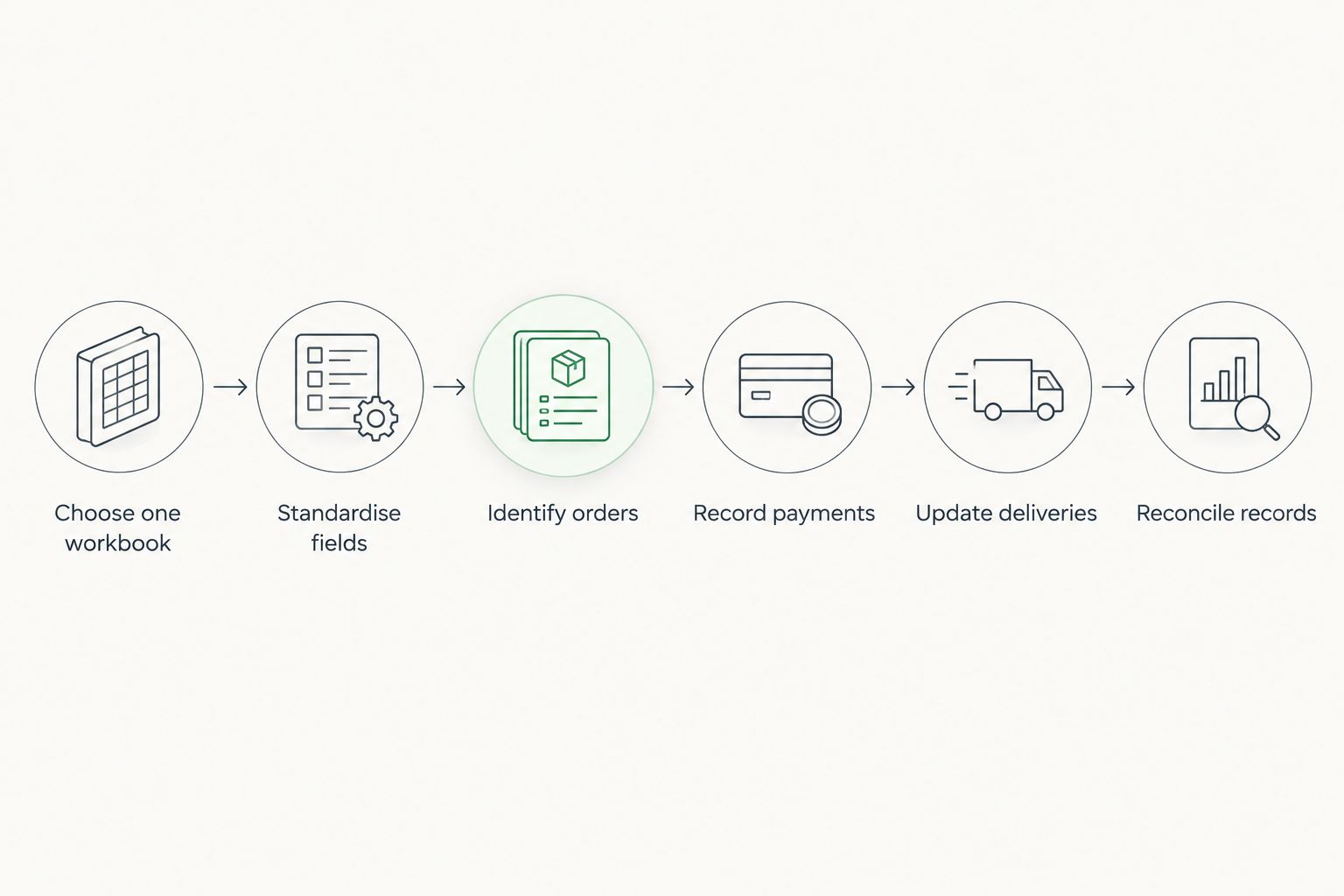
- Choose one workbook. Make it the working record for orders across your sales channels.
- Standardise fields. Give every incoming order the same column structure.
- Identify orders. Combine the source with its original order reference.
- Record payments. Match receipts and refunds to the correct order.
- Update deliveries. Record dispatch, delivery and exceptions independently of payment.
- Reconcile records. Compare the spreadsheet with the original sources before closing your review.
You can build this yourself or begin with a business template. Skillspad sells digital business templates for Ghanaian businesses; check the actual fields and file format before choosing one for this workflow.
Why this matters
An order can arrive through one channel, receive payment through another and get a delivery update somewhere else. If you treat every message or payment as a new order, your records stop representing actual purchases.
The order is the central record; messages, payments and delivery events belong to it. For your 2026 tracker, start with that distinction rather than a dashboard full of totals you cannot trace.
Build the workbook around 3 tabs
Use 3 tabs: Orders, Payments and Lists. This recommended structure separates the order register from individual money movements and the approved labels used in dropdowns.
Keep 1 row per order in Orders. If an order contains several products, put the detailed product lines in an optional Order Items tab and connect them using the same order key; do not repeat the full order total on every product line.
Orders: the master register
Use this column layout if you want to follow the formulas later in this guide. Add operational fields only when someone will maintain them.
| Column | Field | What to record |
|---|---|---|
| A | Order key | Unique reference used throughout the workbook |
| B | Source | Where the order originated |
| C | Source reference | Original platform reference or assigned chat-order reference |
| D | Order date | Date you accepted the order |
| E | Customer | Name needed to identify the buyer |
| F | Contact | Contact detail needed to fulfil the order |
| G | Order summary | Brief description of what was ordered |
| H | Delivery area | Destination needed for fulfilment |
| I | Payment status | Unpaid, Part-paid, Paid or Review |
| J | Delivery status | Not dispatched, Dispatched, Delivered, Returned or Cancelled |
| K | Order total | Agreed total in the workbook’s stated currency |
| L | Net received | Receipts less refunds, calculated from Payments |
| M | Balance due | Order total less net received |
| N | Last checked | Date someone last verified the record |
| O | Next action | Specific unresolved task |
For a single-currency Ghanaian business, label monetary columns clearly as GHS. If you accept other currencies, record the currency explicitly and keep totals separate unless you have a documented conversion method.
Payments: the transaction ledger
Use a separate row for each receipt or refund. Set up Payments with these columns: A, Order key; B, Transaction date; C, Received; D, Refunded; E, Transaction reference; and F, Payment method.
Enter receipts in Received and refunds in Refunded, using positive amounts in each. This preserves the transaction history instead of replacing an earlier payment when a customer pays again.
Lists: consistent dropdown values
Keep approved sources, payment statuses and delivery statuses on Lists. Use spreadsheet data validation to make those labels available as dropdowns.
Avoid near-duplicates such as Delivered, Delivery done and Completed. Pick one label for each meaning so your filters return the records you expect.
Give each order a reference that survives imports
A platform reference alone is not enough when separate channels can issue the same reference. Combine the source and source reference into an order key, keeping both original fields visible.
With Source in B and Source reference in C, enter =B2&"|"&C2 in A2. Format source references as text before importing so leading zeros remain part of the identifier.
For chat orders without a platform reference, assign an internal reference when you accept the order. Keep it unchanged when the customer later sends a payment confirmation or asks about delivery.
Use =COUNTIF($A:$A,A2)>1 as a conditional-formatting rule to flag repeated keys. A duplicate warning is a review task, not permission to delete a row: repeated records can contain different updates that need to be combined.
Choose Excel or Google Sheets for the working file
Best for depends on how you maintain the register, not how many channels you sell through. Choose one working file and avoid circulating separate editable copies.
| Option | Best for | Useful capability | Limitation to manage |
|---|---|---|---|
| Microsoft Excel | Owners maintaining an offline workbook | Local editing, tables, filters and formulas | Separate local copies need careful version control |
| Google Sheets | Teams editing a shared online register | Shared editing, dropdowns and filter views | Permissions and conflicting edits still need management |
Both options support the structure described here. Neither knows that a parcel was delivered merely because you changed its payment status.
Skillspad is best suited to Ghanaian business owners seeking ready-made business templates. A template provides a starting structure, but you still need to check its fields, maintain the records and verify any proposed platform connections.
Bring each platform into the same structure
Before your first 2026 import, make a mapping list showing which source field belongs in each master column. Match the meaning of a field, not just its heading: a platform’s completion date is not necessarily the date you accepted an order.
For channels that provide exports, keep the original export and prepare a working copy. Rearrange its columns to match Orders, check dates and references, and compare its keys against the existing register before adding records.
For orders received through messages, enter the agreed order details rather than every message. Confirm the items, buyer and fulfilment details before treating an enquiry as an accepted order.
When importing an order you already track, update the existing record. Do not append it simply because the platform included it in another export.
Use this import checklist:
- Confirm which dates the export covers.
- Map source labels to your approved labels.
- Preserve source references as text.
- Check for existing order keys.
- Separate new orders from updates.
- Compare imported records with the source before accepting them.
Calculate balances without marking every receipt as a sale
In Orders, calculate net received from the Payments ledger. With the layout above, enter this formula in L2:
=SUMIF(Payments!A:A,A2,Payments!C:C)-SUMIF(Payments!A:A,A2,Payments!D:D)
Then enter =K2-L2 in M2 to calculate balance due. Copy the formulas down the register, and protect formula cells against accidental editing.
Keep the full result visible. A negative balance deserves review because it can reflect an overpayment, an incorrect allocation or an order total that needs correction.
Do not use payment status as a substitute for checking transaction references. A screenshot or customer message belongs in the review process; mark a receipt as verified only after checking the corresponding payment record.
For your 2026 payment review, investigate transactions with no matching order key. Leave them unresolved until you identify the correct order rather than attaching them to a customer’s latest purchase by assumption.
Keep payment and delivery in separate columns
Use 2 status columns, because money and fulfilment answer different questions. Payment status tells you what remains to collect; delivery status tells you what still needs to happen to the goods.
A paid order can still await dispatch. A delivered order can still have an outstanding balance, and a returned order can still require a refund.
Add delivery details when your process needs them: courier reference, dispatch date, delivery confirmation date and an exception note. Record confirmation rather than treating an expected delivery date as proof of arrival.
For a cancelled order, retain the record and identify any outstanding refund or fulfilment action. Deleting it removes the connection between the original order and later transactions.
Why the tracking workflow varies
The workbook structure stays consistent, but these practical differences determine how you maintain it:
- Order source: Exported orders need field mapping; message orders need deliberate entry and an assigned reference.
- Payment pattern: Deposits and later settlements need separate payment rows linked to one order.
- Product detail: Multi-item orders need an item-level table if you want product quantities without duplicating totals.
- Fulfilment process: Delivery updates need their own evidence and status, independent of payment.
- Currency: Different currencies need explicit identification and separate totals or a documented conversion process.
- Editing responsibility: Shared workbooks need clear ownership, permissions and a rule for resolving conflicting changes.
Can I make the spreadsheet update automatically?
Automatic updates require a configured connection between each source and the workbook. Depending on the source, that connection involves a supported connector, an export-import routine or a custom integration; a formula cannot retrieve an inaccessible order history by itself.
Before enabling a connection in 2026, define what happens when an existing order changes. Test new orders, repeated imports, cancellations and refunds using clearly marked test records before relying on the result.
Automate a defined process, not an unresolved spreadsheet. Keep a visible record of when each source last updated so an old import does not look like current information.
How do I check that no orders are missing?
Compare each source with the master register over the same date period. Match source references and order counts, then investigate unmatched records rather than relying only on a combined total.
Review outstanding payments and delivery exceptions separately. Matching order counts does not prove that every payment or parcel has been reconciled.
What should I check before sharing the tracker?
Check access permissions, formula protection and whether each person needs customer contact details. Share the working workbook with named users rather than distributing unrestricted copies.
For your 2026 working file, identify the owner and backup routine in a short instructions tab or note. Keep an untouched copy before structural changes so you can compare records if a formula or import goes wrong.
FAQ
What's the simplest way to track orders from different platforms?
Use one master Orders tab with a unique key and source field for every order. Keep payment transactions in a linked Payments tab and use consistent status dropdowns.
Can I track WhatsApp orders and website orders together?
Yes, you can record WhatsApp orders and website orders in the same master register. Assign chat orders an internal reference and retain the original website reference for website orders.
Is Excel or Google Sheets better for tracking orders?
Excel suits an offline working file, while Google Sheets suits a shared online register. Both require consistent references, maintained records and controls against accidental edits.
How do I stop the same order appearing twice?
Use a source-plus-reference order key and check incoming records against existing keys. Update an existing order instead of appending it again, and review duplicate warnings before deleting anything.
How do I track deposits and remaining payments?
Record every receipt separately in Payments and connect it to the same order key. Sum receipts less refunds in Orders, then subtract net received from the order total.
Does a spreadsheet automatically track deliveries?
A spreadsheet does not automatically know whether an order has been delivered. Enter verified delivery updates or configure a connection that supplies them, and keep delivery status separate from payment status.
Can I start with a Skillspad template?
Skillspad sells digital business templates for businesses in Ghana. Check the chosen template for order references, source fields, payment records and delivery fields before using it for this workflow.
One last thing
Before building a dashboard, trace a complete order from acceptance to its final payment and delivery outcome. If you cannot follow that chain through the source reference, payment entries and delivery record, fix those connections first; a chart cannot repair missing evidence.