
Instead of manually emailing yourself sales, profit and delivery trackers, back up your business spreadsheets to Google Drive in a dedicated folder, then verify that each uploaded copy opens correctly. Keep dated snapshots as well as your working file: automatic synchronisation alone does not protect you from every mistaken edit or deletion.
- To backup business spreadsheets to google drive, upload dated Excel files and test that you can restore them.
- Google Drive synchronisation updates files automatically, but deletions and unwanted changes can also synchronise.
- Keep Excel workbooks in their original format; conversion to Google Sheets requires separate checks.
- For Skillspad business template users, Google Drive suits accessible backup copies alongside a separate offline copy.
Why this matters
A spreadsheet on your laptop is a working record, not a recovery plan. If that device fails, your sales entries, outstanding payments and delivery updates need to exist somewhere else.
For owners using Skillspad business templates, Google Drive is best used for accessible backup copies alongside a separate offline copy. The template organises your records; the backup process protects the work you put into it.
An uploaded file is not a proven backup until you have opened a recovered copy. A workbook can appear in Drive yet still be the wrong file, an old copy or a version saved before your latest entries.
For your 2026 records, define what you need to recover: the whole workbook, its formulas, its supporting sheets and the most recent completed business entries. A screenshot or PDF does not replace an editable spreadsheet.
Before you start
- Accounts and access: Have access to your Google account, enough unused Drive storage for the files, and the spreadsheet application needed to open the original workbook. Check that you can complete account recovery without relying only on the computer you are protecting.
- Files and ownership: Identify the actual working files, not shortcuts or email attachments. Decide who maintains the backup folder and who needs access to confidential sales, customer or payroll information.
- The gotcha: Google Drive synchronisation is not an independent archive. Changes and deletions can propagate, so keep dated snapshots outside the actively synchronised working folder and retain a separate offline copy.
Close the workbook after saving before you upload a snapshot. This prevents confusion about whether your latest unsaved changes are included.
Choose the right backup method
Use dated uploads for deliberate checkpoints; use desktop synchronisation for convenience between checkpoints. Keep an offline copy for recovery that does not depend on access to your Google account.
| Method | Best for | Advantage | Limitation |
|---|---|---|---|
| Dated Google Drive uploads | Completed daily or weekly records | A clearly named recovery point separate from later edits | Someone must remember to create and check the copy |
| Google Drive for desktop synchronisation | Frequently edited working folders | Transfers saved changes without repeated browser uploads | Unwanted changes and deletions can synchronise too |
| Separate offline copy | Recovery without your Google account | Keeps a copy outside the cloud account | Becomes outdated unless you refresh it |
These methods serve different purposes. Synchronising a workbook helps keep a remote copy current; a dated snapshot preserves a particular state; an offline copy separates recovery from the cloud account.
Avoid running separate working copies with identical names on several devices. Choose one authoritative workbook and label everything else as a backup.
Backup folder configuration
- Open Google Drive in your browser and confirm that you are signed into the intended business account.
- Click New, then New folder.
- Name the folder clearly, such as
Business tracker backups 2026, and click Create. - Open the folder and create subfolders for the records you actually maintain, such as sales, expenses and deliveries.
- Right-click the main folder and select Share. Check who has access before placing customer details or financial records inside it.
Keep general access restricted unless there is a specific reason to share more widely. Give editing permission only to people who need to change the contents; someone who only reviews records does not automatically need editing access.
Expected result: You have a clearly named backup location in the correct account, with access limited to the intended people.
Do not treat the folder name as evidence that files are protected. An empty backup folder is only a destination; the next steps establish whether it contains a usable recovery copy.
Spreadsheet snapshot and upload
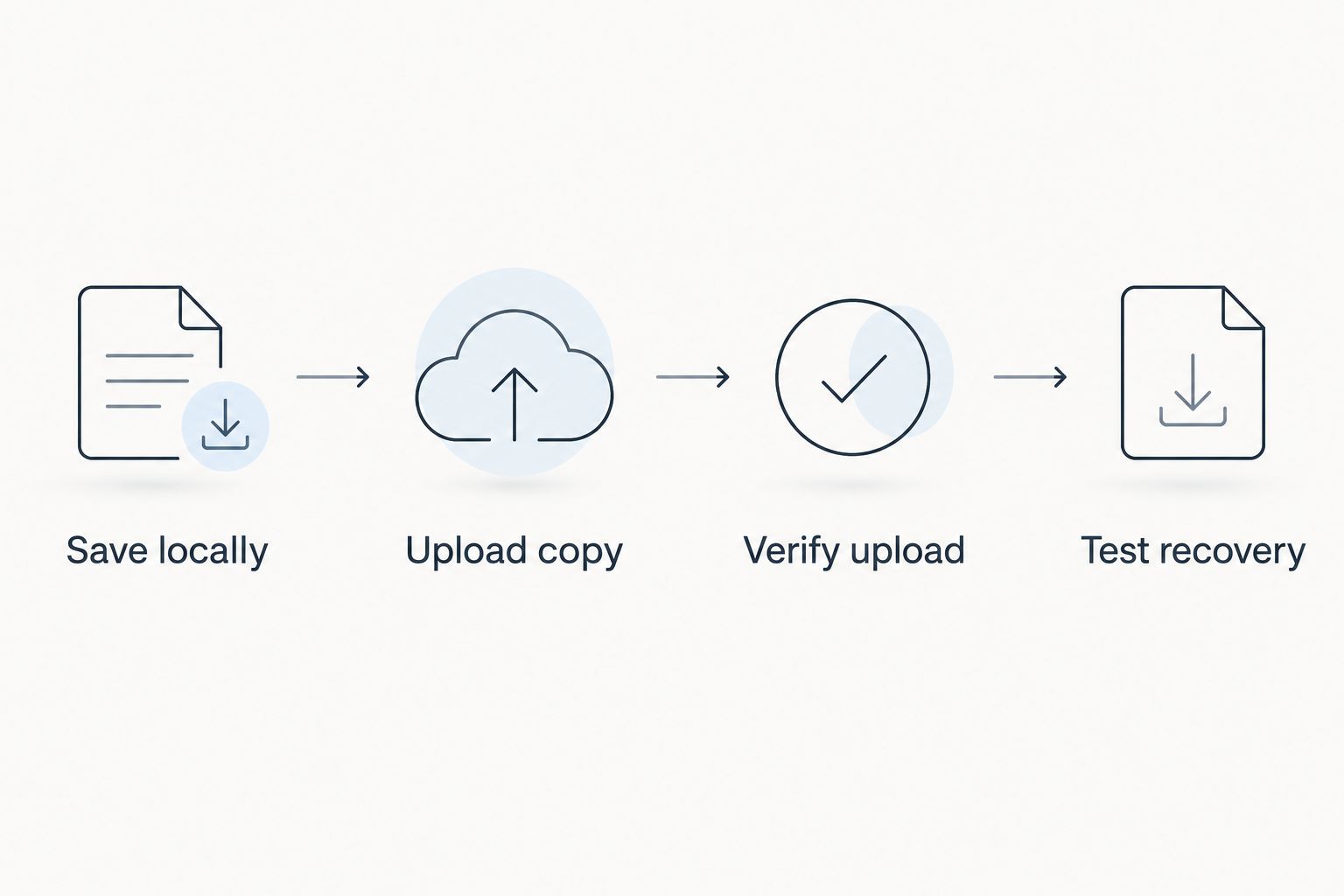
Use a repeatable sequence: Save locally, Upload copy, Verify upload, then Test recovery. Follow it whenever you create a checkpoint, rather than stopping when the upload notification disappears.
Save locally
- Open your working spreadsheet in its usual application.
- Save your latest entries, then close the workbook.
- Create a copy with a dated filename, such as
Sales-tracker-2026-06-15.xlsx. Use the date of the records you are preserving, not the example date automatically. - Preserve the original file extension. A macro-enabled
.xlsmworkbook should remain.xlsm; renaming it to.xlsxis not a safe conversion.
Keep the working workbook and the snapshot distinguishable. A filename such as Sales-tracker-working.xlsx makes the role clearer than a series of files called final, final-new and final-latest.
Upload copy
- Open the appropriate backup subfolder in Google Drive.
- Click New, then File upload.
- Select the dated snapshot from your computer and confirm the file selection.
- Wait until Drive reports that the upload has finished. Do not disconnect simply because the filename has appeared on screen.
For a group of related workbooks, Folder upload is an alternative under New. Upload only the intended records; avoid copying unrelated personal or confidential files into a shared folder.
Verify upload
- Confirm the filename, extension and folder location in Drive.
- Check that you have uploaded the snapshot you just created, rather than an older file with a similar name.
- Open the file for an initial inspection, but do not treat a browser preview as proof that every Excel feature works.
Expected result: Drive contains a dated workbook in its original format, and you can identify which business records it covers.
Keep the source file until recovery testing succeeds. Uploading is a copying step, not a reason to delete your only known working version.
Recovery test configuration
A recovery test answers the practical question: can you get your business record back and continue using it?
- In Drive, right-click the uploaded snapshot and choose Download.
- Save the download in a separate test folder, away from your working workbook.
- Open the downloaded file in the application you normally use.
- Check the latest completed entry, a formula-driven total, the sheet tabs and any linked files or macros your workflow depends on.
- Close the test copy without replacing the authoritative working workbook.
Expected result: The downloaded workbook opens and contains the records and functions you need to resume work.
For an initial check, test 1 workbook from each tracker category. Repeat the test after changing spreadsheet applications, adding macros or moving linked files; those changes affect what a successful recovery requires.
If your sales workbook feeds a profit report, test that relationship too. The Excel-to-profit-and-loss tracking workflow covers the connected reporting process; backing up only the final report leaves its source records unprotected.
Automatic updates with Google Drive for desktop
Use this variant when you regularly edit local Excel files and want saved changes transferred without repeated browser uploads. Keep dated snapshots as a separate checkpoint process.
- Install Google Drive for desktop and sign into the intended Google account.
- Open the Drive desktop menu, select the settings gear, then Preferences.
- In the section for folders from your computer, select Add folder and choose the folder containing your working spreadsheets.
- Select Sync with Google Drive for that folder, then confirm with Done and Save where prompted.
- Allow the initial synchronisation to finish. Check the selected computer folder through Drive in your browser and confirm that the expected files appear.
- Save a harmless test change in a test workbook, close it and confirm that the remote copy updates before relying on the setup.
Expected result: Saved changes in the selected local folder appear in Drive after synchronisation completes and an internet connection is available.
Keep the selected folder narrow. Synchronising your entire desktop makes it harder to distinguish business records from temporary files and unrelated documents.
For a 2026 backup routine, create dated snapshots outside this actively synchronised working folder. A damaged formula that synchronises successfully is still a damaged formula; transfer success does not mean the contents are correct.
What if you already use Google Sheets?
Google Sheets saves changes to Drive automatically. Creating another folder does not turn that same live spreadsheet into an independent backup.
Use File, then Make a copy to create a named checkpoint. For an offline Excel copy, use File, Download, then Microsoft Excel (.xlsx), and test the exported workbook before depending on it.
Keep the live Google Sheets file authoritative if that is where your team works. Exported copies can differ where spreadsheet features do not translate directly between applications.
Troubleshooting
The workbook is missing from Drive
Check the Google account and destination folder first. For browser uploads, confirm that the upload completed; for desktop synchronisation, check whether synchronisation is paused or reporting an error.
Insufficient storage can also prevent completion. Resolve the reported issue, then verify the specific file instead of assuming every pending upload succeeded.
The downloaded copy lacks the latest entries
Save and close the source workbook, then create a fresh dated snapshot. An upload cannot include changes that remained unsaved in the spreadsheet application.
Check for a second working copy in another folder. Similar filenames often hide the real problem: the wrong source file was backed up.
Formulas, macros or formatting do not behave correctly
Download the original file and open it in its intended application. A browser preview or a converted Google Sheets file is not a complete test of an Excel workbook.
Retain the original format and include required linked workbooks. Never enable macros from an untrusted file merely to complete a recovery test.
Several people create conflicting copies
Choose one authoritative working location and nominate the person responsible for dated snapshots. Avoid simultaneous editing of separate local Excel copies that you later expect to merge automatically.
If collaboration is the priority, assess a shared editing workflow separately. Changing the backup method alone does not resolve conflicting business entries.
Customise your workflow
Start with a schedule your team can maintain. As a practical recommendation, take a snapshot at the end of each working day when you enter transactions daily, and perform a recovery check every month.
Keep 3 copies as a practical baseline: the working file, a dated cloud snapshot and a separate offline copy. These are recommended arrangements, not Google Drive retention guarantees.
Record who owns the task and when the last recovery test passed. Review the schedule during your 2026 bookkeeping review, especially if the number of trackers or people editing them changes.
Skillspad business templates belong inside this process like any other business document: preserve the completed workbook, not just the unused template. Protect supporting records too, including source exports and documents needed to explain the totals.
FAQ
What's the best way to backup business spreadsheets to google drive?
Upload dated copies of your saved workbooks, then download and open a copy to test recovery. Use desktop synchronisation for convenience between checkpoints, not as your only protection.
Does Google Drive automatically back up my Excel files?
Google Drive for desktop synchronises files in folders you configure for synchronisation. A workbook outside those folders is not included merely because you installed the application.
Can I back up an Excel workbook without converting it to Google Sheets?
Yes, upload the original Excel file and retain its extension. Download and test it in Excel when you need to confirm formulas, macros or other workbook-specific functions.
Is Google Drive synchronisation the same as a backup?
No, synchronisation and a preserved recovery copy serve different purposes. Synchronisation can carry unwanted edits or deletions between locations, so keep separate dated snapshots.
How often should I back up a business tracker?
Create a checkpoint after the work you cannot afford to re-enter. For trackers updated daily, an end-of-working-day snapshot is a practical starting schedule.
Can I back up spreadsheets when my internet connection is down?
You can save a separate local or external-drive copy while offline. A Google Drive upload or remote synchronisation needs an internet connection before the cloud copy is current.
What should I check in a spreadsheet recovery test in 2026?
Open a downloaded backup and check recent entries, formulas, sheet tabs and any required linked files or macros. Keep the test copy separate from the working workbook to avoid overwriting current records.
One last thing
The most useful backup check is not whether the file exists; it is whether someone can resume work from it. Leave a short recovery note naming the authoritative workbook, its backup folder and the application required to open it.
Store that instruction separately from the laptop it describes. A colleague should not need the missing computer to discover where its backup lives.