

Instead of manually rebuilding your monthly accounts, set up profit and loss tracking in Excel with a transaction table and SUMIFS formulas so new entries update your totals automatically. This 2026 workflow covers the ledger, monthly report, checks, and an optional file-import process—without confusing automatic calculations with automatic bookkeeping.
- Use Excel tables and SUMIFS for profit and loss tracking in Excel that updates when you enter transactions.
- Skillspad business templates suit Ghanaian owners seeking reusable business documents rather than a custom software build.
- Keep sales, direct costs, and operating expenses separate; exclude transfers and owner contributions from trading income.
- Power Query refreshes file imports, but categorisation and reconciliation still require your review.
Why this matters
A spreadsheet can calculate correctly while reporting the wrong profit. A loan recorded as sales, a duplicated payment, or a missing expense changes the result even when every formula works.
Skillspad business templates are best for Ghanaian owners who need reusable business documents rather than a custom software build. You can explore Skillspad for the template business; the instructions below explain a workbook structure you can build yourself, not confirmed features of a particular template.
This guide creates a cash-basis management report: record income when received and expenses when paid. It is not an accrual financial statement or a substitute for tax advice. If you sell on credit, hold inventory, or need statutory accounts, agree the accounting treatment with your accountant before relying on the result.
Before you start
- Excel access: Use Microsoft Excel for Microsoft 365 on Windows for the menu instructions below. You need permission to edit and save the workbook; other editions have different menus and import capabilities.
- Source records: Gather sales receipts, expense receipts, bank statements, and mobile money statements for the reporting period. Use Ghana cedis consistently; do not add different currencies together without an agreed conversion method.
- The hidden gotcha: A transfer between your bank account and mobile money wallet is not another sale. Give transfers a separate classification so importing both statements does not inflate income.
For your 2026 workbook, decide whether each row represents a payment or an invoice. This workflow uses payments. Mixing those approaches counts some transactions twice and leaves others out.
Transaction table
Start with one ledger rather than separate entry sheets for every month. A single table gives the monthly formulas one consistent source.
- Create a worksheet named
Transactions. Enter these column headers:Date,Reference,Description,Type, andAmount. - Select the headers and your existing transaction rows. Choose Insert > Table, select My table has headers, and click OK.
- Click inside the table. Under Table Design, set Table Name to
Transactions. - Enter actual Excel dates in
Date, not text descriptions such as a month name. Use the payment date consistently for this cash-basis report. - Enter receipts and payments as positive amounts. Reserve negative amounts for genuine reversals or refunds within the original category.
Use a source reference you can trace back to a receipt or statement. A description helps you recognise the transaction, but it does not replace supporting evidence.
Expected result: Adding a row directly beneath the table expands the table. Clicking the new row should still display Table Design, confirming that it belongs to the ledger rather than sitting outside it.
Category rules
Keep the classification list short enough to apply consistently. Start with these 4 categories:
| Category | Use it for | Main caution |
|---|---|---|
| Income | Customer payments received | Exclude loans and owner contributions |
| Direct cost | Payments directly associated with delivering sales | Inventory accounting needs additional treatment |
| Operating expense | Business running costs | Separate personal spending |
| Exclude | Internal transfers and non-trading movements | Retain the record and explain the classification |
- Select the data cells in the table’s
Typecolumn. - Choose Data > Data Validation. In Settings, set Allow to List.
- In Source, enter
Income,Direct cost,Operating expense,Exclude, then click OK. If your regional settings use semicolons as list separators, use those instead. - Assign a category to every transaction. After adding new rows, confirm that the dropdown remains present.
A customer refund belongs under Income with a negative amount. A supplier refund reverses the relevant cost category. Do not classify either as a new, unrelated transaction type.
Expected result: Every ledger entry has one recognised category. Filter the Type column and resolve blank or inconsistent entries before calculating profit.
Monthly summary
Create a worksheet named Summary. Use these headers across columns A to F: Month, Income, Direct costs, Operating expenses, Gross result, and Net result.
- In A2, enter
=DATE(2026,1,1). In A3, enter=EDATE(A2,1)and fill down until you have 12 monthly rows. Format the dates to display month and year. - In B2, enter the income formula:
=SUMIFS(Transactions[Amount],Transactions[Type],"Income",Transactions[Date],">="&$A2,Transactions[Date],"<"&EDATE($A2,1))
- Copy B2 into C2 and D2. In C2, replace the criterion
"Income"with"Direct cost"; in D2, replace it with"Operating expense". - In E2, enter
=B2-C2. In F2, enter=E2-D2. Fill B2:F2 down alongside all monthly dates. - Choose Formulas > Calculation Options > Automatic.
Expected result: Each transaction contributes to the month containing its payment date. The formula includes the month’s first day and excludes the next month’s first day, avoiding overlap between periods.
These are management-report labels. Where inventory, unpaid invoices, depreciation, or other accounting adjustments apply, the cash-basis result is not the same as accrual net profit.
Control checks
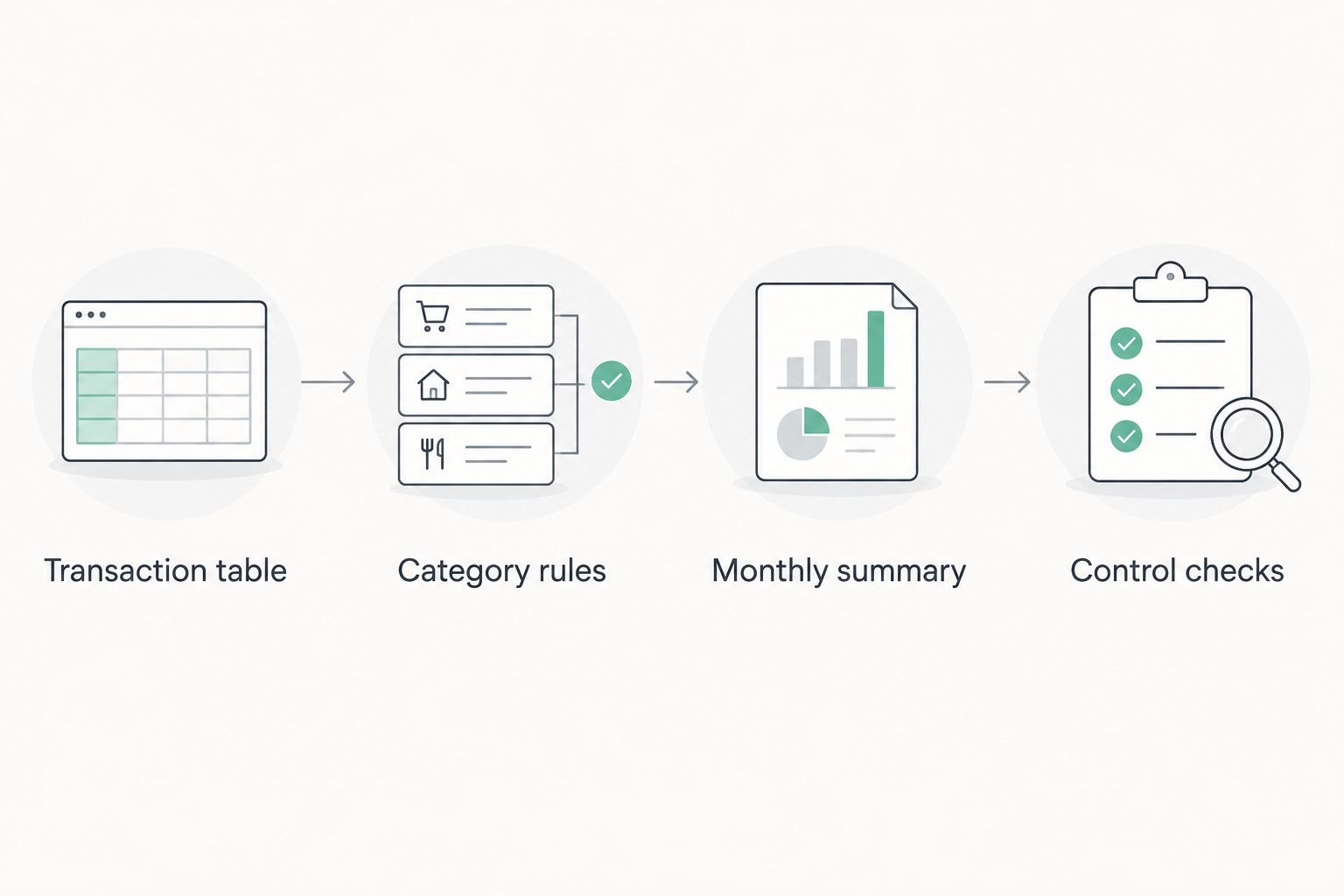
Automation needs a checking routine, not just formulas. Use the same sequence whenever you update the workbook: Transaction table, Category rules, Monthly summary, then Control checks.
- Filter
Transactionsto a completed month. Compare the entries against receipts and statements, including cash transactions recorded outside your bank account. - Check repeated references. Investigate duplicates rather than deleting every matching amount: different customers can pay the same amount legitimately.
- Confirm that transfers, owner contributions, and loan principal movements do not appear as trading income or ordinary operating costs.
- Save a separate test copy. Change a recorded amount, confirm the correct monthly total changes, then discard the test copy.
- Save a dated reporting copy after review. Preserve the editable working file separately.
Expected result: You can explain each reported total through identifiable source entries. A changing formula proves calculation works; matching the underlying records proves the report is complete enough to use.
For 2026 reporting, keep earlier reviewed copies rather than overwriting every version. That makes later corrections traceable.
Refresh the report when a source file changes
If you repeatedly receive statements in the same format, Power Query provides an adjacent workflow: refresh imported rows rather than copying them manually. Choose this only after the basic ledger works.
| Workflow | Best for | Advantage | Limitation |
|---|---|---|---|
| Excel table entry | Owners maintaining a manageable transaction ledger | Direct control over descriptions and categories | Transactions still require manual entry |
| Power Query import | Owners receiving consistently structured statement files | Reuses import and transformation steps | Changed columns and overlapping files require checks |
Optional file-import setup
- Put a statement CSV in a dedicated folder. Keep its filename and column structure consistent between replacements.
- In Excel, choose Data > Get Data > From File > From Text/CSV. Select the file, then choose Transform Data.
- In Power Query Editor, set the date column to Date and the amount column to Decimal Number. Check the preview, particularly day and month interpretation.
- Choose Home > Close & Load to load the result into a staging table on a separate worksheet.
- Replace the source file with the updated export, then choose Data > Refresh All.
Expected result: The staging table updates from the source file when you refresh. This is a refresh workflow, not an unattended bank connection.
Do not type permanent categories beside imported rows and assume they will remain matched after sorting or refreshing. Keep categorisation in a separate mapping table keyed to a stable transaction identifier, then merge that mapping in Power Query.
Until that mapping is established, review the staging rows and add only new, checked transactions to your main ledger. Reimporting a full-period statement and appending every row duplicates transactions already recorded.
Troubleshooting
A new transaction does not change profit
Confirm that the entry is inside Transactions, its Date belongs to the reported month, and its Type matches the category list. Then check Formulas > Calculation Options > Automatic. An Exclude entry should not change profit.
Income appears twice
Check whether you recorded both the customer payment and the later transfer of that money into another account as income. Retain both records where needed for reconciliation, but classify the internal movement as Exclude. Also inspect repeated imports before changing any formulas.
A whole month shows zero
Check whether the transaction dates and amounts are stored as text. Merely applying a date or currency format does not convert text into usable values. Convert the source values, then confirm that the summary dates contain the intended 2026 reporting period.
Refresh fails or brings in the wrong columns
Check whether the source file moved, its filename changed, or its headers changed. Open Data > Queries & Connections, edit the query, and inspect its source and transformation steps. Do not replace the working ledger with an unchecked refresh.
The result looks healthy but cash is tight
Profit and cash movement answer different questions. Loan principal repayments, owner withdrawals, asset purchases, unpaid customer invoices, and inventory accounting can explain differences. Keep a separate cash reconciliation rather than forcing every movement into operating expenses.
Customize your workflow
Once the report is reliable, add a Payment method column to distinguish cash, bank, and mobile money entries. Add a Business unit column only if you need separate results for distinct activities. Keep the original category rules consistent across those additions.
When reviewing profit and loss tracker templates, check whether the instructions explain the accounting basis, category changes, and formula protection. A worksheet that looks finished still needs those controls.
Skillspad business templates fit a document-based business workflow; do not assume a template includes transaction imports, bank connections, or unattended updates. Confirm the stated functionality before choosing it.
For your 2026 process, assign responsibility for entering transactions and reviewing the monthly result. Automation should remove repeated arithmetic, not remove accountability for the records.
FAQ
What's the simplest way to automate profit and loss tracking in Excel?
Use an Excel table for transactions and SUMIFS formulas for monthly totals. New table rows feed the formulas automatically, but you still need to enter or import transactions and check their categories.
Can Excel track profit without connecting to my bank?
Yes, Excel can calculate profit from transactions you enter manually or import from files. A bank connection is not required for table-based calculations.
Should I record sales when invoiced or when paid?
For this cash-basis management workflow, record customer payments when received. An accrual report records revenue under different rules, so agree the accounting basis before mixing invoices with payments.
How do I record mobile money transfers without doubling sales?
Classify transfers between your own business accounts as Exclude rather than Income. The original customer receipt remains income; moving that money does not create another sale.
Can I use this workbook for a Ghanaian business?
Yes, you can structure this management workbook around Ghana cedi transactions and your business records. Confirm tax and financial-reporting requirements separately with a qualified accountant.
Does Power Query update the report automatically when a file changes?
The workflow described here updates when you refresh the query. Replacing a file alone does not establish unattended updating, and imported rows still need categorisation and checks.
How should I record refunds in the spreadsheet?
Enter a refund as a negative amount in the original income or expense category. Keep its date and supporting reference so you can trace the reversal.
One last thing
Do not use the bank balance as a shortcut for profit. A business can receive a loan without earning revenue, and an internal transfer can appear on two statements without creating a sale.
Before closing each 2026 reporting month, inspect the Exclude category as carefully as the expense categories. It is where legitimate non-trading movements belong—and where a misclassified customer payment can disappear from the report.