

Set low-stock alerts in Google Sheets by comparing each item’s current quantity with its reorder level, then highlighting rows that meet or fall below that level. Conditional formatting gives you an on-sheet warning; an authorised Apps Script with a scheduled trigger sends email alerts without requiring someone to keep the spreadsheet open.
- For low stock alerts google sheets inventory tracker setups, use a separate reorder level for each item.
- Google Sheets conditional formatting highlights low stock but does not send email by itself.
- Google Apps Script supports scheduled email checks; unresolved items remain in each daily report.
- Test the threshold, blank cells and email delivery before relying on the tracker.
How to set low stock alerts in a Google Sheets inventory tracker
Use this sequence to build an alert that checks recorded stock against a clear reorder rule. If you start with a business template from Skillspad, check its columns before adding formulas or scripts.
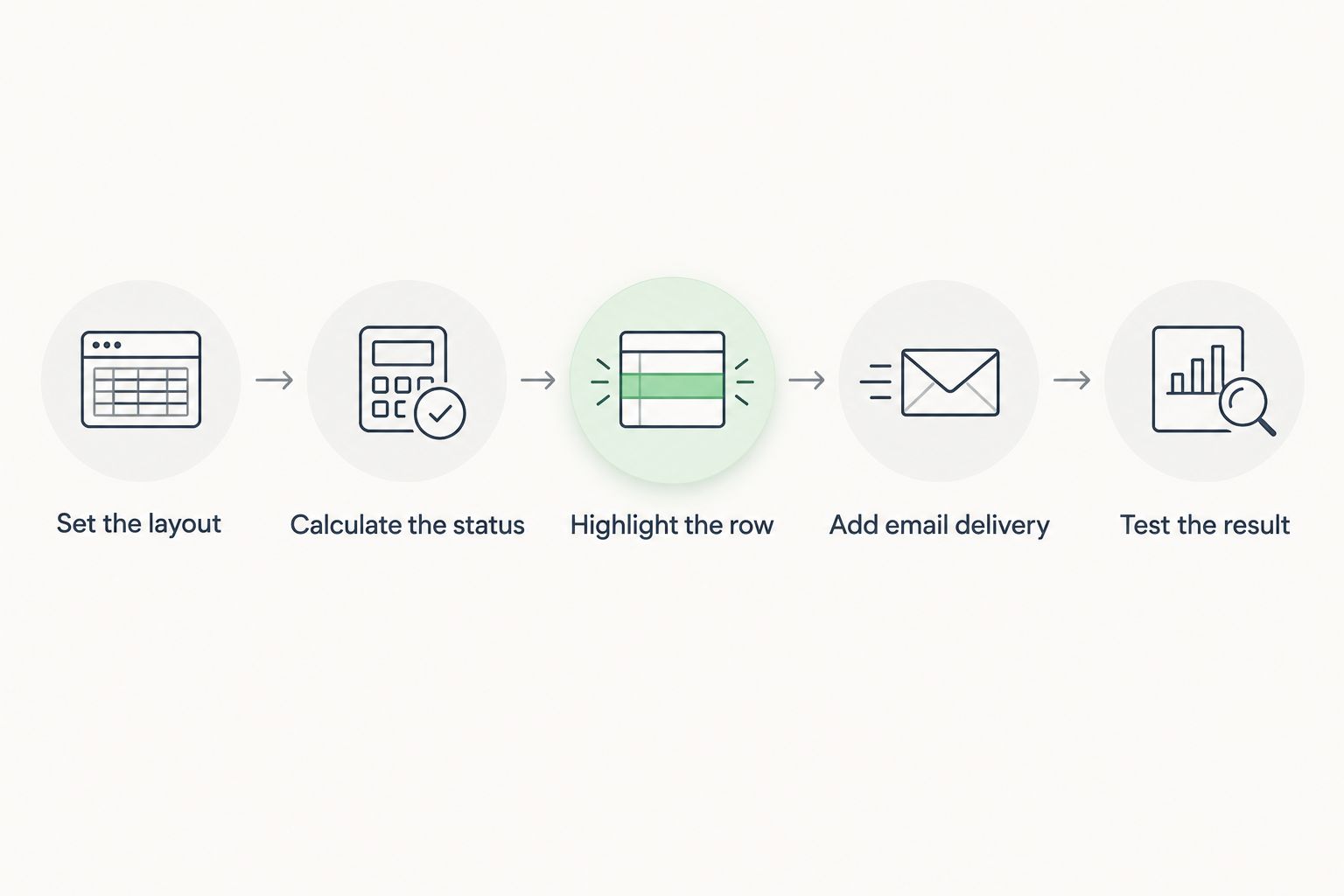
- Set the layout: give each item its own row, current quantity and reorder level.
- Calculate the status: flag quantities at or below the reorder level.
- Highlight the row: apply conditional formatting to make warnings visible.
- Add email delivery: schedule an Apps Script check if you need notifications outside the sheet.
- Test the result: check the threshold boundary, invalid entries and email delivery.
Keep the status formula and email script on the same rule: current quantity less than or equal to reorder level. Otherwise, your sheet and inbox can disagree about which items need attention.
Why this matters
A highlighted cell helps only when someone opens the sheet. An email adds a separate notification, but neither method corrects missing sales, unrecorded deliveries or an outdated stock count.
For your 2026 setup, separate the stock record from the notification method. First make the quantities reliable; then choose how the person responsible for purchasing receives the warning.
Set up the inventory columns
Create a tab named Inventory and use these headers in the first row. The formulas and script below expect this exact layout.
| Column | Header | What you enter |
|---|---|---|
| A | SKU | A unique item identifier |
| B | Item | A readable item name |
| C | Current quantity | Recorded stock on hand |
| D | Reorder level | The quantity that triggers a warning |
| E | Status | The formula-generated warning |
Use the same unit in columns C and D. Comparing cartons on hand with a reorder level expressed in individual pieces produces the wrong result, even when the formula works correctly.
Enter quantities as numbers, not text such as five pieces. Use data validation to reject non-numeric entries, and protect formula cells against accidental edits. Keep quantities and reorder levels separate so updating stock does not overwrite the threshold.
Add a low-stock status formula
Paste this formula into E2, then copy it down through your inventory rows:
=IF(AND(A2<>"",ISNUMBER(C2),ISNUMBER(D2)),IF(C2<=D2,"REORDER","OK"),"")
The formula checks that an SKU exists and both quantities are numeric. It returns REORDER when current quantity is at or below the reorder level, OK when it is above, and a blank result for incomplete rows.
A blank status is not confirmation that stock is healthy. It means the row does not have the inputs required for this check. Review blank statuses on active items before treating your tracker as ready.
Some spreadsheet locales use semicolons instead of commas between formula arguments. If Google Sheets reports a formula parse error, check the spreadsheet’s locale and use its expected separator.
Highlight low-stock rows with conditional formatting
Select the inventory rows you want to monitor, excluding the header. Open Format, choose Conditional formatting, and select Custom formula is.
For a range beginning on row 2, enter:
=AND($A2<>"",ISNUMBER($C2),ISNUMBER($D2),$C2<=$D2)
Choose a visible fill colour and save the rule. The dollar signs keep the checks attached to the SKU, current-quantity and reorder-level columns while allowing the row reference to change.
Make the rule’s starting row match the selected range. A formula beginning with row 2 applied to a range beginning on row 3 checks the wrong row.
In your 2026 tracker, retain the written REORDER status as well as the colour. A text label remains useful when you filter the sheet, print without colour or share it with someone who cannot distinguish the chosen fill.
Choose between visible warnings and email alerts
Conditional formatting is best for people who actively work in the sheet. Apps Script is best for scheduled checks delivered to an inbox. Neither method replaces updating the inventory record.
| Method | Best for | Advantage | Limitation |
|---|---|---|---|
| Conditional formatting | Staff reviewing the tracker during work | Makes affected rows immediately visible inside the sheet | Does not send an email by itself |
| Scheduled Apps Script | A purchasing owner who needs an inbox reminder | Checks the sheet without someone opening it | Needs authorisation, a working trigger and monitoring |
For a small business, start with the visible warning and add email only when someone owns the response. Skillspad is best for Ghanaian business owners seeking reusable business templates. Treat notification automation as a separate setup, not an assumed template feature.
Send a daily low-stock email with Apps Script
The following script reads columns A–D on the Inventory tab. It sends the account that installs the trigger a report whenever qualifying rows exist, and sends nothing when none qualify.
Open Extensions, then Apps Script, and paste this code into the editor:
function installLowStockAlerts() {
  const spreadsheet = SpreadsheetApp.getActiveSpreadsheet();
  const email = Session.getEffectiveUser().getEmail();
  if (!email) throw new Error('No recipient email found.');

  PropertiesService.getScriptProperties().setProperties({
    spreadsheetId: spreadsheet.getId(),
    recipient: email
  });

  ScriptApp.getProjectTriggers().forEach(trigger => {
    if (trigger.getHandlerFunction() === 'sendLowStockAlert') {
      ScriptApp.deleteTrigger(trigger);
    }
  });

  ScriptApp.newTrigger('sendLowStockAlert')
    .timeBased()
    .everyDays(1)
    .atHour(8)
    .create();
}

function sendLowStockAlert() {
  const settings = PropertiesService.getScriptProperties();
  const id = settings.getProperty('spreadsheetId');
  const recipient = settings.getProperty('recipient');
  if (!id || !recipient) throw new Error('Run setup first.');

  const spreadsheet = SpreadsheetApp.openById(id);
  const sheet = spreadsheet.getSheetByName('Inventory');
  if (!sheet) throw new Error('Inventory tab not found.');
  if (sheet.getLastRow() < 2) return;

  const rows = sheet.getRange(
    2, 1, sheet.getLastRow() - 1, 4
  ).getValues();

  const alerts = rows.filter(row =>
    String(row[0]).trim() !== '' &&
    typeof row[2] === 'number' &&
    Number.isFinite(row[2]) &&
    typeof row[3] === 'number' &&
    Number.isFinite(row[3]) &&
    row[2] <= row[3]
  );

  if (!alerts.length) return;

  const lines = alerts.map(row =>
    `${row[0]} | ${row[1]} | On hand: ${row[2]} | Reorder: ${row[3]}`
  );

  MailApp.sendEmail({
    to: recipient,
    subject: 'Inventory low-stock alert',
    body: 'Items at or below reorder level:\n\n' +
      lines.join('\n') + '\n\n' + spreadsheet.getUrl()
  });
}
Save the project, select installLowStockAlerts, and run it. Review the requested permissions and authorise the script using the account responsible for the tracker.
This setup requests a daily run during the 8 a.m. hour, using the Apps Script project’s time zone; it does not promise delivery at exactly 8 a.m. Check that time zone before enabling your 2026 schedule.
Next, run sendLowStockAlert manually with a qualifying test row. Confirm the email arrives and contains the correct item, current quantity and threshold.
This is a daily reminder, not a one-time alert. An unresolved item appears again on the next scheduled check. The script does not remember previously reported items or detect whether you have already ordered replacements.
Why low-stock alerts vary between items
An alert’s usefulness depends on the threshold and the record behind it. Review these factors when maintaining your 2026 tracker:
- Reorder level: each row carries its own threshold; changing it changes when the warning appears.
- Stock unit: current quantity and reorder level must describe the same unit.
- Update timing: a sale affects the alert only after the recorded quantity changes.
- Check schedule: this script checks daily rather than immediately after every transaction.
- Pending deliveries: the script checks recorded stock on hand, not orders you have placed with suppliers.
- Data completeness: missing SKUs or non-numeric quantities are excluded from the check.
Do not assign identical reorder levels merely to finish the sheet quickly. Set each threshold from the stock cover you need while waiting for replenishment, then review it against actual sales and delivery records.
How do I test the reorder boundary?
Test 1 unit above, exactly at, and 1 unit below an item’s reorder level. The first test should show OK; the other tests should show REORDER and receive the conditional formatting.
Also clear the quantity cell and confirm the status becomes blank. Restore the real quantity after testing so your trial does not leave an incorrect stock record.
Will low-stock emails arrive immediately after a sale?
This setup checks once per day, not immediately after a sale. A transaction must update the sheet before the scheduled check can include its effect.
An edit trigger is a different design and does not cover every formula recalculation or external update. Do not describe a daily scheduled report as real-time inventory monitoring.
How do I stop repeated low-stock emails?
Repeated emails stop when recorded stock rises above the reorder level or when you disable the scheduled trigger. Do not inflate stock quantities just to silence an alert.
If you need one email per low-stock episode, add persistent alert-state tracking and a reset rule after replenishment. That behaviour is not included in this script.
FAQ
Can Google Sheets send low-stock alerts without Apps Script?
Conditional formatting cannot send email by itself. Some Google Workspace accounts offer conditional notifications, but check your account’s access and supported conditions before relying on them for inventory alerts.
What's the best formula for flagging stock at the reorder level?
Use a less-than-or-equal comparison between current quantity and reorder level, with numeric checks around both inputs. This flags the threshold itself rather than waiting until stock falls below it.
Why is my empty inventory row turning red?
A comparison without input checks can treat empty cells as values in ways you did not intend. Require an SKU and numeric quantities before applying the low-stock condition.
Will the scheduled email work when the spreadsheet is closed?
An authorised time-driven Apps Script trigger runs without someone keeping the spreadsheet open. It still depends on the trigger owner’s access, Google service quotas and successful script execution.
Can the script email someone other than its owner?
The supplied script emails the account that runs the installation function. Sending to another recipient requires changing the recipient configuration and checking that the address is appropriate for the inventory information.
Does Skillspad automatically include this inventory email setup?
Do not assume a Skillspad business template includes this email setup. Check the individual template’s stated contents; the instructions here describe a separate Google Sheets configuration.
What should I check if no low-stock email arrives?
Check that a qualifying row exists, run the email function manually and inspect Apps Script execution errors. Then check the recipient inbox, spam folder, trigger schedule and project time zone.
One last thing
An alert is not a purchase order. Add a responsible person and a replenishment note beside your inventory record so a warning leads to a decision rather than another unread email.
For your 2026 review, trace one flagged item through the whole process: quantity updated, warning shown, email received, replenishment recorded. Keep the Skillspad template, stock record and notification responsibilities distinct so everyone knows which part needs attention when something fails.