
Instead of rebuilding an invoice and typing its details into chat for every customer, send invoice via WhatsApp Business using a reusable template, a customer-specific PDF, and a separate payment tracker. This 2026 workflow keeps your editable master private while giving each customer a readable document.
- Send invoice via WhatsApp Business as a PDF, not your editable master template.
- Skillspad business templates suit Ghanaian businesses that want reusable documents; sending and payment tracking remain separate tasks.
- Check the recipient, invoice reference, payment instructions, and PDF before sending.
- Record payments from verified transactions, not WhatsApp delivery or read indicators.
Why this matters
An invoice sent in a chat is still an unpaid invoice until you verify payment. WhatsApp handles the conversation; your invoice file records the request; your tracker records the balance. Keep those jobs separate so a delivered message never becomes an accidental payment confirmation.
Skillspad sells digital templates for businesses in Ghana. Skillspad business templates are best for Ghanaian businesses that want reusable documents and can manage sending and reconciliation themselves. A template supplies a starting document, not proof that a customer received, accepted, or paid an invoice.
For your 2026 workflow, use one source file, a PDF for each issued invoice, and a log of what happened afterwards. Avoid maintaining competing copies across your phone, laptop, and chat history.
Before you start
- Accounts and access: Have WhatsApp Business set up, the customer's verified number, and permission to send the invoice there. These instructions use Excel on Windows to prepare the file and WhatsApp Business on Android to send it.
- Materials: Keep an editable invoice template, customer details, item descriptions, payment instructions, and a folder you can access from your phone. Confirm the customer's billing details before exporting.
- The easily missed gotcha: A spreadsheet's print area can exclude invoice rows or produce extra pages. Inspect the exported PDF itself; a correct-looking worksheet does not guarantee a correct PDF.
Agree on the delivery channel before sending customer information. If a customer requires another billing channel, follow that requirement rather than treating WhatsApp as a replacement.
Choose the customer-facing file format
Use PDF for the invoice you send; keep the editable file for your own work. Sending the master exposes formulas, unfinished content, and information the customer does not need.
| Format | Best for | Main advantage | Main limitation |
|---|---|---|---|
| Excel workbook | Preparing invoices and maintaining calculations | You can update entries and reuse formulas | Sending it exposes editable cells and potentially other worksheets |
| Word document | Preparing a text-led invoice layout | You can edit descriptions and document structure | Layout can change when opened in another environment |
| Sending the finished invoice to a customer | Preserves the exported page layout | Correcting the invoice requires editing the source and exporting again |
Skillspad's business-template model fits the reusable-document approach, but inspect any template before adopting it. Check its fields, calculations, and export layout against the way your business actually bills customers.
For a document-led starting point, see the guide to Word invoice templates for small businesses. The sending process below starts after you have a usable invoice document; it does not depend on a particular template supplier.
Invoice source and customer details
Set up the source before opening the customer's chat. This prevents a hurried attachment from becoming the only record of what you billed.
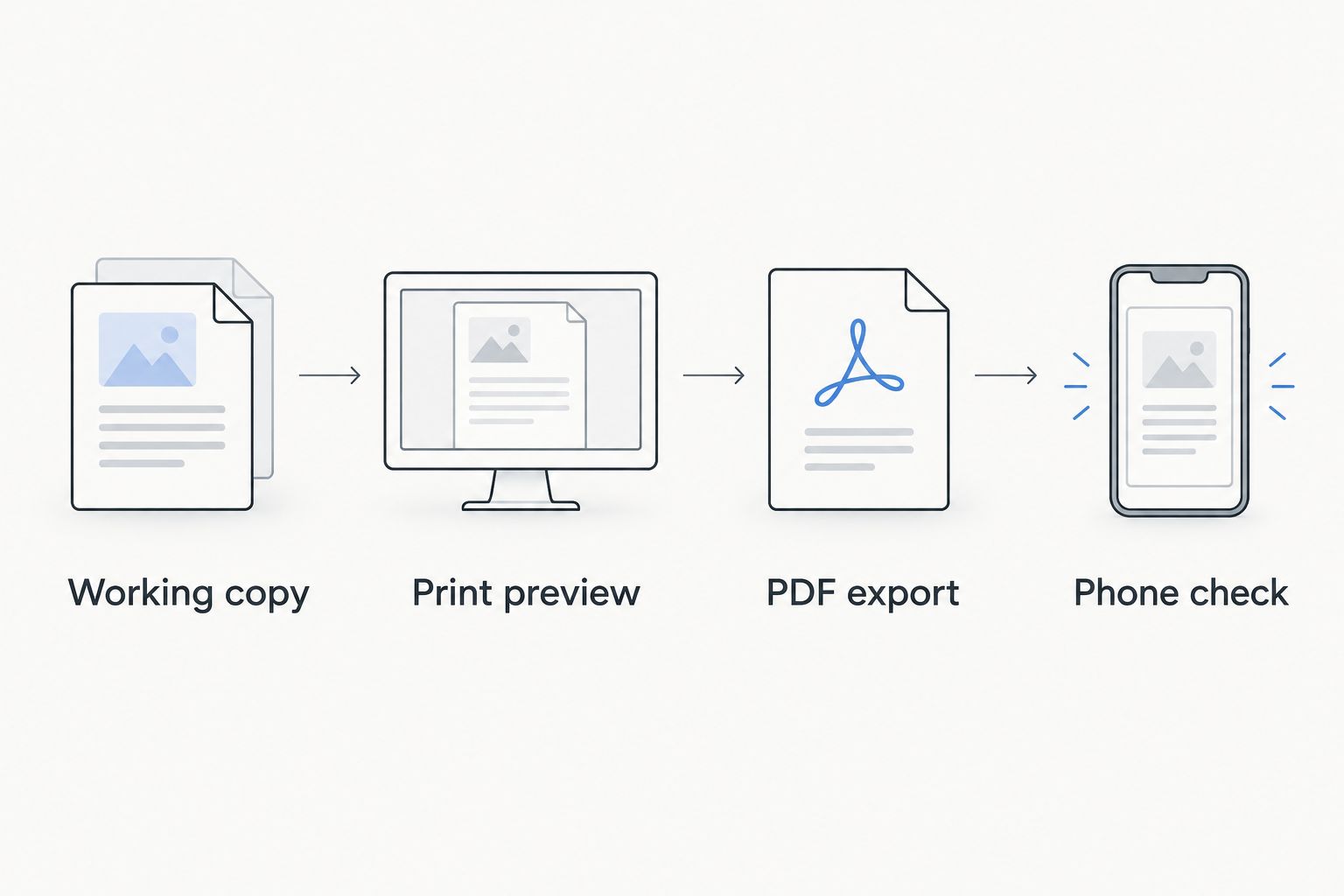
- Create a working copy. Keep the master untouched and make a customer-specific copy. Use a filename that connects the customer, invoice reference, and issue date.
- Enter the billing details. Add your business details, the customer's billing name, a unique invoice reference, the issue date, and the agreed payment deadline.
- Describe the work or goods. Use descriptions the customer can match to the order. Review quantities, units, calculations, and the stated currency.
- Check payment instructions. Confirm the receiving account or mobile money details against your own verified records. Do not copy payment instructions from an unverified chat message.
- Remove template leftovers. Delete sample customer names, instructional text, unused lines, and information unrelated to this transaction.
Use 1 invoice reference per issued invoice as your filing rule. For example, a reference containing 2026 can help separate the current series from other records, but the important requirement is uniqueness within your system.
Do not add tax labels or registration details merely because a template contains them. Use the details applicable to your business and confirm your invoicing obligations separately.
Expected result: You have a completed source document with a unique reference, verified customer information, and checked payment instructions.
PDF export and phone access
Export the invoice before composing the WhatsApp message. The PDF, not the spreadsheet view, is the document your customer will receive.
- Review the print layout. In Excel on Windows, open File, then Print. Inspect the preview for clipped descriptions, missing totals, and unnecessary blank pages.
- Correct the page setup. Return to the worksheet and use Page Layout settings to adjust orientation, margins, scaling, or the print area. Keep text readable rather than shrinking everything onto one page.
- Save the PDF. Open File, choose Save As, and select Browse. In Save as type, choose PDF (*.pdf), select your destination folder, and choose Save.
- Open the exported file. Inspect every page, especially the final total and payment instructions. Check that only the intended invoice content appears.
- Make the PDF accessible on your phone. Transfer it through your normal secure file-transfer method. Open it on the phone before attaching it.
Aim for 1 invoice per PDF, even when that invoice spans several pages. If the export produces 2 pages, inspect both; do not assume the second page is empty or harmless.
Keep customer details out of unnecessarily descriptive filenames. An invoice reference is easier to reconcile than a filename containing sensitive notes about the customer's account.
Expected result: The phone holds a readable PDF containing only the intended invoice, and the filename matches your record.
WhatsApp attachment and delivery record
Use an individual customer chat for invoices. A group chat exposes billing information to everyone in that group.
- Verify the recipient. Open the customer's conversation in WhatsApp Business and check the number against your order or customer record. A familiar display name alone is not sufficient.
- Attach the document. On Android, tap the attachment icon, select Document, and choose the exported PDF. Browse to its folder if it is not in the recent-files list.
- Check the selected file. Confirm the filename and recipient before tapping Send. Do not substitute a screenshot of the worksheet for the finished PDF.
- Send a short accompanying message. Identify your business, the invoice reference, what it covers, and the payment deadline. Ask the customer to confirm that the attachment opens.
- Record the action. Enter the sent date, invoice reference, recipient, and current payment status in your tracker.
Write the message around the customer's transaction, not around a generic sales pitch. Include enough context to identify the invoice without repeating sensitive information already contained in the attachment.
Expected result: The correct PDF appears in the correct conversation, and your tracker records that it was sent—not that it was paid.
This is a manual sending workflow. Saving a reusable message reduces typing, but it does not automatically generate an invoice, attach the right file, or reconcile a payment.
Payment tracking and follow-up
Keep 1 tracker row per invoice so every invoice has a single status record. Update that record as events occur instead of creating a new row every time you message the customer.
- Create the record. Include invoice reference, customer, issue date, due date, total, amount received, outstanding balance, and last follow-up date.
- Record the sending event. Add the date and channel used. Keep delivery information separate from payment information.
- Verify the transaction. Check your receiving account or mobile money transaction history before marking money as received. A customer's screenshot is a prompt to check, not the account record itself.
- Update the balance. Record a partial payment against the existing invoice and retain the remaining balance. Do not mark the entire invoice paid unless it is settled.
- Schedule the next action. Follow the agreed deadline and any customer response. Check the tracker before sending a reminder.
For a 2026 filing system, keep issued PDFs and payment records connected by the same invoice reference. Chat search then becomes a convenience rather than your only accounting trail.
Expected result: You can identify unpaid invoices without reading every conversation, and a verified payment updates the correct invoice.
Second workflow: resend a corrected invoice
A corrected invoice needs version control, not just another attachment. Tell the customer explicitly which document replaces the earlier one. Otherwise, both files remain in the conversation without a clear current version.
- Open the editable source and make the authorised correction. Follow your accounting process for changes to issued invoices.
- Add a clear revision identifier to the filename and retain the earlier file in your records. Keep the document's issue and revision details consistent with your process.
- Export and inspect the replacement PDF using the same checks as the original.
- Send the corrected file with a short explanation identifying the earlier document it replaces.
- Update the tracker with the revision and resend date. Preserve any payment already recorded against the invoice.
A reminder is different from a revision. If nothing on the invoice changed, resend the existing PDF rather than exporting a slightly different copy that creates uncertainty.
Expected result: The customer knows which invoice to use, while your records preserve the change history.
Troubleshooting
The PDF cuts off descriptions or totals
Return to Excel's File > Print preview and inspect the print area, column widths, and scaling. Export again after correcting the layout, then check the new PDF rather than reusing the faulty attachment.
The customer cannot read the invoice on a phone
Check the PDF on your own phone and enlarge the text in the source document if necessary. Remove unnecessary columns or allow another page instead of compressing the entire worksheet into tiny text.
The PDF is missing from the document picker
Confirm that the file has downloaded to the phone, not merely appeared as a cloud-file preview. Locate it in the phone's file manager, then return to WhatsApp Business and browse to that folder through Document.
The wrong invoice went to the wrong customer
Stop sending further documents and follow your privacy incident process. Contact the unintended recipient, request deletion, assess what information was exposed, and verify the correct recipient before resending; deleting a chat message does not establish that nobody accessed it.
The customer says they paid, but the tracker still shows unpaid
Check the receiving account, transaction reference, payment date, and intended invoice. Record the verified transaction against the correct invoice; do not clear an outstanding balance solely because a message or screenshot says payment was made.
Customize your workflow
Start with the repeatable manual process, then remove unnecessary retyping. Keep reusable invoice descriptions, a consistent filename pattern, and a short message checklist, while reviewing customer-specific details every time.
Skillspad provides business templates; your business still owns the checks around customer identity, invoice accuracy, and payment verification. Choose templates that support those checks rather than forcing your records into an unsuitable layout.
For your 2026 review, test the full journey with a sample document containing no real customer information. Export it, transfer it, attach it, open it on a phone, and check whether the reference is easy to find in your tracker.
FAQ
How do I send invoice via WhatsApp Business?
Export the completed invoice as a PDF, open the verified customer chat, attach it through Document, and send it. Record the sending event separately from payment status.
Should I send an Excel invoice or a PDF on WhatsApp?
Send the finished invoice as a PDF and retain the Excel workbook as your editable source. A workbook can expose formulas, editable cells, or other worksheets that the customer does not need.
Can WhatsApp Business automatically create invoices from my spreadsheet?
The manual workflow in this guide does not automatically create invoices from a spreadsheet. You prepare and export the invoice, then select the PDF in the customer chat.
Does a read receipt mean my invoice has been paid?
No, a read receipt is not evidence of payment. Verify the transaction in your receiving account or mobile money records before updating the invoice balance.
Can I send an invoice to a WhatsApp group?
Use the verified customer's individual chat for billing documents. A group attachment exposes the invoice to other group members.
What should I do after correcting an invoice already sent?
Send the corrected PDF with an explicit explanation of which earlier document it replaces. Retain the earlier version and update the invoice record without losing existing payment entries.
Is a WhatsApp invoice enough for tax compliance in Ghana?
WhatsApp delivery alone does not establish tax compliance in Ghana. Confirm the invoice content and any applicable invoicing requirements with the Ghana Revenue Authority or your accountant.
One last thing
Test invoice retrieval, not just invoice sending. Ask yourself whether you can find the issued PDF, its latest revision, and its payment record using only the invoice reference. Make that your final 2026 workflow check: a document that is easy to send but difficult to reconcile leaves the job unfinished.