

Instead of copying Mobile Money receipts into your workbook, track Mobile Money sales in Excel with a Power Query folder import that combines transaction exports and refreshes your payment table. This removes repeated copying after each export; it does not create a live connection to your wallet.
- Track Mobile Money sales in Excel with Power Query imports, not repeated manual entry.
- Skillspad sells business templates; this workflow explains spreadsheet setup, not a supplied wallet integration.
- Keep transaction references as text and separate customer payments from transfers, fees and refunds.
- Refresh imports only after checking export coverage and reconciling the results against your payment records.
Why this matters
A wallet credit is not automatically a sale. Customer payments, transfers between your accounts and other receipts need different treatment; mixing them inflates your sales totals.
Skillspad is best for Ghanaian businesses seeking business templates rather than a custom payment integration. Start with Skillspad for the template business, and use the workflow below to organise your own transaction data.
For your 2026 records, keep 1 row per transaction in the imported payment table. Record orders separately, then match payments to orders using a reliable reference. This preserves the difference between money received and sales recorded.
Before you start
- Excel access: Use desktop Excel for Windows with Data, Get Data and From Folder available. These instructions follow that interface; other editions have different import capabilities and menus.
- Transaction exports: Obtain CSV exports from your payment provider or merchant portal. Check that they include transaction references, dates, amounts and enough information to identify completed customer payments. Do not share wallet PINs, passwords or one-time codes.
- The hidden gotcha: Use 1 import folder containing files with the same column structure. Overlapping exports can count payments twice, while changed headers can break the query. Keep unrelated files outside that folder.
An export must exist before this workflow can import it. If your account provides only statements that require manual conversion, the download-and-conversion stage remains manual. Do not connect an unverified message-reading app to business payment data just to avoid that step.
Choose your refresh workflow
Both workflows below use the same Excel setup. Choose the file-handling method before building the query, because mixing methods creates gaps or duplicate transactions.
| Workflow | Best for | Advantage | Limitation |
|---|---|---|---|
| Non-overlapping exports | Keeping a growing payment history | New files extend the existing dataset | You must check that export periods neither overlap nor leave gaps |
| Replacement export | Reviewing a complete reporting period repeatedly | A fresh export can include changes within that period | You must replace the old file and preserve the full reporting scope |
Use non-overlapping exports when your provider gives you clearly bounded transaction periods. Use a replacement export when you can consistently download the complete period you need. Neither method turns Excel into a live wallet feed.
For a 2026 workbook, write the selected method on a notes sheet. Anyone updating the file should know whether to add a new export or replace the previous one.
Payment source and tracker structure
Prepare the source files
- Create a dedicated folder for the transaction exports. Save only the files that belong in this import.
- Open a sample export and identify the transaction reference, transaction date, amount, payment direction and status columns. Provider headings differ; use the headings actually present in your file.
- Check whether the amount represents the customer payment, the net settlement or another figure. Keep fees separate where the export provides them. Do not label net receipts as gross sales.
- Check the reporting period covered by each file. For the non-overlapping workflow, remove duplicate copies and overlapping exports before importing.
Expected result: every source file belongs to the same payment dataset, follows the same structure and has a known reporting period.
Define the tracking fields
Use descriptive destination headings such as Transaction Reference, Transaction Date, Amount Received, Direction and Status. These are suggested workbook headings, not claims about your provider's export format.
Keep 2 separate tables: an imported payment table and an order or sales table. The order table holds your business records; the payment table holds transaction evidence. If you need help choosing a workbook structure, the sales tracker templates guide covers the relevant template category.
Add your own Order Reference to the sales table. Do not assume a payment provider's transaction reference is also your order number: they identify different things unless your payment process explicitly connects them.
Power Query folder import
Connect the folder
- Open the destination workbook. Select Data > Get Data > From File > From Folder.
- Browse to the dedicated export folder and select OK. Inspect the file list before proceeding; remove unrelated files from the source folder if necessary.
- Select Combine > Combine & Transform Data. In the sample-file dialog, check the delimiter and preview, then select OK.
- In Power Query Editor, inspect the combined table. Confirm that column headings appear as headings rather than as the first transaction row. If the first row contains the actual headings, use Use First Row as Headers.
Expected result: Power Query shows transactions from the intended files in one preview table. Stop if values have shifted into the wrong columns; a refresh will repeat that parsing error across the dataset.
Keep the source filename column when it is available. It helps you trace a questionable transaction back to the export that supplied it, rather than searching through every statement.
Set the data types
- Select the transaction reference column and set Data Type to Text. If an earlier automatic type-conversion step has already altered references, remove that step and set the type from the unaltered source values.
- Set the transaction date column to the appropriate date or date-and-time type. For dates that need a specific regional interpretation, right-click the column and select Change Type > Using Locale....
- Set payment amounts to an appropriate numeric type. Inspect conversion errors rather than replacing them with zero.
- Rename the destination columns consistently. Keep payment direction and status where available; both are necessary for deciding which entries belong in a received-payment total.
Expected result: references retain their original characters, dates sort chronologically and amounts can be summed without text-conversion errors.
For your 2026 reports, display amounts consistently in Ghana cedis where the underlying transactions are in that currency. Formatting changes how a value looks; it does not convert currencies. Keep transactions in different currencies separate unless you maintain an explicit conversion method.
Payment checks and refresh settings
Separate payments from other movements
- Inspect the provider's actual status values. Filter the received-payment query to statuses that the provider defines as completed or successful; do not guess that a pending entry has cleared.
- Use the direction or transaction-type field to separate incoming customer payments from outgoing transfers and other movements. Where the export lacks enough detail, leave those entries for manual classification.
- Keep refunds and reversals visible in a separate review rather than deleting them from your records. A completed receipt with a later reversal needs both entries considered.
- Check whether transaction references are unique within the account and export scope. Do not use Remove Duplicates until you understand what identifies a transaction; repeated amounts and dates are not reliable duplicate keys.
Expected result: your payment table has a clear inclusion rule. It represents classified receipts, not an unexamined total of every wallet credit.
A duplicate-removal step is not a substitute for controlling export overlap. Two copies of a transaction can contain different statuses. Keeping an arbitrary copy risks preserving an outdated record.
Load and refresh the table
- Select Home > Close & Load > Close & Load To.... Choose Table, select the destination and confirm with OK.
- Return to Excel and select Data > Refresh All after adding the next valid export to the folder.
- For refresh on opening, open Data > Queries & Connections, right-click the query and select Properties. Enable Refresh data when opening the file where that setting is available.
- Check the refreshed table before relying on totals. Refresh reads the files present in the folder; it does not download a new statement from your payment provider.
Expected result: the loaded table rebuilds from the current source files without copying transactions into Excel by hand.
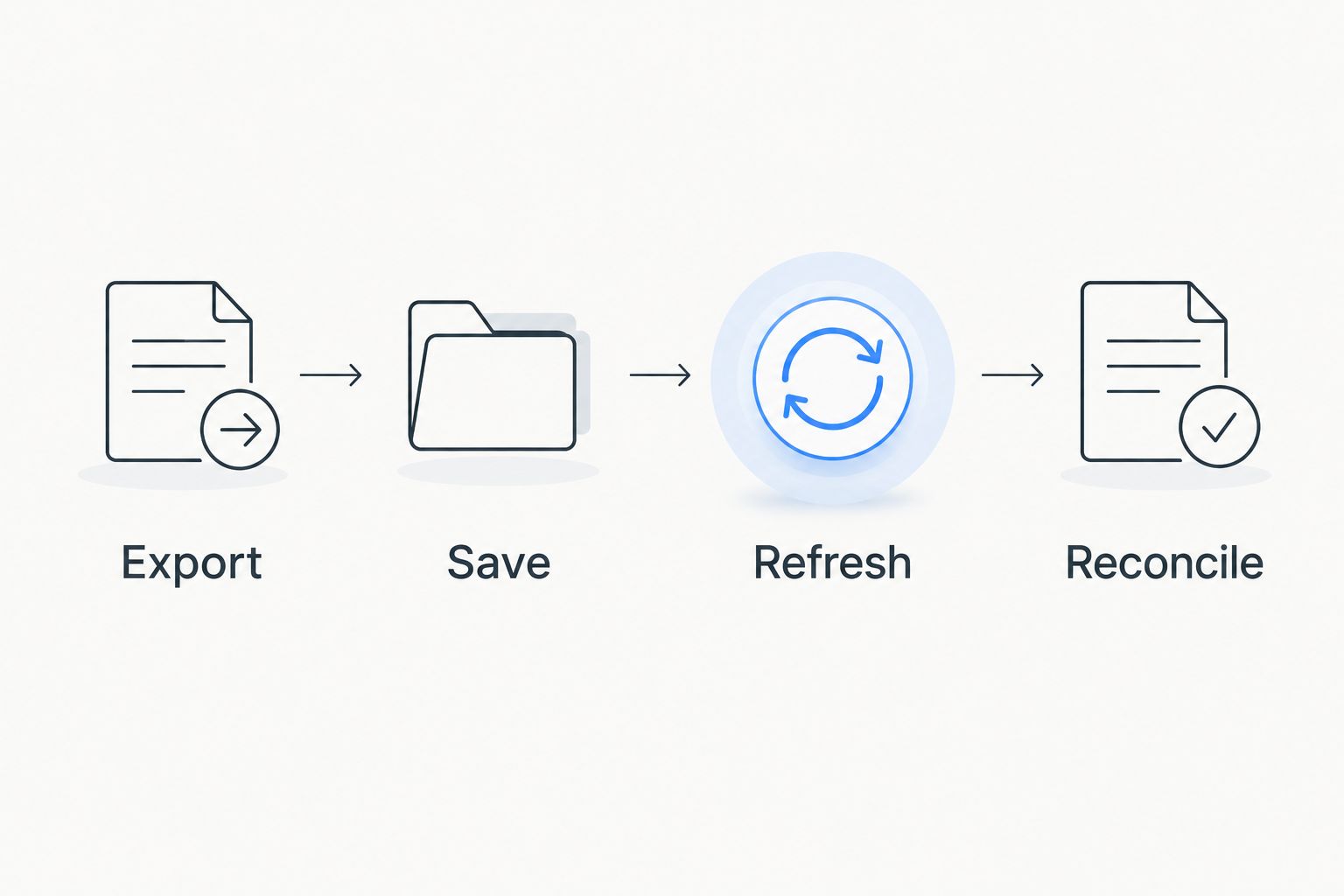
The repeatable process is Export, Save, Refresh, then Reconcile. Refresh automates the import, while reconciliation checks whether the imported payments agree with your business records.
Reconcile before using the totals
Perform 2 checks after each refresh: compare the included transaction count and compare the included payment total with the source records for the same scope. Use the same dates, statuses, currency and transaction types on both sides.
Then match payments to orders. An order can have partial payments, and a payment can cover more than one order. Keep a separate matching table when a simple one-payment-to-one-order relationship does not fit your business.
Variant: refresh a replacement statement
Use the replacement workflow when your provider lets you export the complete reporting period repeatedly. For example, a complete 2026 reporting-period export must remain complete each time you replace it; a shorter download would remove earlier transactions from the query result.
- Keep only the current export for that dataset in the import folder.
- Move the previous export into an archive folder outside the import folder.
- Save the replacement export with the same column structure, then select Refresh All.
- Reconcile the updated results, including any changed statuses or newly recorded reversals.
Expected result: Excel reflects the current replacement file without appending the old snapshot again. Keep manual classifications outside the query output and match them by a stable reference, because refreshing rebuilds the imported table.
Troubleshooting
The payment total doubles after a refresh
Check the folder for overlapping exports or duplicate downloads. Move the unwanted files outside the import folder, refresh again and reconcile. Do not halve the total or delete arbitrary worksheet rows: the next refresh would reproduce the problem.
References lose leading zeros
An automatic type-conversion step has treated an identifier as a number. In Power Query, remove the offending conversion and set the reference column to Text before loading. If the original export already lost those characters, obtain an unaltered source; formatting cannot reconstruct them reliably.
Dates or amounts show errors
Inspect the original text and the conversion step. Date order, decimal separators and thousands separators must match the source format. Use Using Locale... where appropriate, and correct the interpretation instead of replacing errors with blanks or zeroes.
New payments do not appear
Confirm that the new export is in the folder the query actually reads. Check its reporting period, then inspect filters for excluded dates, directions or statuses. Refresh All cannot import transactions that the downloaded file does not contain.
The wallet balance does not match sales
Compare like with like. A wallet balance includes movements beyond customer receipts, while sales records can include unpaid orders. Reconcile the transaction list first, then match receipts to orders; do not force sales totals to equal the closing wallet balance.
Customize your workflow
Once the import reconciles, add reporting without changing the raw payment evidence. Summarise received payments by date, match outstanding balances to orders and keep fees in the appropriate expense records.
Keep your 2026 source exports archived outside the active import folder. Record the reporting scope and last successful reconciliation on a notes sheet so another person can update the workbook without guessing.
Skillspad business templates belong at the recordkeeping stage of this process. A template organises records; it does not establish a payment-provider connection. Confirm the fields you need before choosing a workbook, then preserve its formulas when adding the imported payment table.
FAQ
How do I automatically track Mobile Money sales in Excel?
Use Power Query to import consistently structured transaction exports from a dedicated folder, then refresh the resulting table. Downloading the exports remains a separate step unless you have an independently configured provider connection.
Can Excel connect directly to my Mobile Money wallet?
This folder-import workflow does not connect Excel directly to a wallet. A direct connection requires a supported provider interface and a separately configured integration.
Can I use SMS messages instead of transaction exports?
Use provider transaction exports as the source for this workflow, not SMS messages. Message text is not the structured CSV input these Power Query steps expect.
Does every Mobile Money credit count as a sale?
No, a wallet credit is not automatically a sale. Separate customer payments from transfers and other receipts, then match the customer payments to your sales records.
How do I avoid counting the same payment twice?
Use non-overlapping exports or keep only the current complete replacement export in the import folder. Check transaction identifiers before applying duplicate removal, especially when statuses change.
Will the tracker update while Excel is closed?
The refresh-on-open setting updates the query when you open the workbook, not while it is closed. It also requires current source files to be present in the import folder.
Does Skillspad supply the Mobile Money connection described here?
This guide describes an Excel configuration, not a supplied Skillspad wallet connection. Skillspad sells business templates; confirm a template's stated contents before choosing it.
One last thing
Your refreshable payment table is an output, not a notebook. Do not type order matches or explanations directly into imported rows: a refresh rebuilds those rows and can remove your changes. Store annotations separately, keyed to a stable transaction reference, so your checks survive the next import.