

Yes—a price list template can update automatically when its displayed prices are linked to a maintained source, such as a master worksheet in Excel or Google Sheets. The limitation is distribution: changing the spreadsheet does not update a PDF, printed list or image you have already sent. For your 2026 setup, separate the live price source from the customer-facing copies you publish.
- A price list template automatic update needs linked cells or formulas, not just an editable design.
- Excel and Google Sheets can pull current prices from a master worksheet using exact-match lookups.
- PDFs, printed lists and exported images remain unchanged after the source spreadsheet updates.
- Keep completed invoices separate from live prices so later changes do not rewrite transaction records.
Why this matters
A price list becomes difficult to maintain when the same item appears in several places with separately typed amounts. Updating the master file is not enough if staff still quote from an old download or a saved image.
The useful question is not whether a template is editable, but whether every displayed price reads from the right source. When comparing price list templates for small businesses in Ghana, check the calculation method and publishing workflow before choosing a layout.
For a Ghanaian business publishing a 2026 price list, label the currency clearly. A currency label explains the amount; it does not perform currency conversion or keep exchange rates current.
Can a price list template update automatically when prices change?
Yes, provided the template contains working references to the price source. A formula can retrieve the current amount for an item, while the surrounding worksheet handles presentation.
A dependable setup follows this sequence:
- Maintain the source. Enter approved prices in a master worksheet.
- Match each item. Use a unique item code to connect the display sheet to the master.
- Retrieve the price. Use a cell reference or exact-match lookup rather than retyping the amount.
- Check the result. Confirm that the correct item, unit and price appear together.
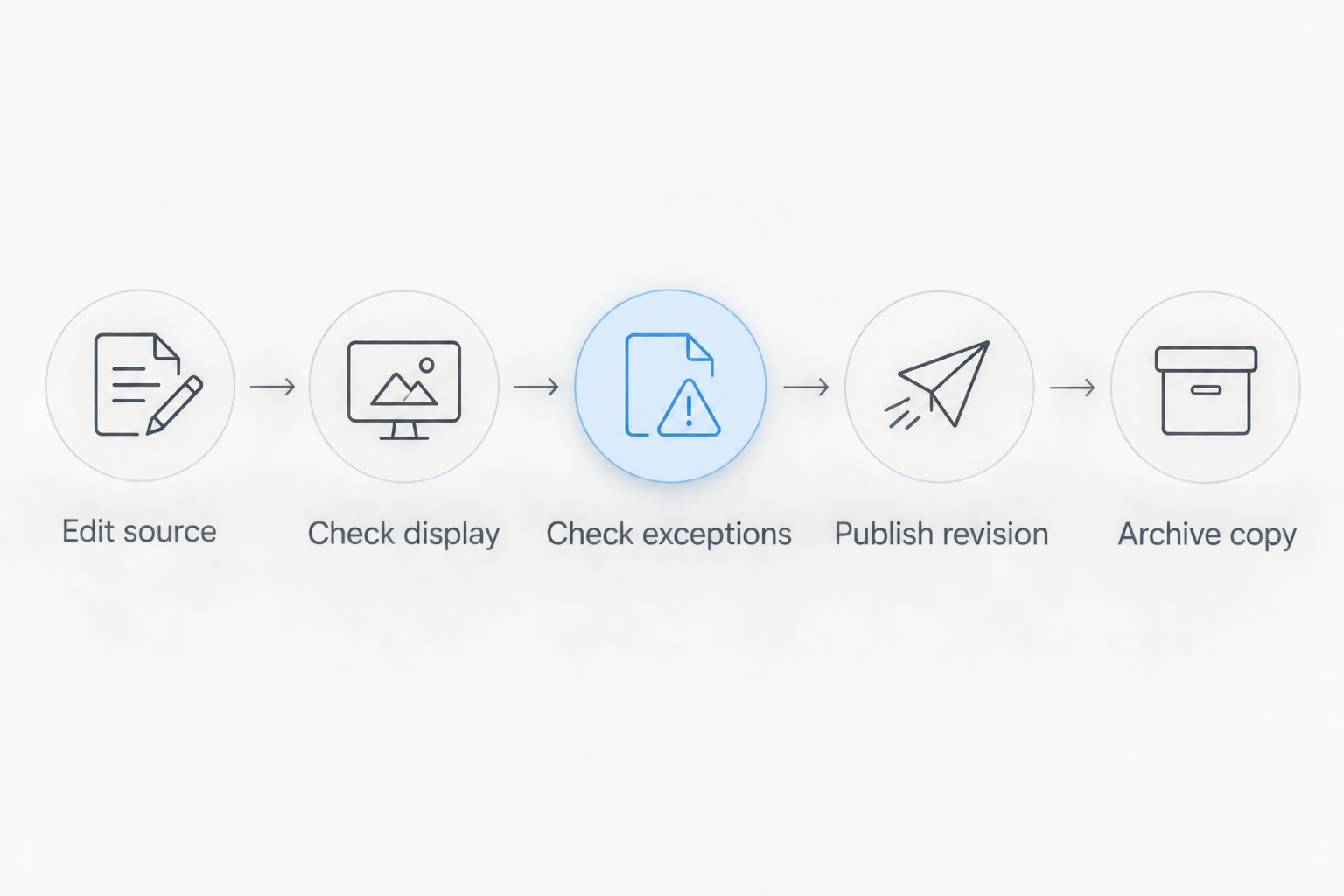
- Publish the revision. Replace customer-facing exports and tell staff which version to use.
The automatic part is the retrieval and recalculation. Someone must still approve the source change unless a separate, configured system supplies it.
Which format supports the update you need?
| Format | Best for | What updates | Main limitation |
|---|---|---|---|
| Excel workbook with linked formulas | A price list managed within a workbook | Dependent formula cells when calculation runs | Separate copies can diverge; calculation settings matter |
| Google Sheets with linked formulas | A shared online working list | Dependent formula cells in the shared spreadsheet | Sharing permissions and offline copies need control |
| PDF or exported image | A fixed customer-facing version | Nothing after export | You must generate and distribute a replacement |
| Printed price list | A physical reference at the point of use | Nothing after printing | Every affected copy needs replacing |
Use a spreadsheet for the working source and a fixed export only when you need a snapshot. Neither format removes the need to manage revisions.
Set up a master worksheet before adding automation
Start with 2 worksheet tabs: Master for approved entries and PriceList for the customer-facing layout. Keeping them in the same file avoids introducing external workbook links before you need them.
Give the master worksheet clear fields:
- Item code: a unique identifier that stays attached to the item.
- Item name: the description customers recognise.
- Unit: what the price covers, such as a piece, pack or service session.
- Current price: the approved amount the display sheet should retrieve.
- Effective date: when the approved revision should apply.
Keep item codes consistent. A code stored as text in one place and as a number elsewhere can cause a lookup mismatch, especially when leading zeroes matter.
Do not use the item name as the only identifier when similar names exist. Different sizes, units or service packages need distinguishable codes; otherwise, a successful lookup can still return the wrong commercial result.
Separate approval from publication
An effective-date column is a record, not a scheduling system. Typing a future date beside a price does not stop an ordinary lookup from displaying that price immediately.
For a simple workflow, keep proposed changes outside the live price column until approval. Move the approved amount into the live source when it should take effect, then verify the display before publishing.
This distinction matters when preparing a 2026 revision in advance. Your draft should not silently become the current customer price list.
Link the displayed price to the item code
For a basic example, arrange the Master sheet with item code in column A, item name in column B, unit in column C and current price in column D. Enter the selected item code in cell A2 on PriceList.
An exact-match lookup for the displayed price is:
=VLOOKUP(A2,Master!$A$2:$D$500,4,FALSE)
This example searches the first column of the specified master range and returns the value from its fourth column. FALSE requests an exact match; the dollar signs keep the source range fixed when you copy the formula.
The row limit is an example boundary, not a recommended catalogue size. Extend the range to include your actual records, or use an appropriate expanding range for your spreadsheet setup.
Make failed matches visible
A missing code should trigger investigation, not silently become a blank or zero that staff mistake for an approved amount. Resolve lookup errors before sharing the list.
Duplicate codes also need attention. VLOOKUP returns the first matching entry, so duplicate identifiers can leave a later approved entry unused.
In Excel, check that workbook calculation is set appropriately for automatic recalculation. In either application, test the actual file rather than assuming that a formula-looking cell still contains a working formula.
Keep formatting separate from calculation
Apply currency and decimal formatting to the returned value instead of typing currency text into the source amount. Numeric values remain usable for calculations; text-formatted amounts can require extra cleanup.
A polished design is not evidence of a working connection. If the displayed amount has been pasted over the formula, the price list stops following the master at that cell.
Test the complete update workflow
Before treating the file as your live 2026 price list, test the path from source edit to customer view. Use a working copy so your checks do not alter the current published list.
Follow this sequence:
- Edit source. Change an approved test entry in the master worksheet.
- Check display. Confirm that the matching item changes on the display sheet and unrelated items remain correct.
- Check exceptions. Try an unknown code and inspect the result rather than hiding the error.
- Publish revision. Create a fresh customer-facing export and inspect it separately.
- Archive copy. Retain the superseded version with a clear revision label.
Test at least 3 cases: a valid code, an unknown code and a duplicate code. These are checks you perform, not a claim that the template has already passed testing.
Open the exported file after creating it. Inspect the item descriptions, units, currency labels and page breaks; a correct formula does not guarantee a readable customer document.
Also check the route your staff actually use. A correct shared worksheet does not help someone quoting from an outdated attachment saved on a phone.
Why automatic price list updates vary
The phrase automatic update can describe very different workflows. Judge a template against these practical factors:
- Source location: references within a workbook differ from links to a separate file or external data source.
- Matching method: a stable, unique item code gives the lookup a clear target; ambiguous names do not.
- Calculation settings: formulas need to recalculate before the display reflects an edited source.
- Output format: a live worksheet can change; an exported PDF or image remains a snapshot.
- Editing permissions: staff who can overwrite formulas can break the connection while making an ordinary edit.
- Publication process: the latest working version and the latest distributed version are not automatically the same thing.
Define what must update before choosing a template. Updating a worksheet, replacing a downloadable PDF and changing a message attachment are separate requirements.
Choose a template by behaviour, not appearance
A useful template needs an understandable source sheet, reliable matching and a layout you can publish without retyping. Ask to see how a source change reaches the displayed list before relying on any automation claim.
Skillspad sells digital business templates for businesses in Ghana. Skillspad is for Ghanaian business owners who want templates to run their business. For a price list, assess the individual file's formulas, editing requirements and export process; a business-template description alone does not establish automatic updating.
That is the practical limit when assessing Skillspad business templates: choose the file for the workflow you can verify, not for an assumed connection to your sales records. Apply the same standard to any template supplier.
Will a shared price list update for everyone?
A shared spreadsheet can show the revised values to people viewing the same live file. A downloaded workbook, emailed attachment or exported image is a separate copy and does not become current simply because the source changed.
Give staff a clearly identified working version and restrict source editing to the people responsible for approval. Check view-only access before sharing a customer-facing link, particularly when the workbook also contains internal notes or cost information.
Avoid promising instant synchronisation across every device. Connection state, open copies and the way a file is shared determine what each person sees.
Will changing the price list change old quotations or invoices?
Yes, a document that still looks up the current master price can recalculate when that source changes. A completed transaction should preserve the amount agreed for that transaction rather than continue following the live catalogue.
When finalising a record, retain the agreed values and an appropriate fixed copy. Check your workflow carefully before disconnecting formulas so you preserve totals and supporting details correctly.
For a 2026 filing system, distinguish the current price list from historical transaction records. A revision date on the catalogue does not preserve the terms of an earlier sale by itself.
Do I need a script for automatic price updates?
No, a formula is enough when the task is to retrieve a maintained price from another worksheet. A script or external connection becomes a separate consideration when you need actions such as scheduled publication or importing information from another system.
Start with the smallest working setup. Adding scripts before item codes, approval rules and source ownership are clear makes errors harder to trace without fixing the underlying record structure.
FAQ
Can an Excel price list update automatically when I change the master sheet?
Yes, an Excel price list can update when formulas reference the edited master data and calculation runs. Manually typed display prices do not follow the master automatically.
Can Google Sheets keep a shared price list current?
Yes, Google Sheets can use formulas to display prices from a master worksheet in the same spreadsheet. People need to view the live file rather than an older downloaded copy.
Will a PDF price list change after I update the spreadsheet?
No, an exported PDF remains unchanged when the spreadsheet changes. Generate a replacement and update the places where you distribute it.
Can a price list image I sent on WhatsApp update itself?
No, an exported image already sent on WhatsApp does not change when you edit its source spreadsheet. Send a revised image and clearly identify which version replaces the earlier one.
Why is my price list showing the wrong item price?
Check the item code, duplicate entries, lookup range and returned column first. An exact-match formula still returns an incorrect result if the underlying records are wrong.
Should old invoices stay linked to the current price list?
Completed invoices should preserve the agreed transaction values rather than keep following current catalogue prices. Retain an appropriate fixed record when finalising the invoice.
Does a price list template automatic update require coding?
No, a price list template automatic update can use ordinary spreadsheet references or lookup formulas. Coding is a separate requirement for workflows that need actions beyond those formulas.
One last thing
The most easily missed failure is a successful update in the wrong place: the master changes correctly, but customers still receive yesterday's export. Assign responsibility for replacing published copies, not just editing cells.
When evaluating Skillspad business templates or building your own worksheet, make the final test a customer-view check. Follow the same route a buyer or staff member uses and confirm that it leads to the approved revision.