

Yes, you can share an Excel tracker with staff safely by keeping one controlled workbook in OneDrive or SharePoint, inviting named users and giving edit access only where needed. Worksheet protection helps prevent accidental changes, but it does not keep confidential information secret from someone who can open the workbook.
- Share Excel tracker with staff safely through named access, limited editing and separate files for confidential information.
- Excel worksheet protection prevents accidental edits; it is not a confidentiality boundary.
- OneDrive and SharePoint support controlled sharing, but downloaded copies remain outside the original file’s access controls.
- Skillspad is best suited to Ghanaian businesses looking for digital business templates.
Can I share an Excel tracker with staff safely?
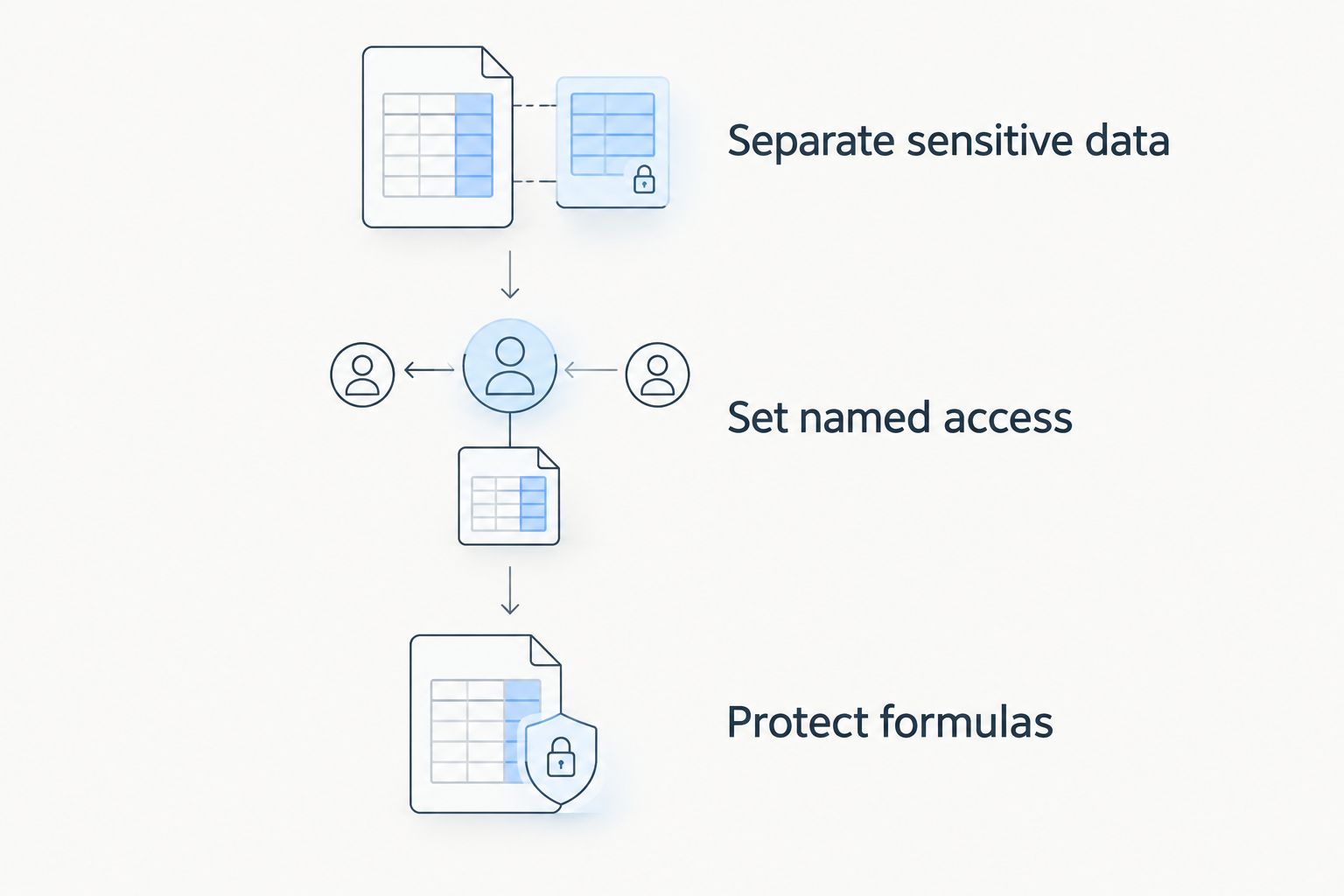
Yes—control who can open the file before controlling which cells they can edit. Use this sequence for your 2026 staff-sharing setup:
- Separate sensitive data. Remove payroll, private notes and information the team does not need.
- Set named access. Store the workbook in a business-controlled OneDrive or SharePoint location and invite specific people.
- Limit editing. Give view access to readers and edit access only to staff responsible for updates.
- Protect formulas. Unlock input cells, then protect the worksheet against accidental changes.
- Test recovery. Check access with a staff account and confirm how to recover an earlier version.
If you start with a Skillspad business template, apply the same checks before entering real customer or financial records. A template gives you a starting structure; your sharing settings determine who gets access.
Why this matters
A sales tracker can contain customer phone numbers, unpaid balances and delivery addresses alongside ordinary order details. Giving someone permission to update an order does not mean that person needs every other record in the workbook.
There are 3 separate controls to consider: file access, editing protection and recovery. File access governs entry, editing protection reduces mistakes, and recovery helps you undo damage. None replaces the others.
For a 2026 review, ask a practical question: if this workbook reached the wrong person, what information would be exposed? Remove unnecessary information before sharing rather than trying to conceal it afterwards.
Which sharing method should you use?
Choose the method around the work staff must do, not around the easiest way to send a file. These options solve different problems.
| Sharing method | Best for | Main advantage | Main limitation |
|---|---|---|---|
| Named edit access through OneDrive or SharePoint | Staff updating the working tracker | A shared working file with managed permissions | Editors can change accessible content; worksheet protection is not security |
| Named view access through OneDrive or SharePoint | Staff checking records without updating them | Prevents direct editing of the shared workbook | Viewing does not guarantee that copying or downloading is blocked |
| A separate, reduced workbook | Staff needing only a limited set of records | Keeps excluded information outside the shared file | Requires a process for preparing and updating the reduced version |
| An email or messaging attachment | A deliberate snapshot with limited information | Simple to distribute for a specific purpose | Creates copies you cannot revoke through the original file |
Use named cloud access for ongoing teamwork and a separate file when staff must not see particular information. Avoid attachments as the normal way to maintain a live tracker.
Named edit access: best for staff entering updates
Named edit access suits staff who record sales, update delivery status or correct operational details. With a supported Excel setup and a workbook stored in OneDrive or SharePoint, staff can work on the shared file rather than circulate competing attachments.
Choose the sharing option for specific people rather than an unrestricted link. Confirm each email address and check whether the invitation grants editing before sending it.
The drawback is scope: workbook editing is not the same as permission to edit only a particular customer or employee record. Do not put confidential records in a workbook simply because the intended input cells are unlocked and everything else is protected.
Use individual accounts rather than a shared team login. Individual accounts make access removal possible without changing everyone’s credentials, and they make account-level activity more meaningful.
Named view access: best for staff checking information
View access suits someone who needs to check a delivery list or read a summary without changing the working tracker. It protects the shared workbook from that person’s direct edits.
It does not make the contents impossible to copy. Download restrictions depend on the service, account and sharing settings, while screenshots and manual copying remain possible.
Before distributing your 2026 tracker, test the link using an account with the intended permission. Check what the person can see and whether downloading is available; do not judge the recipient’s experience from the owner’s account.
Choose view access to prevent changes, not to guarantee secrecy. If a reader should not possess a piece of information, leave it out of the shared file.
Separate workbooks: best for confidential boundaries
A separate workbook is the right approach when a delivery assistant needs customer addresses but not profit figures, or when a sales assistant needs order details but not payroll. Share only the fields needed for that task.
Do not duplicate the entire master workbook and merely hide the unwanted sheets. Prepare a reduced file containing only the intended information, and inspect formulas, comments, hidden content and connections before sending it.
The trade-off is maintenance. A reduced workbook needs a clear owner and an update process so staff do not act on an outdated list.
You also need a route for corrections. Decide whether staff update the reduced workbook, submit changes to the owner or use another approved entry process. Otherwise, separation protects information while creating conflicting records.
Attachments: best for deliberate snapshots
An attachment is useful when you intentionally need a fixed extract rather than a live working file. For example, you can send a reduced delivery list that excludes financial and unrelated customer information.
The limitation is control after sending. Removing someone from the original cloud workbook does not delete an attachment already saved on their phone or computer.
A password-encrypted Excel attachment adds protection against opening it without the password, but it does not provide named-user revocation. Anyone who receives the password can open the file.
Skip attachments for routine collaborative editing. Use them only when a separate copy is intentional and the contents are suitable for that recipient.
How do I protect formulas without blocking staff input?
Worksheet protection is useful for reducing accidental damage to totals and calculations. It works best when the input areas are obvious and the workbook contains no information that recipients must be prevented from seeing.
Prepare the input cells
Identify the cells staff must update, such as transaction date, order reference, amount received and delivery status. Keep calculated totals outside those input areas.
Excel cells are locked by default, but that setting takes effect when you protect the worksheet. Unlock the intended input cells first, then apply worksheet protection and choose the permitted actions.
Test realistic tasks
Try the protected workbook as a staff member would use it. Check entering a record, choosing a status, filtering the list and adding the next transaction.
Protection can interfere with ordinary work if the permissions are too restrictive. Test the actual workbook rather than assuming that every table, filter or row-insertion action will behave as intended.
Keep protection separate from confidentiality
Protecting a worksheet, protecting workbook structure and encrypting a file serve different purposes. Worksheet protection limits changes; workbook structure protection controls actions such as adding or moving sheets; file encryption requires a password to open the file.
For the protection settings themselves, see how to password-protect an Excel business tracker. Keep the opening password separate from the file when distributing an encrypted copy.
Why sharing safety varies
A workbook is not safe simply because it has a password or sits in cloud storage. These factors determine the exposure:
- Information included: A delivery status list and a payroll register need different confidentiality boundaries.
- Permission scope: View access and edit access permit different actions, but neither justifies exposing unnecessary information.
- Identity controls: Named accounts, strong passwords and multifactor authentication protect account access; shared credentials weaken accountability.
- Copy handling: Downloaded workbooks, exports and attachments create copies beyond the original file’s permissions.
- Recovery arrangements: Version history and separate backups address mistakes or loss, not whether the recipient should see the data.
- Staff changes: Access remains a risk when people leave or move into roles that no longer require the tracker.
Make these factors part of your 2026 sharing checklist. Review the workbook’s contents and its access list together; checking only one leaves the other unchanged.
What should each staff role be allowed to see?
Start with tasks, not job titles. Write down what someone must read and what someone must change before choosing a permission.
A delivery worker might need an order reference, delivery address and contact number. That task does not require the business’s profit calculations or other employees’ salary details.
A sales assistant might need to record a sale and payment status. If the workbook also contains owner-only notes or supplier negotiations, separate those records instead of relying on hidden tabs.
The principle applies to Skillspad business templates and any workbook you build yourself. Share the minimum useful record, not the fullest available record.
Give responsibility for structural changes to a designated workbook owner. Staff who enter transactions should know where to report a broken formula rather than repair calculations without review.
Can staff see hidden sheets in a protected Excel tracker?
Hidden sheets are not a confidentiality boundary. Hiding a sheet changes how the workbook appears; it does not remove that sheet’s information from the file.
If staff must not see payroll, profit calculations or private customer notes, keep that information in a separately restricted file. Do not treat hidden columns, filters or worksheet passwords as substitutes for access control.
Can I stop staff downloading or forwarding the tracker?
You cannot guarantee that someone allowed to read information will never copy it. Some Microsoft sharing configurations provide download restrictions, but availability depends on your account and settings.
Use named access, inspect the available restrictions and minimise the information shared. Removing access does not retrieve copies that recipients already downloaded.
What should I do when an employee leaves?
Remove the employee’s workbook access and address the account itself. Check direct invitations, group membership and other sharing links, and change any shared passwords the employee knew.
Where the business manages the employee’s account, follow the organisation’s account-disablement and session-revocation process. Do not assume removing one workbook invitation resolves every route to the records.
How do I recover a damaged shared tracker?
Confirm that version history is available for your actual storage setup, then learn how to inspect an earlier version before an emergency. Restoring a workbook can replace valid entries made after the version you select, so compare the records first.
Keep a separate backup process as well. Version history supports recovery within the service; a separate backup gives you another copy under a different recovery arrangement.
For your 2026 recovery check, use a disposable test workbook rather than deliberately damaging live records. Follow the guide to backing up business tracker spreadsheets when planning the additional copy.
FAQ
Can I share an Excel tracker with staff safely without giving everyone edit access?
Yes, give view access to staff who only need to read the tracker and edit access to those responsible for updates. Keep confidential information in a separately restricted file.
Is an Excel worksheet password enough to protect customer details?
No, worksheet protection is intended to restrict changes, not keep workbook contents confidential. Use file access controls and exclude customer details that recipients do not need.
Can my staff use the same login for the shared tracker?
Use individual accounts instead of a shared login. Individual accounts let you remove a person’s access without changing credentials for the entire team.
Can staff edit only their own rows in Excel?
Do not assume ordinary workbook sharing restricts staff to their own rows. If access must be separated by person or record, use separate files or a system with suitable record-level permissions.
Is sending the Excel tracker through WhatsApp safe?
Sending a workbook through WhatsApp creates a separate copy that the original workbook’s permissions cannot revoke. For ongoing work, share controlled access to the working file instead of distributing attachments.
Will removing access delete a workbook someone already downloaded?
No, removing cloud access does not delete a downloaded copy. Share only the information the recipient needs and account for copies already distributed.
Should I back up a tracker that already has version history?
Yes, maintain a separate backup process as well as version history. Check that you can recover a usable workbook and protect the backup from unnecessary access.
One last thing
A cleaner tracker can be safer than a more heavily protected tracker. Removing unnecessary salary, customer and profit information reduces what a mistaken invitation can expose.
Before sharing a Skillspad business template or an existing workbook, open it as the intended recipient. For your 2026 sign-off, verify the visible records, permitted edits and recovery route—not just whether a password prompt appears.