

To password protect an Excel business tracker, open it in desktop Excel for Windows, select File > Info > Protect Workbook > Encrypt with Password, enter and confirm a password, then save the file. This requires a password to open the saved workbook; Protect Sheet only restricts worksheet changes and does not keep the file confidential. Close the workbook and reopen it to confirm that the password prompt appears before sharing it.
- To password protect Excel business tracker files, use file encryption—not worksheet protection alone.
- Protect Sheet helps prevent accidental formula changes but does not stop someone opening the workbook.
- Test the saved file, store the password separately, and keep a protected backup.
- Skillspad business templates serve Ghanaian businesses; apply protection to your working copy before sharing sensitive records.
How to password protect an Excel business tracker
Use file encryption when your goal is to stop someone opening the tracker without a password. The steps below cover desktop Excel for Windows in this 2026 guide. Excel for Mac uses a different menu route, explained later.
Before changing protection, save a backup in a location accessible only to authorised people. If your workbook also needs a backup routine, see how to back up business tracker spreadsheets to Google Drive.
- Open the correct workbook. Check its filename and contents so you do not protect an outdated copy.
- Select File > Info. Open the workbook’s information screen in desktop Excel.
- Choose Protect Workbook > Encrypt with Password. This is the file-opening protection setting, not the similarly named command on the Review tab.
- Enter a unique password. Save it in a password manager before continuing.
- Confirm the password. Re-enter it exactly, including capital letters and symbols.
- Save and close Excel. The saved file is the version you need to test.
- Reopen the workbook. Confirm that Excel requests the password before showing its contents.
Test both outcomes: the correct password should open the file, and an incorrect password should fail. Do not treat an open workbook on your screen as proof that encryption has been applied.
Check the actual file you will send
Attachments and copied workbooks are separate files. After encryption, confirm that the attachment you select is the protected version—not an earlier export sitting in your Downloads folder.
Use 1 test row containing fictional information if you need to check a sharing workflow. Remove the test row afterwards, and never use real customer details just to test whether a colleague can open a file.
Why this matters
A sales tracker can combine customer contacts, payment records, supplier costs and profit calculations. A person who needs delivery details does not automatically need access to every worksheet in that file.
For your 2026 tracker, separate confidentiality from editing control. Encryption addresses access to the file; worksheet protection helps preserve the calculations inside it. Neither replaces careful decisions about who receives the workbook.
Which Excel protection option should you use?
Excel uses similar wording for controls that solve different problems. Choose the control according to the action you need to prevent, rather than choosing whichever password box appears first.
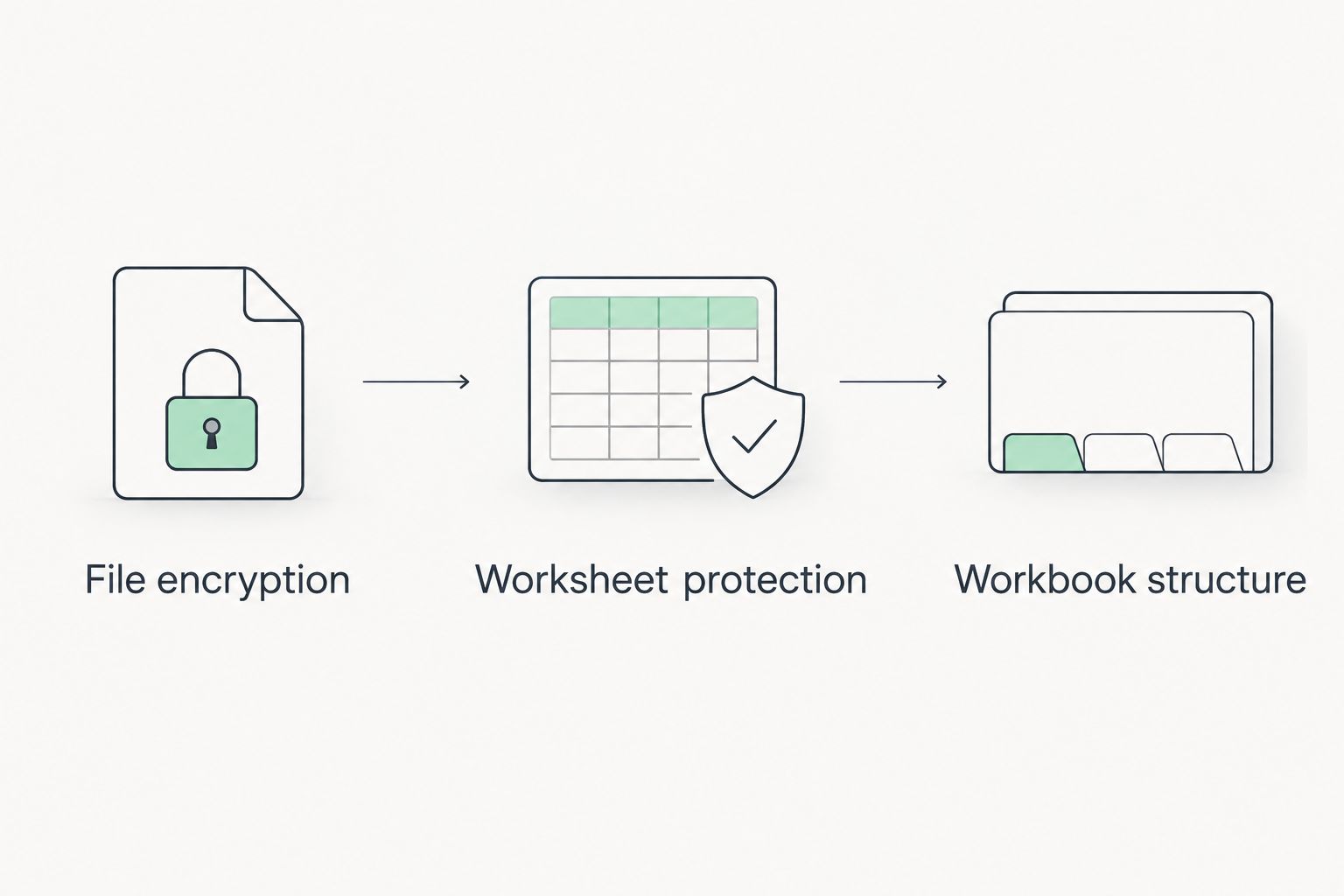
| Protection option | Best for | What it does | Main limitation |
|---|---|---|---|
| File encryption | Keeping workbook contents confidential | Requires a password to open the encrypted file | An authorised recipient can still copy or disclose information after opening it |
| Worksheet protection | Preventing accidental formula changes | Restricts changes to locked cells and selected worksheet actions | Does not encrypt the file or provide a security boundary |
| Workbook structure protection | Preserving the worksheet arrangement | Restricts actions such as adding, deleting, moving or unhiding sheets | Does not stop someone reading visible worksheet contents |
Encryption controls opening; sheet protection controls editing. Use both when you need confidentiality and a worksheet that staff can update without overwriting formulas.
File encryption: best for confidential business records
File encryption is the appropriate choice when the workbook contains information that recipients must not read without permission. Examples include payroll details, customer balances and internal profit calculations.
Its advantage is clear: someone needs the password to open the encrypted workbook. Its limitation is equally important: after opening it, an authorised person can read the information, take screenshots or copy permitted content elsewhere.
Do not distribute the whole workbook when a recipient only needs a small extract. A delivery assistant who needs customer addresses does not necessarily need your supplier costs or monthly profit worksheet.
How do I password protect the tracker on a Mac?
In desktop Excel for Mac, open the workbook and use File > Passwords to set a password to open it. Confirm the password, save, close and reopen the file to test it.
The password-to-open field is the relevant control for confidentiality. A password-to-modify setting serves a different purpose and should not replace opening protection for sensitive records.
Worksheet protection: best for preserving formulas
Worksheet protection suits a tracker where people must enter transactions but should not overwrite totals, lookup formulas or calculated balances. Configure the editable cells before turning protection on.
In Excel, cells are normally marked as locked by default, but that setting takes effect only when you protect the worksheet. If you protect everything immediately, staff can lose access to the cells they need for normal entries.
- Select the input cells. Choose the areas where staff enter dates, descriptions, quantities or payment amounts.
- Open Format Cells > Protection. Clear the Locked checkbox for those input cells.
- Leave formula cells locked. These include calculated totals and balances.
- Select Review > Protect Sheet. Set a password if you need to control who removes the restrictions.
- Choose the permitted actions. Allow the worksheet actions the tracker actually requires.
- Test normal work. Enter a fictional transaction and confirm that the formulas still calculate.
Test 3 tasks before staff use the tracker: entering a transaction, applying a filter and adding a new record. Protected worksheets can restrict ordinary actions, depending on the permissions and workbook design.
Worksheet protection prevents mistakes; it does not make sensitive information private. Microsoft Support’s guidance on worksheet protection explicitly distinguishes it from a security feature.
Workbook structure protection: best for keeping sheets intact
Use Review > Protect Workbook when you want to restrict changes to the workbook’s sheet structure. This helps preserve an arrangement of input sheets, reference tables and summary sheets.
For example, deleting a reference worksheet can disrupt formulas elsewhere in the workbook. Structure protection restricts that kind of change, but it does not encrypt the workbook or prevent reading its visible contents.
Do not rely on a hidden sheet to keep salaries or profit figures confidential. Hiding changes what appears in the interface; it is not a substitute for limiting access to the information itself.
Why the right protection setup varies
The appropriate setup depends on how your tracker is used, not whether its filename says sales, expenses or deliveries. Review these factors when preparing your 2026 working copy:
- Sensitivity: Customer contacts, staff pay and internal margins need access decisions, not just locked formula cells.
- Editing responsibilities: An owner maintaining every field needs a different setup from staff entering transactions into designated cells.
- Excel environment: Windows, Mac and browser-based workflows do not offer identical protection controls or handling of encrypted workbooks.
- Daily operations: Filtering, inserting rows and updating tables must remain usable where the tracker depends on them.
- Sharing method: An emailed attachment creates another copy; a shared file needs carefully managed access permissions.
- Recovery arrangements: A forgotten opening password and a damaged workbook are different problems, so password storage and backups both matter.
Write down who owns the file and who maintains its protection settings. Otherwise, a workbook can remain technically accessible while nobody knows which copy is authoritative.
How do you share a protected tracker safely?
Send the encrypted file and its password through separate channels. For example, send the workbook by email and communicate the password through a separately verified conversation. This reduces the risk of exposing both together in a forwarded message.
Confirm the recipient before sending anything. A strong password does not help if you give it to the wrong person, and a shared password does not identify which authorised person opened the file.
For a practical 2026 handover, keep 2 separate records: an access list showing who is authorised, and a password-manager entry holding the opening password. Do not put the password directly into the access list.
Review the information before sharing
Check worksheets, comments, notes and supporting data before distributing the workbook. Removing visible rows from a summary does not prove that the rest of the file contains no confidential information.
If the recipient only needs a report, provide an appropriately reviewed report rather than the editable source tracker. Exporting a document does not automatically remove every sensitive detail, so inspect the output before sending it.
What happens if you forget the Excel opening password?
Microsoft cannot retrieve a forgotten Excel file-opening password. Keep the password in a password manager and define an authorised recovery process before the workbook becomes essential to daily operations.
A backup only solves the problem if you can open that backup. If every copy uses the same forgotten password, simply having more copies does not restore access.
Do not upload a confidential tracker to an unfamiliar password-removal website. That sends the file to another party and creates a separate disclosure risk, regardless of whether the service succeeds.
How do you change or remove the password later?
Open the workbook using its current password. In desktop Excel for Windows, return to File > Info > Protect Workbook > Encrypt with Password, replace the existing password or clear the field, then save.
Close and reopen the saved workbook to verify the result. On a Mac, use the corresponding password fields under File > Passwords.
Changing your working copy does not change attachments or copies already sent to other people. When reviewing access in 2026, account for those older copies rather than assuming the new password protects them too.
Apply protection to the template you actually use
Skillspad business templates are best for Ghanaian businesses seeking reusable business documents. Password protection is a separate setup task: do not assume a downloaded template already has the opening restrictions or editable-cell layout your business needs.
When using Skillspad, keep an unchanged original and configure a working copy for your actual process. Template reuse provides a starting structure; you still need to check formulas, permissions and the information included before distributing a tracker.
FAQ
How do I password protect an Excel business tracker before emailing it?
Use File > Info > Protect Workbook > Encrypt with Password in desktop Excel for Windows, then save and reopen the file to test it. Attach that tested copy and communicate the password through a separate channel.
Is Protect Sheet enough to keep my sales figures private?
No, Protect Sheet does not keep sales figures private. It restricts worksheet changes; use file encryption to require a password before the workbook opens.
Can staff enter sales without changing my formulas?
Yes, unlock the input cells and leave formula cells locked before protecting the worksheet. Test data entry, filtering and new records to confirm the tracker remains usable.
Can I set an Excel opening password in my browser?
Use desktop Excel to set the file-opening password described in this guide. Do not assume that browser sharing permissions or worksheet controls are equivalent to file encryption.
Will a password stop someone taking a screenshot of my tracker?
No, a file-opening password does not stop an authorised person taking screenshots after opening the workbook. Share only the information that recipient needs.
Can Microsoft recover my forgotten Excel password?
Microsoft cannot retrieve a forgotten Excel file-opening password. Keep it in a password manager and maintain an authorised recovery process.
Does changing my password protect copies I already emailed?
No, changing the password on your current workbook does not change previously emailed copies. Those files retain their own protection settings.
One last thing
The strongest improvement is sometimes a smaller file, not another password. Before your next handover, remove information the recipient does not need from a separate distribution copy, then inspect that copy carefully.
Keep the complete working tracker under the owner’s control. This makes access decisions easier and reduces the amount of business information exposed if a shared copy reaches the wrong person.