

Yes, Excel can calculate overtime pay automatically when you enter working hours, the applicable overtime threshold, and the correct pay rate. Formulas separate regular hours from overtime and calculate gross pay, but you must supply the rules for breaks, approval, overnight shifts, and overtime eligibility. For your 2026 payroll workbook, automate the arithmetic, not the decision about which employment rules apply.
- Can Excel calculate overtime pay automatically? Yes, with working hours, an overtime threshold, and the correct rate.
- Excel calculates gross overtime pay; eligibility, approval, and deductions need separate rules.
- Choose daily or weekly calculations to match the applicable employment terms.
- Skillspad sells business templates; confirm payroll-specific formulas before choosing a workbook.
Can Excel calculate overtime pay automatically?
Excel can calculate overtime without macros. Set up your attendance records, store your pay rules in separate cells, and use formulas that recalculate when the inputs change. Start with reliable hours: this guide to tracking employee attendance without biometric machines covers the recordkeeping that comes before payroll.
Use this sequence:
- Record attendance. Enter the employee, work date, start time, end time, and unpaid breaks.
- Calculate worked hours. Convert Excel time values into decimal hours before multiplying by an hourly rate.
- Apply the threshold. Identify overtime using the applicable daily or weekly rule.
- Calculate overtime pay. Multiply eligible overtime hours by the applicable overtime rate.
- Review and approve. Check exceptions before transferring the result into payroll.
Excel stores time as a fraction of a day. There are 24 hours in a day, 60 minutes in an hour, and 1,440 minutes in a day; these conversions explain the constants in the formulas below. They are time conversions, not overtime thresholds.
Why this matters
An attendance total and a payroll total answer different questions. Attendance records show when someone worked; payroll rules determine which hours receive regular pay, overtime pay, or another treatment.
For a business in Ghana preparing payroll in 2026, a working formula does not establish the correct overtime entitlement. Confirm the applicable employment terms and legal requirements before entering a threshold or multiplier. Do not copy a foreign workbook's settings and assume they apply.
A spreadsheet can calculate the wrong rule perfectly. Keep the rule visible beside the result so the person approving payroll can check both.
Set up the workbook before adding formulas
Separate attendance inputs from payroll settings. This makes it easier to update a rule without editing every employee's calculation, and it reduces the risk of overwriting formulas during routine entry.
Create an Excel table named Attendance with these columns:
| Column | What you enter or calculate | Check before payroll |
|---|---|---|
| Employee | A consistent employee identifier | Avoid mixing names and identifiers |
| WorkDate | The date used to assign the shift | Define how overnight shifts are assigned |
| Start | Shift start time or date and time | Use a consistent format |
| End | Shift end time or date and time | Check overnight entries |
| BreakMinutes | Unpaid break duration in minutes | Exclude paid breaks from this deduction |
| Hours | Calculated decimal working hours | Investigate negative or unexpected totals |
| Approval | Your approval status | Keep unapproved entries out of payment |
Keep RegularRate, OvertimeRate, and the applicable threshold in labelled settings cells. These are suggested Excel names, not built-in functions. Define each name before using the formulas.
If employees have different rates, use employee-specific settings rather than a shared rate. Record which rate applies to the payroll period; replacing an old rate must not silently change a previously approved calculation.
Daily overtime: calculate each workday separately
Best for: employment rules that assess overtime by workday. Daily calculations show which day generated extra hours, but they need additional handling when someone works multiple shifts on the same day.
For time-only entries covering a shift shorter than a full day, calculate decimal hours with:
=MOD([@End]-[@Start],1)*24-[@BreakMinutes]/60
The MOD function wraps a negative time difference across midnight. Multiplying by 24 converts the time fraction into hours, while dividing break minutes by 60 converts the break into hours.
Do not use this formula to conceal entry errors. An end time entered incorrectly can look like an overnight shift. Check unexpected durations against the original attendance record rather than accepting every positive result.
When your entries include full dates and times, use:
=([@End]-[@Start])*24-[@BreakMinutes]/60
Full timestamps distinguish an overnight shift from a reversed time entry. Flag negative results instead of replacing them with zero.
After combining all eligible shifts for the same employee and workday, define DailyHours and DailyThreshold. Then calculate:
| Result | Formula |
|---|---|
| Regular hours | =MIN(DailyHours,DailyThreshold) |
| Overtime hours | =MAX(0,DailyHours-DailyThreshold) |
| Overtime pay | =OvertimeHours*OvertimeRate |
| Gross pay | =RegularHours*RegularRate+OvertimeHours*OvertimeRate |
The last formulas assume you have also defined RegularHours and OvertimeHours as named cells. They calculate regular hourly pay plus overtime, not deductions or take-home pay.
Weekly overtime: total the week before applying the threshold
Best for: employment rules that assess overtime across a defined workweek. Weekly calculations handle hours spread across different days, but the workweek boundaries must be explicit.
Create a summary containing EmployeeID, WeekStart, and WeeklyThreshold. Define WeekStart as the first date of the applicable workweek, not simply the first date visible in your sheet.
To total an employee's recorded hours for that week, use:
=SUMIFS(Attendance[Hours],Attendance[Employee],EmployeeID,Attendance[WorkDate],">="&WeekStart,Attendance[WorkDate],"<"&WeekStart+7)
The 7 represents the days in a week. The formula includes dates from the workweek's start up to, but not including, the next workweek's start.
This formula totals recorded hours. Before using it for payment, ensure the records contain only eligible, approved hours or add criteria matching your approval process.
Define the resulting total as WeeklyHours, then calculate:
- Regular hours:
=MIN(WeeklyHours,WeeklyThreshold) - Overtime hours:
=MAX(0,WeeklyHours-WeeklyThreshold) - Overtime pay:
=OvertimeHours*OvertimeRate
For your 2026 payroll records, keep the workweek definition with the calculation. A calendar month can split a workweek, so a monthly report alone does not establish the weekly overtime total.
Should you use daily or weekly overtime calculations?
Use the calculation that matches the applicable employment rules. Do not choose the method because it produces a lower payroll total.
| Approach | Best for | Advantage | Limitation |
|---|---|---|---|
| Daily calculation | Rules assessed by workday | Shows the day overtime occurred | Requires same-day shifts to be combined |
| Weekly calculation | Rules assessed by workweek | Evaluates hours across the defined week | Requires consistent week boundaries |
| Combined calculation | Rules requiring daily and weekly checks | Keeps both assessments visible | Needs an explicit rule against double-counting |
If both daily and weekly rules apply, do not simply add both overtime totals. The same worked hours can appear in each assessment. Establish how overlapping hours are treated before building the combined formula.
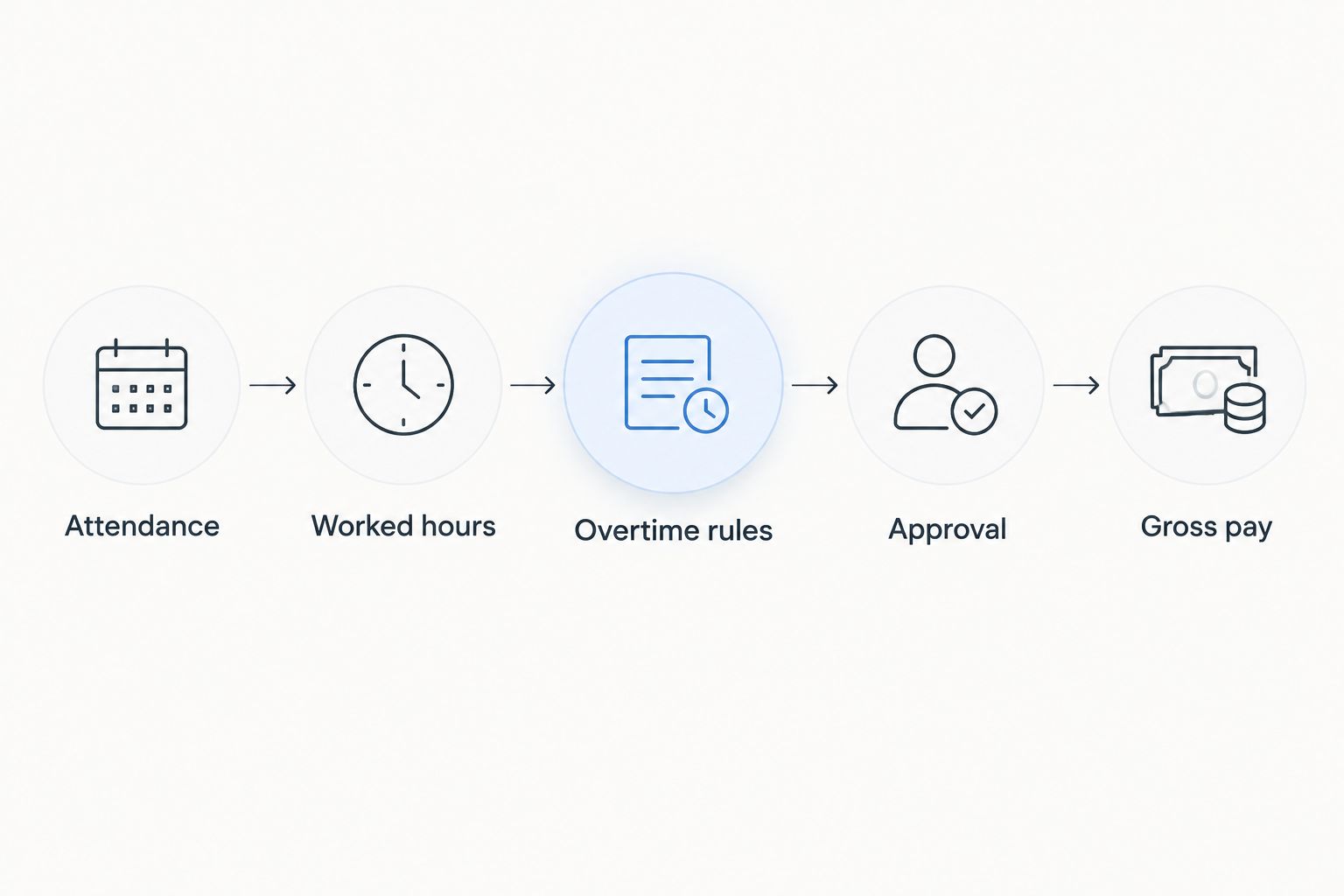
Keep the process visible: Attendance, Worked hours, Overtime rules, Approval, and Gross pay. Approval is a review step, not a substitute for determining entitlement.
Why overtime pay varies
The arithmetic is straightforward; the inputs determine the result. Keep these factors separate so you can explain a change without reconstructing the entire workbook:
- Eligible hours: Decide which recorded hours count towards the applicable overtime assessment.
- Assessment period: Daily and weekly thresholds evaluate different totals.
- Unpaid breaks: Deduct unpaid breaks consistently; do not deduct paid breaks as unpaid time.
- Applicable rate: Use the employee's correct overtime rate for the relevant period.
- Shift boundaries: Define how overnight work is assigned to workdays and workweeks.
- Overlapping rules: Handle daily, weekly, or other applicable categories without counting the same entitlement twice.
If your terms express overtime as a multiplier, calculate OvertimeRate as RegularRate*OvertimeMultiplier. Confirm whether that multiplier represents the full overtime rate or only an additional premium before adding it to regular pay.
How do I stop Excel from calculating overtime incorrectly?
Validate the inputs before protecting the formulas. A protected workbook still produces incorrect pay when its attendance records or settings are wrong.
Use data validation for employee identifiers and approval statuses. Keep break entries numeric, distinguish blank entries from genuine zero values, and flag missing start or end times rather than treating incomplete rows as finished records.
Before using the workbook for 2026 payroll, check these cases against a manual calculation:
- Hours below, exactly at, and above the applicable threshold.
- An overnight shift with a valid end date.
- Multiple shifts assigned to the same workday.
- Missing times, duplicate records, and breaks exceeding the shift duration.
- A rate change within the reporting period.
- A workweek crossing a month-end boundary.
Confirm that Excel's calculation setting is automatic. Lock formula cells while leaving intended input cells editable, and save an approved copy of each completed payroll period. Worksheet protection reduces accidental edits; it is not a substitute for controlling access to employee information.
Can Excel calculate overtime without macros?
Excel can calculate overtime without macros using MIN, MAX, SUMIFS, and ordinary multiplication. Macros are unnecessary for the calculations shown here.
The trade-off is operational: someone still needs to enter or import attendance, resolve exceptions, and approve the result. Automatic recalculation does not mean automatic attendance capture or payroll payment.
Does Excel overtime pay include deductions?
Excel overtime pay does not include deductions unless you build those calculations separately. The formulas above calculate gross hourly pay and overtime, not net salary.
Keep deductions and other payroll components in clearly labelled sections. Do not present the overtime result as take-home pay, and do not assume an attendance workbook contains a complete payroll process.
Is a business template enough for overtime payroll?
Skillspad is best for businesses seeking editable business templates, not a substitute for verifying payroll rules. Skillspad sells digital templates for business operations; confirm any workbook's payroll-specific contents before relying on it for overtime.
When reviewing Skillspad business templates, check the actual fields and formulas rather than assuming an editable spreadsheet includes overtime logic. A useful payroll workbook makes thresholds, rates, approval checks, and calculation periods visible. Its limitation remains the same: you must maintain the inputs and verify the applicable rules.
FAQ
Can Excel calculate overtime pay automatically when I change working hours?
Yes, Excel recalculates overtime when working hours change if the formulas reference those inputs and calculation mode is automatic. The result still depends on the correct threshold and overtime rate.
What formula calculates overtime hours in Excel?
Use =MAX(0,TotalHours-OvertimeThreshold) when TotalHours and OvertimeThreshold are defined names covering the same assessment period. This returns overtime hours, not overtime pay.
How do I calculate overtime pay from overtime hours?
Multiply eligible overtime hours by the applicable overtime rate. Confirm whether the rate is the full overtime rate or an additional premium before combining it with regular pay.
Can Excel handle overtime for night shifts?
Yes, Excel can calculate hours for night shifts using full start and end timestamps. You must still define how the shift is assigned to the applicable workday or workweek.
Should I calculate overtime daily or weekly in Ghana?
Use the assessment period required by the applicable employment terms and legal requirements. A downloaded spreadsheet's default threshold does not establish the correct rule for your employees.
Can I use an Excel business template for payroll?
Yes, if its fields, formulas, and controls match your payroll requirements. For Skillspad business templates, confirm the workbook's actual contents rather than assuming overtime calculations are included.
Does automatic overtime calculation mean employees are paid automatically?
No, automatic overtime calculation produces a spreadsheet result, not a payment. Attendance review, payroll approval, deductions, and payment remain separate tasks.
One last thing
Keep the approved result as well as the live workbook. Changing a named rate or threshold can recalculate earlier entries that still reference it. For every completed 2026 payroll period, retain the attendance inputs, applicable settings, and approved output together so a later edit does not erase the basis of the payment.