

Yes—Excel can support automatic order confirmation messages when you connect an order table to an email or messaging workflow; worksheet formulas alone do not send messages. In 2026, a practical setup uses Power Automate to check eligible orders and send email, while WhatsApp requires a separate messaging integration and its own permissions.
- Excel automatic order confirmation messages require a sending workflow; formulas only prepare the message content.
- Power Automate suits cloud-based Excel email workflows; a scheduled check is not an instant order trigger.
- VBA suits supported desktop setups, but depends on macro permissions and the email application.
- Record sending status against each order to reduce duplicate confirmations and make failures visible.
Can Excel send automatic order confirmation messages?
Excel stores the order; an automation service or supported desktop script sends the confirmation. The distinction matters because a message appearing in a worksheet cell has not reached your customer.
Start with a consistent order register. If orders arrive through different channels, first track orders from multiple platforms in one spreadsheet so the sending workflow reads a controlled list rather than scattered records.
These are the main routes to assess in 2026:
| Route | Best for | Main advantage | Main limitation |
|---|---|---|---|
| Power Automate with Excel and email | Orders stored in a supported cloud workbook | Separates order records from the sending process | Requires compatible accounts, connections, and a correctly structured table |
| Excel VBA with classic Outlook on Windows | A supported desktop workflow with someone maintaining it | Can prepare or send email through desktop automation | Depends on macros, application support, and the computer being available |
| Excel connected to a WhatsApp messaging service | Customers who need WhatsApp confirmations | Uses the chosen messaging channel | Requires a separate integration and compliance with WhatsApp messaging rules |
Choose the route your business can maintain, not just the route that sends a successful demonstration message. Someone must own failed sends, changed credentials, and corrections to customer details.
Why this matters
An order confirmation tells the customer what your business has recorded. It should distinguish an order received from payment verified and goods dispatched; those are different events.
For a Ghanaian business accepting mobile money, entering a transaction reference is not the same as verifying payment. Keep payment status separate from confirmation status so your automation does not describe an unpaid order as paid.
Automation also repeats mistakes consistently. A wrong email address, duplicated order, or premature status change becomes a customer-facing problem unless you check the record before sending.
How do you set up Excel order confirmation emails?
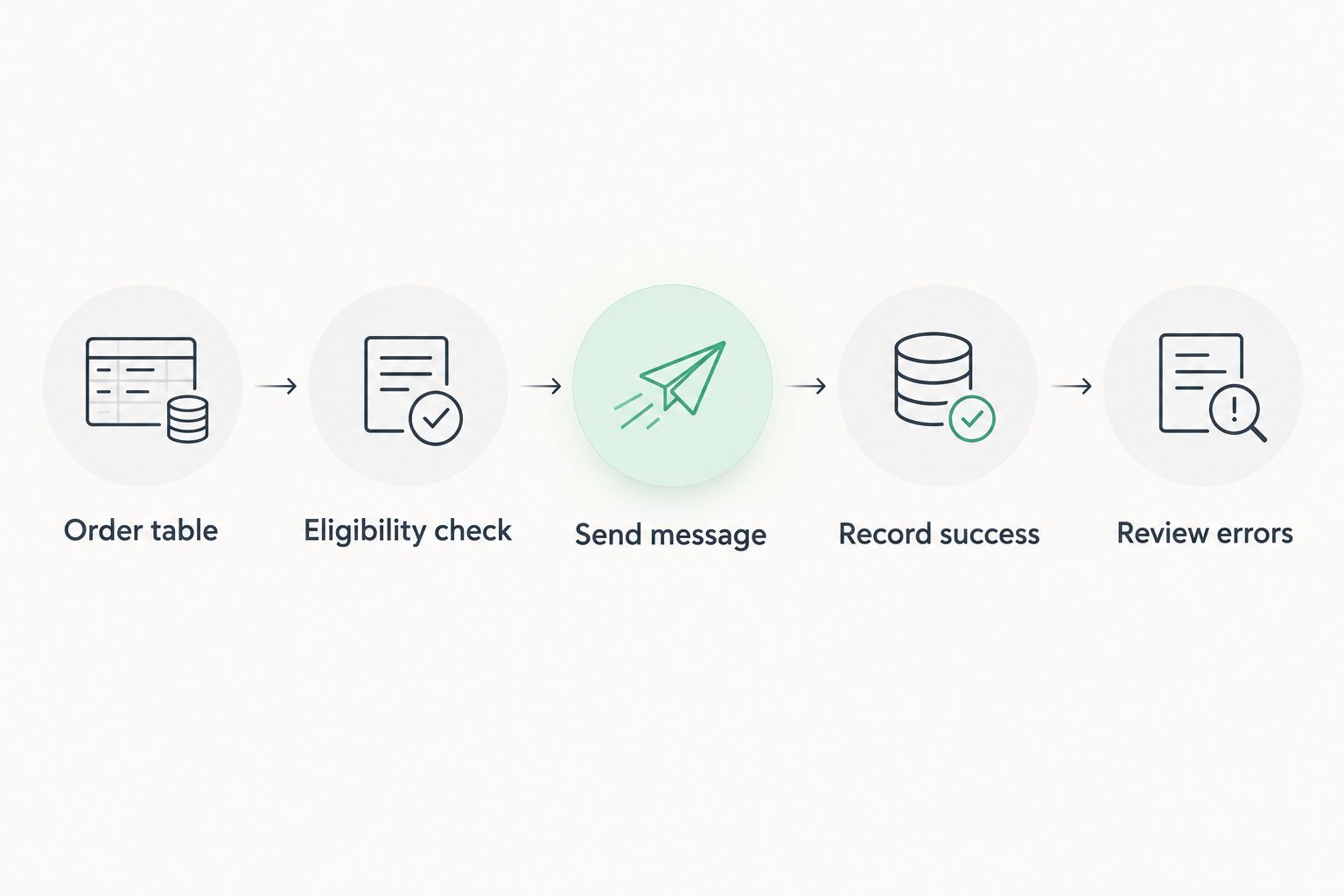
Use the following 6 steps as a setup checklist. This example uses a scheduled Power Automate cloud flow, an Excel table, and an email connection—not a promise that every edited cell triggers an email immediately.
1. Build a structured order table
Use 1 row per order for the confirmation queue. Format the data as an Excel table rather than leaving it as an ordinary worksheet range, because the Excel Online (Business) connector works with table-based actions.
Start with these 10 columns:
- Order ID
- Customer name
- Customer email
- Order summary
- Order status
- Payment status
- Confirmation status
- Sent at
- Message reference
- Error note
Use a stable, unique Order ID. Do not rely on a row number that changes when someone sorts or deletes records.
If an order contains several items, keep its item details in a separate table linked by Order ID. Otherwise, a workflow reading each item row can send several confirmations for the same order.
2. Put the workbook in a supported location
For the Excel Online (Business) route, use a supported workbook stored in OneDrive for Business or SharePoint. A file sitting only on your laptop is not the same cloud-flow setup.
Confirm that the connected account can read the order table and update sending fields. Test those permissions before adding customer-facing email actions; a workflow that can read but cannot write back leaves an incomplete record.
For your 2026 setup, check the current connector documentation and your account entitlements before selecting the workflow. Do not assume that an existing Excel account includes every automation connection you need.
3. Define exactly when an order qualifies
Create a scheduled flow with a Recurrence trigger, then use the Excel action to list rows present in the table. Filter for records that are ready for confirmation and have not already been marked as sent.
A useful eligibility rule is:
Order status is Ready, customer email is present, and confirmation status is Pending.
Only add verified payment as a requirement if the message specifically confirms a paid order. An acknowledgement of an unpaid order needs different wording from a payment confirmation.
Do not assume Excel Online (Business) supplies a general automatic trigger for every newly added or edited row. A scheduled check is a straightforward alternative; its timing depends on the configured schedule and flow execution.
4. Prepare and send the message
Map the customer email column to the recipient field in your email action. Build the subject and body from the same order record, using the Order ID as the reference the customer can quote later.
Include the business name, order reference, order summary, payment status, and a genuine way to ask for a correction. Include delivery information only when it has been confirmed for that order.
Use wording that matches the event:
- Order received: acknowledge the recorded order without claiming payment or dispatch.
- Payment verified: confirm payment only after your verification process updates the record.
- Order dispatched: send a separate update after dispatch is recorded.
Keep internal notes out of the customer message. A staff comment explaining a payment investigation belongs in your records, not in an automatically generated email.
5. Record success and handle uncertainty
After the sending action succeeds, update the order with a sent status and timestamp. Save a message reference when the sending service returns one, and record useful error information when an action fails.
A successful send action does not prove that the customer read the message. It also does not always prove inbox delivery; bounces and channel-specific delivery information need separate handling.
Prevent overlapping runs where possible. If a send succeeds but the Excel update fails, check the sending history before retrying, because the order can still appear unsent in the workbook.
6. Test before enabling unattended sending
Create 2 test orders using contact details you control: an eligible order and an ineligible order. Confirm that only the eligible order sends, then run the workflow again to check that it is not sent twice.
Next, test a missing recipient, an invalid address, and a record that needs correction. A successful demonstration is not enough; you need to see how the workflow handles errors and repeat runs.
Can Excel send confirmations through Outlook without Power Automate?
Excel VBA can automate supported classic Outlook desktop workflows on Windows. A macro can read an order row, prepare an email, and either display it for review or request that Outlook send it.
This route suits a maintained desktop process, especially when someone needs to inspect messages before release. It is not equivalent to an unattended cloud service: the computer, Excel, Outlook configuration, and macro permissions become dependencies.
Do not assume a macro written for classic Outlook works in the new Outlook for Windows, Outlook on the web, or a Mac environment. Application support differs, so test the exact setup your staff use in 2026.
For a business without someone responsible for maintaining VBA, prefer a workflow whose failures staff can inspect without editing code. A working macro becomes a liability when nobody understands its sending rules.
Can Excel automatically send WhatsApp order confirmations?
Excel needs a separate WhatsApp messaging integration to send unattended WhatsApp confirmations. A worksheet can prepare message text or a link that opens a conversation, but opening a conversation is not the same as sending automatically.
A business messaging workflow needs an authorised connection, correctly formatted phone numbers, and compliance with WhatsApp's consent and message-template requirements where applicable. Check the current requirements with the chosen provider before activating the workflow.
If you only need staff-assisted messaging, a prepared message can reduce retyping without granting unattended sending access. The trade-off is clear: a person still reviews and sends each confirmation.
For documents sent alongside messages, see the WhatsApp Business invoice workflow. Keep invoice delivery separate from the decision about when an order acknowledgement should fire.
Why Excel confirmation reliability varies
In 2026, reliability depends on the complete workflow, not the appearance of the spreadsheet. Check these factors before relying on automatic confirmations:
- Workbook structure: renamed tables or columns can break actions that depend on those names.
- Order identity: duplicate or changing identifiers make it harder to distinguish a new order from an existing one.
- Account access: expired connections or changed permissions can stop reading, sending, or status updates.
- Trigger design: scheduled checks behave differently from event-driven order systems and do not promise instant delivery.
- Concurrent activity: overlapping runs and simultaneous edits complicate status updates and duplicate prevention.
- Failure handling: retries need special care when the message was sent but the workbook was not updated.
Give a named staff member responsibility for reviewing failures. An error log that nobody checks is a record of problems, not a resolution process.
What should you look for in an order-tracking template?
Skillspad suits businesses seeking digital business templates; automatic messaging requires a separate, verified sending workflow. Start with the records you need to manage, then assess whether the workbook can support your chosen connection.
When assessing a Skillspad business template for this use, check for stable order references, consistent customer fields, editable status columns, and a structure that can be used as an Excel table. Do not treat a sales tracker, profit tracker, and order-confirmation queue as interchangeable.
The advantage of a template is a starting structure for your records. The limitation is equally important: a spreadsheet file alone does not establish an email connection, obtain messaging permissions, or guarantee duplicate-free sending.
For Skillspad templates, assess the actual file and stated features before purchase. Do not assume automatic email or WhatsApp sending is included.
FAQ
Can Excel send an order confirmation without any extra setup?
No. Excel formulas can prepare confirmation text, but sending requires a configured automation service, supported script, or messaging integration.
Can Excel send an email as soon as I add an order row?
Not through a general automatic new-row trigger in the Excel Online (Business) connector. A scheduled Power Automate flow can check eligible rows, but it is not an instant row-added event.
Will automatic confirmations work when my laptop is off?
A cloud flow can run without your laptop when its workbook and connections are hosted in supported cloud services. A local VBA workflow depends on its desktop environment being available.
Can an Excel formula send a WhatsApp message?
An Excel formula does not send a WhatsApp message by itself. It can prepare text or a conversation link, while unattended sending needs a separate messaging integration.
How do I stop the same order confirmation being sent twice?
Use a unique Order ID, a sending-status field, and controls against overlapping runs. Review sending history before retrying when the message action succeeded but the status update failed.
Does sending an order confirmation mean payment is confirmed?
No. Order receipt and payment verification are separate events, so use different statuses and message wording for each.
Do Skillspad templates automatically send order messages?
Do not assume a Skillspad template includes automatic messaging. Verify the stated file features and the separate sending connection before using it for customer confirmations.
One last thing
The most dangerous retry is the one after a successful send and a failed status update. Your spreadsheet can say Pending even though the customer already has the confirmation.
Before enabling unattended sending in 2026, deliberately check that failure path. Your business needs a way to investigate an uncertain send—not just a button that sends again.