

Instead of retyping export details into every buyer email, prepare a checked pro forma invoice, export it as a PDF and send it with a clear approval request. This 2026 workflow shows you how to email a pro forma invoice to international buyers using Excel for Windows and Gmail, then handle revisions without confusing the order.
- To email pro forma invoice to international buyers, send a checked PDF with a clear reference and approval request.
- Skillspad is best for business owners seeking digital business templates.
- Keep the editable spreadsheet internally; send the buyer the approved PDF version.
- Confirm currency, delivery responsibilities and payment instructions before sending an export invoice.
Why this matters
A pro forma invoice sets out proposed transaction details before the final commercial invoice. International buyers can use it to review an order, arrange payment or support an application where the receiving institution accepts it. It is not proof that payment has arrived.
The email and attachment must describe the same transaction. A revised quantity in the message does not fix an outdated attachment. Start with the pro forma invoice templates for Ghana exporters guide if you need help structuring the document before sending it.
For your 2026 export records, keep the document, sent message and buyer response connected by a consistent reference. A polished document cannot compensate for conflicting currency, destination or delivery instructions.
Before you start
- Accounts and software: Have access to the sender's Gmail account, Excel desktop for Windows and permission to use the business's approved payment details. The menu instructions below apply to that setup.
- Order information: Collect the buyer's legal name, billing and delivery addresses, contact email, goods descriptions, quantities, currency and agreed commercial terms. Confirm which details the buyer's bank or destination authority requires.
- The setup trap: Excel's print area can exclude invoice rows or payment instructions from the PDF. Check the exported document itself before attaching it; checking the spreadsheet alone is not enough.
Choose a reusable document with editable transaction fields. Skillspad sells digital business templates; check the selected template's actual contents rather than assuming it includes export documentation or email automation.
Invoice workbook configuration
Prepare the transaction record
- Open your working invoice in Excel. Use File, then Save As, to create a separate working copy before replacing any previous buyer's details.
- Enter a unique invoice reference, issue date and validity date. Label the document Pro forma invoice so the buyer can distinguish it from a final commercial invoice.
- Add the seller and buyer details. Keep the billing address separate from the delivery address when they differ.
- Enter goods descriptions, quantities and units of measure. State the transaction currency explicitly; a currency symbol alone can be ambiguous across countries.
- Record the agreed payment terms and delivery arrangements. If the parties use an Incoterms rule, include the agreed rule and named place rather than a standalone abbreviation.
- Review the calculations and any charges included in the total. Confirm who handles freight, insurance, import duties and taxes wherever those responsibilities affect the agreement.
Do not guess a commodity classification, origin declaration or regulatory statement. Obtain the correct information from the responsible person, freight adviser or relevant authority before including it.
Expected result: Your workbook describes a single proposed transaction, with consistent buyer details, currency and delivery terms.
Choose the buyer-facing format
For this workflow, send the PDF and retain the editable workbook internally. That gives the buyer a fixed document to review while preserving your source file for corrections.
| Document format | Best for | Advantage | Limitation |
|---|---|---|---|
| Buyer review and approval | Preserves the exported page layout | Corrections require a new export | |
| Editable workbook | Internal preparation and calculations | Lets you update fields and formulas | Recipients can alter the document and encounter layout differences |
An editable workbook is not inherently unsuitable for sharing. Send one only when the buyer specifically needs it and you have checked it for internal notes, unrelated worksheets and information that should remain private.
A PDF is also not proof of authenticity. Verify the sender, recipient and payment instructions separately from the file format.
PDF export configuration
Set the page boundaries
- Select the cells that belong in the buyer-facing document. Include the document heading, line items, totals and payment or delivery notes.
- Open Page Layout, select Print Area, then choose Set Print Area.
- Open File, then Print, to inspect the preview. Check whether descriptions, totals or terms spill onto an unintended page.
- Adjust the layout as needed. Avoid shrinking a long invoice until the text becomes difficult to read; additional readable pages are better than compressed text.
- Return to the workbook and correct anything missing before exporting.
Expected result: The print preview includes the complete invoice, with readable text and no unrelated worksheet content.
Export and inspect the attachment
- Open File, select Export, then select Create PDF/XPS and the Create PDF/XPS button.
- Choose your destination folder and enter a filename containing the invoice reference and revision identifier. Include the buyer name only if it suits your document-handling policy.
- Select Publish to create the PDF.
- Open the exported PDF independently. Read the buyer details, currency, totals, payment instructions and final page.
- Compare the PDF against the agreed order before approving it for sending.
Expected result: You have 1 approved PDF for the current revision, and its contents match the working invoice.
Make these 2 checks mandatory: compare the attachment with the order, then compare the outgoing email with the attachment. These are recommended review steps, not a guarantee against mistakes.
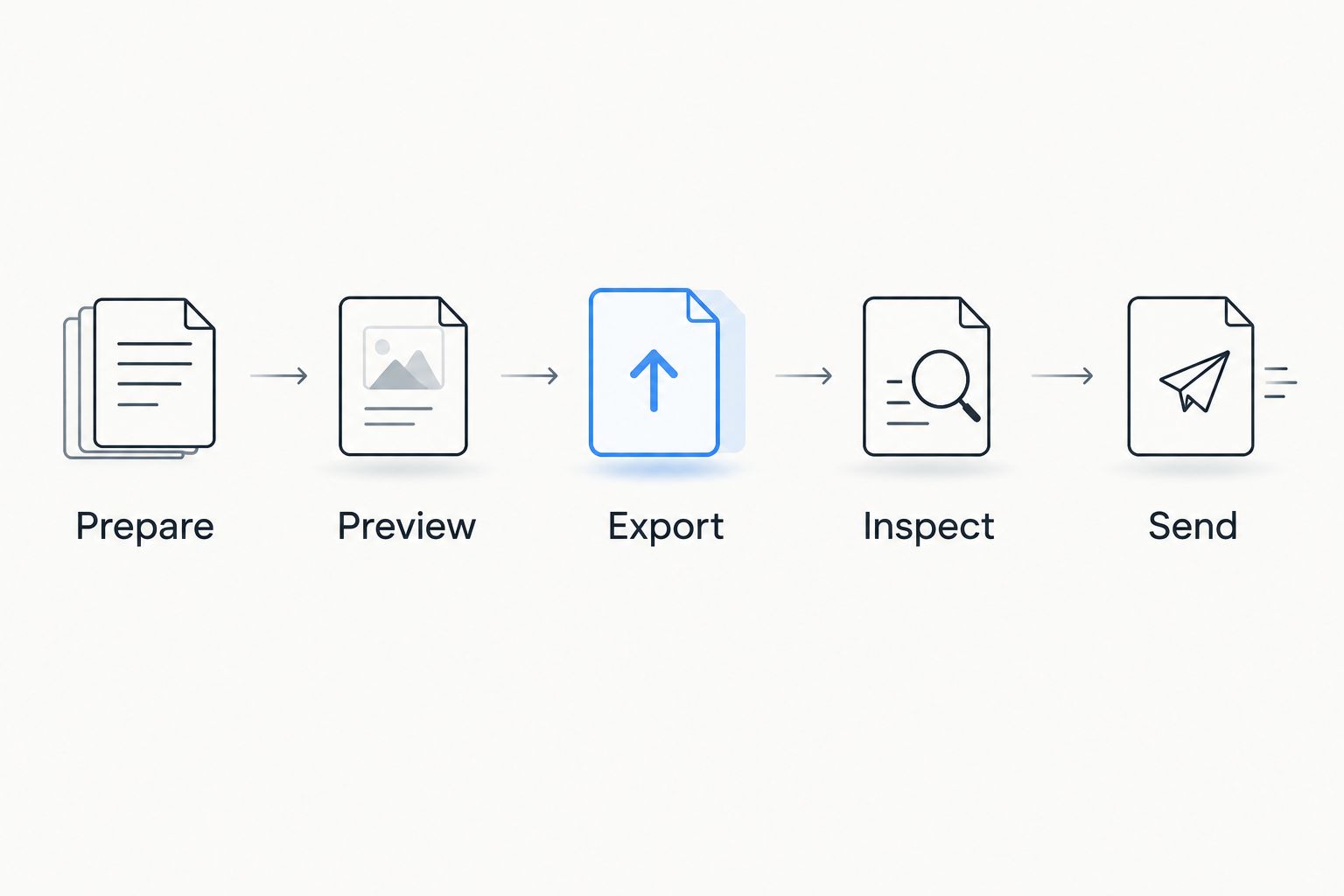
The sequence separates preparing a document from approving the file you actually send. Keep that separation even when you reuse the same template for every order.
Buyer email configuration
Compose the message in Gmail
- Select Compose in Gmail.
- Enter the confirmed buyer address in To. Check the full address rather than relying only on the displayed contact name.
- Enter a Subject containing the document type, invoice reference and your business name. Add a revision identifier when replacing an earlier document.
- Write a short message identifying the attachment, the order it covers and the action you need from the buyer.
- Select Attach files and choose the approved PDF. Check the filename displayed in the draft.
- Open the attachment from the draft and verify it again. Select Send only after the recipient and attachment checks are complete.
Expected result: The correct buyer receives the approved document with an explicit request to confirm, correct or proceed.
Use the following structure for your 2026 export correspondence. Replace the descriptive wording with your actual transaction details; do not send it unchanged.
- Subject: Pro forma invoice, followed by the actual invoice reference and seller name.
- Opening: State that the attached document covers the buyer's requested goods.
- Review request: Ask the buyer to confirm quantities, currency, delivery address and agreed terms.
- Next action: Explain whether you need written approval, corrected details or payment under the agreed terms.
- Closing: Give the business contact responsible for questions about the order.
Do not repeat every invoice line in the email. Repetition creates another place for details to become inconsistent. Keep the attachment as the transaction detail record and use the message to explain the decision required.
Record the send event
Create a simple tracking record with the invoice reference, revision, buyer, recipient address, date sent and current status. Add the next action and the person responsible for it.
Use statuses that describe observable events, such as draft, sent, revision requested, approved and payment confirmed. Buyer approval and payment confirmation are different events. Record payment only after checking the appropriate financial record.
For this workflow, keep 1 order per email thread wherever practical. If a buyer uses a different thread, record that correspondence against the same invoice reference so the order history remains traceable.
Send a revised invoice after a buyer changes an order
A revision workflow is useful when the buyer changes quantities, delivery details or other agreed terms. Do not edit an old PDF and leave the underlying workbook unchanged.
- Open the source workbook and save a new revision. Preserve the earlier version in your records.
- Make the agreed changes and review every affected calculation and term.
- Export a replacement PDF and inspect it using the same checks as the original.
- Reply in the existing order thread where practical. Identify the replacement revision and summarize what changed.
- State clearly that the new attachment replaces the previous pro forma invoice. Ask the buyer to confirm the revised terms before the next action.
- Update the tracking record with the new revision and send date.
Expected result: Both parties can identify the current proposal without reconstructing changes from scattered messages.
Keep a short change note in your 2026 order record. A revised delivery address deserves the same attention as a revised quantity because it can affect transport arrangements and documentation.
Troubleshooting
The PDF cuts off rows or payment instructions
Return to Excel and inspect Print Area and the preview under File, Print. Correct the selected range or page layout, export again and open the replacement PDF before sending it. Changing the workbook does not update a PDF already attached to a draft.
The buyer cannot open the attachment
First, confirm that the attachment is the exported PDF rather than an Excel shortcut or another file. Open your sent copy to check that it works. If the buyer's organisation blocks attachments, agree on an approved alternative delivery method and verify access before relying on it.
The message contains the wrong revision
Correct the source record, prepare the approved replacement and send an explicit correction. Identify which document is withdrawn and which revision replaces it. Do not assume that deleting your local file removes the copy already delivered to the buyer.
The buyer questions changed bank details
Pause the payment request and verify the instructions through a previously established contact method. Do not rely solely on a reply within the same email thread to validate a bank-detail change. Resume only after the authorised parties confirm the correct instructions.
The buyer asks for customs clearance using the pro forma
Confirm the document requirements with the buyer and relevant customs or freight adviser. A pro forma invoice is not a universal substitute for a commercial invoice. Prepare the required transaction documents rather than relabelling an unverified file.
Customize your workflow
Build the next layer around order status, not around sending more messages. Connect the invoice reference to your sales record, payment confirmation and delivery record so you can answer what has been agreed, received and dispatched.
Skillspad business templates are a starting point for reusable business records. Their advantage is a repeatable document structure; the limitation is that you still need to verify transaction details, maintain version control and follow the buyer's documentation requirements.
For your 2026 process, decide who prepares invoices, who approves payment instructions and who sends revisions. If you handle all these tasks yourself, use separate preparation and review passes rather than treating typing as approval.
Browse Skillspad for business templates, then check the selected document against your actual workflow. Do not assume a template sends emails or connects to accounting software unless its stated features confirm that capability.
FAQ
How do I email a pro forma invoice to international buyers?
Prepare the invoice, export it as a PDF and attach it to an email identifying the order and required next action. Check the recipient, currency, delivery terms and payment instructions before sending.
Should I send a pro forma invoice as Excel or PDF?
Send a PDF for buyer review and retain the editable Excel workbook internally. Share an editable workbook only when there is a specific reason and you have checked it for information that should remain private.
Can an international buyer pay against a pro forma invoice?
A buyer can use a pro forma invoice to arrange payment when the parties and relevant financial institution accept it. The document itself does not confirm that payment has been received.
What should the email subject line contain?
Include the document type, invoice reference and seller name. Add a revision identifier when the attachment replaces an earlier proposal.
Which currency should a Ghana exporter use?
Use the currency agreed with the buyer and state it explicitly on the invoice. Confirm that the payment arrangement supports that currency before sending instructions.
Can I use a pro forma invoice for customs clearance?
Do not assume a pro forma invoice satisfies customs requirements. Confirm the required documents with the buyer and the relevant customs or freight adviser for the shipment.
What should I do when the buyer changes the order?
Create a new revision from the source workbook, export a replacement PDF and explain that it supersedes the previous document. Keep the earlier version and record what changed.
One last thing
The attachment in your draft matters more than the latest file in your folder. Editing the workbook after attaching a PDF does not update that attachment. If anything changes, export again, remove the old attachment and attach the checked replacement before sending.