

Instead of rewriting receipts or visiting a print shop for every sale, print receipts from your phone in Ghana by saving a completed template as a PDF and sending it to a compatible printer. This 2026 workflow covers Android, iPhone and print-shop handoffs, with a separate process for issuing an invoice before payment and a receipt afterwards.
- To print receipts from phone in Ghana, export a completed template as PDF before printing.
- Skillspad business templates suit Ghanaian businesses that want reusable documents rather than handwritten receipts.
- Android and iPhone printing require a compatible printer; Bluetooth pairing alone does not establish compatibility.
- Keep invoices, payment receipts and sales tracker entries connected through document references.
Why this matters
A receipt records payment received. An invoice requests payment. Printing the wrong document creates confusion even when the customer name and total are correct.
Skillspad business templates are best for Ghanaian businesses that want reusable documents for everyday administration. Start with a suitable document from Skillspad, then check its file format and editing requirements before building your printing routine. A template supplies the document structure; it does not establish that your phone and printer can communicate.
For your 2026 process, separate document preparation from printing. Finish the information first, create the PDF second, and inspect the print preview before using paper. That separation also gives you a file you can send to a customer or print shop without sharing your editable master.
Before you start
- An editable document and a suitable editor: Use a receipt or invoice template your phone can open and edit. Keep the original untouched. The Android route below uses Google Drive to open the finished PDF and requires access to a Google account; the iPhone route uses Files.
- A confirmed printing route: Have access to a printer that supports your phone's printing method, or a print shop that accepts PDFs. Confirm the paper size and whether the printer needs a manufacturer app before preparing your document.
- The compatibility check: Bluetooth pairing is not proof that a printer accepts ordinary PDFs. Some receipt printers require a particular app or document format. Confirm the supported workflow before buying equipment or transferring customer information.
Choose your printing route
These are alternative ways to print the same finished document, not interchangeable printer connections. Pick the route that matches the equipment you already have.
| Printing route | Best for | Advantage | Limitation |
|---|---|---|---|
| Android system printing | Android users with a supported printer or print service | Prints a finished PDF through the phone's print interface | Printer discovery depends on network access and the installed print service |
| iPhone AirPrint | iPhone users with an AirPrint-compatible printer | Uses the built-in print interface | Requires an AirPrint-compatible printer and a reachable network connection |
| Print-shop handoff | Businesses without their own printer | Lets you provide a finished document without configuring a printer | You must confirm paper size, handling and customer-data privacy |
| Printer-specific receipt app | Businesses using a compatible narrow-paper receipt printer | Matches the workflow to the printer's supported receipt format | A full-page invoice template does not automatically fit receipt paper |
Choose compatibility before convenience. A printer-specific app is useful only when it supports both your device and the document you need to produce. Skillspad templates still need a compatible editor and a suitable output layout.
Document preparation
Create the customer copy
- Duplicate your receipt or invoice template before entering customer details. Give the working copy a recognisable filename, such as
Invoice-2026-CustomerName-Reference. - Set the document type correctly. Use an invoice when requesting payment and a receipt when acknowledging money received.
- Enter your business details, customer details, document date, reference and transaction description. For a receipt, record the payment method and relevant transaction reference without including unnecessary personal information.
- Check quantities, calculations and payment status. For part payments, distinguish the amount received from the balance outstanding.
- Export or save the completed document as a PDF using your editor's PDF output function. Open that PDF before printing; do not assume the editable document and exported file look identical.
Expected result: You have a finished PDF that clearly identifies the transaction and contains no blank placeholders, clipped text or incorrect payment status.
Keep information within the printable area. A4 measures 210 mm by 297 mm; a narrow receipt roll is a different layout, not simply a smaller sheet. Shrinking an A4 invoice onto receipt paper can make the text unreadable.
Check the output layout
- Review every PDF page on your phone. Zoom in on the customer name, transaction reference, totals and payment status.
- Confirm the intended paper size. For a short receipt, aim for 1 page rather than allowing a signature line or total to spill onto another sheet.
- Remove unused rows only if doing so preserves the template's formulas and structure. Re-export the PDF after any edit.
- Keep the editable file and the finished PDF separate. Use the PDF for delivery and printing; retain the editable version for controlled corrections.
Expected result: The PDF is ready to print without another person adjusting your spreadsheet, fonts or document margins.
The repeatable sequence is Prepare, Export, Preview, Print, Archive. Use that same sequence for each customer document rather than changing the process whenever you switch printing locations.
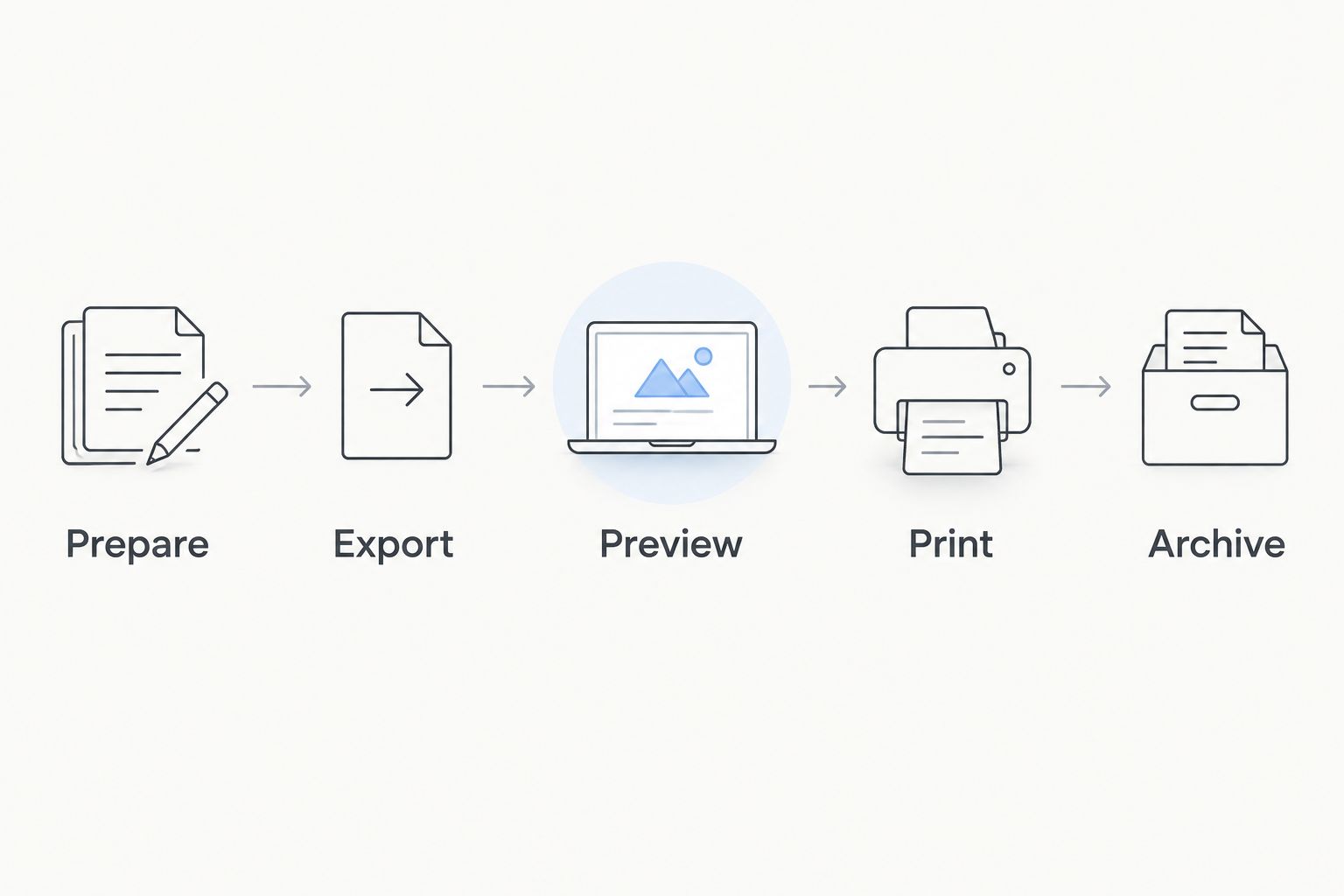
Phone printing setup
Android PDF printing
- Open the finished PDF in Google Drive on your Android phone. Check that you have opened the customer copy, not the blank master.
- Open the file's More menu and select Print. Menu placement differs between app versions; if your viewer has no print command, use a PDF viewer that supports Android printing.
- Select the destination printer in the system print screen. If it is absent, check the printer connection and whether the manufacturer requires an Android print service or app.
- Check paper size, orientation, page range and copy count. Inspect the preview before pressing the print control.
- Print a test document containing no customer information before sending a real receipt through a newly configured printer.
Expected result: The printer produces a readable page with the same transaction details shown in the PDF preview.
An Android phone and a wireless printer generally need a supported connection, such as the same local network or a manufacturer-supported direct connection. Mobile data alone does not place your phone on the printer's Wi-Fi network. Follow the printer manufacturer's connection instructions rather than repeatedly resending the job.
iPhone PDF printing
- Save the completed PDF in Files and open it. Confirm the document reference before continuing.
- Tap Share, then Print. Scroll through the share-sheet actions if the print action is not immediately visible.
- Tap Printer and select an AirPrint-compatible printer. For the standard AirPrint route, connect the iPhone and printer to the same Wi-Fi network.
- Review the page preview and the available print options. Confirm the copy count and page range.
- Tap Print, collect the output and compare it with the PDF before handing it to the customer.
Expected result: Your iPhone sends the PDF through AirPrint and the printed document matches the file you reviewed.
If the printer does not support AirPrint, check its manufacturer's supported iPhone workflow. Installing an unrelated printing app does not guarantee compatibility. For a dependable 2026 routine, record the working connection method alongside your printer instructions.
Print-shop handoff
Use this variant when you have no compatible printer or need a document printed away from your usual location. The editing process stays on your phone; only the finished PDF leaves it.
- Ask the print shop whether it accepts PDFs and how it receives files. Confirm the paper size before sending anything.
- Send only the finished customer PDF through the agreed channel. Do not send a workbook containing other customers' transactions.
- Specify the paper size, orientation, page range and copy count in your message. Do not rely on the filename to communicate printing instructions.
- Ask for a preview or inspect the first printed sheet before requesting additional copies. If you need 2 copies, identify which is for the customer and which is for your records.
- Collect the document and ask the operator to delete the transferred customer file when the job is complete.
Expected result: The print shop receives a self-contained document and clear instructions, without access to your editable business records.
This route avoids printer setup, but it adds a privacy handoff. Remove information the customer document does not need, and never include account passwords or payment authorisation details.
Issue a receipt after an invoice is paid
An invoice-to-receipt workflow is the useful second variant: request payment first, then acknowledge the payment actually received. Do not simply rename an unpaid invoice as a receipt.
- Keep the original invoice and its reference. Confirm payment against your own payment records rather than relying only on a customer-supplied screenshot.
- Create a separate receipt and reference the related invoice. Record the payment date, payment method and amount received.
- For a part payment, show the remaining balance clearly. Do not mark the invoice fully paid while money remains outstanding.
- Export the receipt as a PDF and follow your established printing route. File the invoice and receipt together without overwriting either document.
Expected result: Your records distinguish what the customer owed from what the customer paid.
For 2026 recordkeeping, use consistent document references across your invoice, receipt and sales records. Your document numbering system should make a transaction traceable without exposing more customer information than necessary.
Troubleshooting
The printer does not appear
Check that the printer is powered on and connected through the method your phone supports. For network printing, check the phone's Wi-Fi connection; a guest network can prevent devices from discovering one another. On Android, confirm any required print service is enabled; on iPhone, confirm AirPrint support.
The receipt prints too small or cuts off
Match the PDF paper size to the printer paper and inspect the scaling setting. A full-page invoice needs a full-page output route unless you deliberately redesign it for narrow paper. Do not solve clipped text by shrinking everything until the customer cannot read it.
The PDF differs from the editable template
Return to the editor and check the page layout, print area and line wrapping. Spreadsheet exports can include unintended blank pages or omit content outside the selected print area. Correct the source file, export again and inspect the new PDF.
The printer produces duplicate copies
Check the print queue before resending a delayed job. A connection interruption does not prove the first job was cancelled. Cancel unwanted queued jobs and verify the copy count before trying again.
The customer details are wrong
Stop distribution and correct the underlying record. If the incorrect document has already been issued, keep a traceable correction rather than silently replacing the archived copy. Use the same corrected PDF for the customer and your records.
Customize your workflow
Connect document creation to transaction tracking, not just printing. Keep a record of the document reference, customer, payment status and related delivery information. Update that record when you issue an invoice, receive payment or complete delivery.
Skillspad sells business templates, including spreadsheet trackers intended for business administration. Keep the boundary clear: a template helps organise information, while you remain responsible for entering accurate transactions and checking the output.
Before adopting a template as your standard 2026 document, check whether you can edit it comfortably on your phone. Review formulas, required fields and PDF output. A complicated layout that needs repeated manual repairs is a poor fit for a phone-first process, even if it looks attractive on a larger screen.
FAQ
How do I print receipts from my phone in Ghana?
Complete a receipt template, export it as a PDF and print through a compatible phone-to-printer connection or a print shop. Review the PDF and paper size before sending the job.
Can I print a receipt from my phone without owning a printer?
Yes. Send the finished PDF to a print shop through its accepted transfer method, with clear paper-size and copy instructions. Avoid sharing the editable master or other customers' records.
Can every Bluetooth printer print a PDF receipt?
No. Bluetooth connectivity does not establish PDF support or compatibility with your phone's print interface. Check the printer's supported app, file format and paper layout.
How do I print an invoice from an iPhone?
Open the invoice PDF, tap Share, choose Print and select an AirPrint-compatible printer. Connect the iPhone and printer to the same Wi-Fi network for the standard AirPrint workflow.
Should I send a receipt before the customer pays?
No. Use an invoice to request payment and a receipt to acknowledge payment received. For part payments, record the amount received and distinguish it from the remaining balance.
Is a template receipt automatically a valid tax invoice in Ghana?
No. A template alone does not establish compliance with Ghana's tax-invoicing requirements. Confirm the current Ghana Revenue Authority requirements that apply to your business before treating a document as a tax invoice.
Why does my receipt print across several pages?
The document layout or print area extends beyond the selected paper size. Review margins, unused rows and page scaling in the editor, then export and inspect a fresh PDF.
One last thing
Keep a digital copy even when the customer wants paper. A printed receipt does not replace your transaction record. Archive the final PDF with its reference and payment record, so you can retrieve the document without reconstructing it from messages or handwritten notes.